Tracking production without planning lets an operator start a production run with a PO number that has not been scheduled beforehand on the platform. If the PO does not yet exist in the database, it is created directly from the tablet by assigning a product to it.
1. Activating the option on the platform
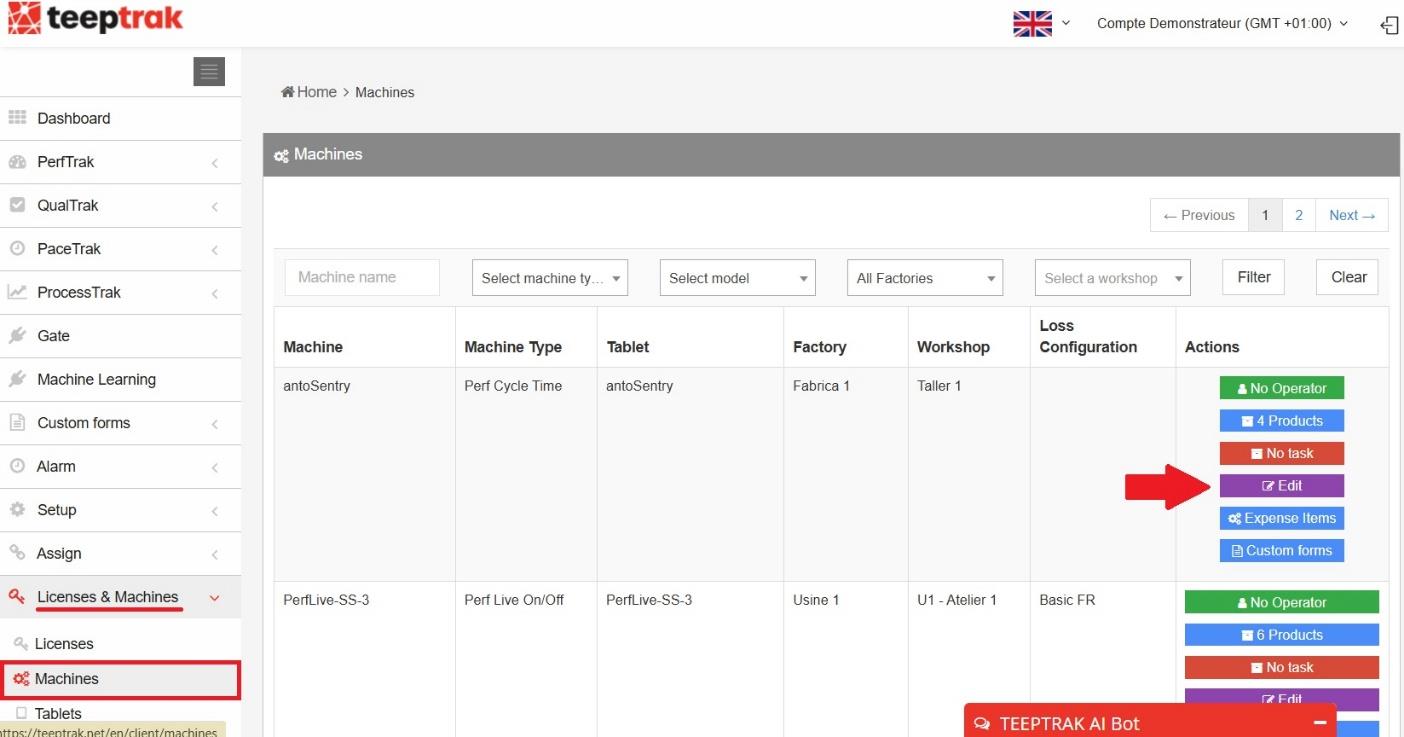
On teeptrak.net, go to Licenses & Machines, then click Machines. To modify the configuration of the machine concerned, select the Edit button on the left of the table.
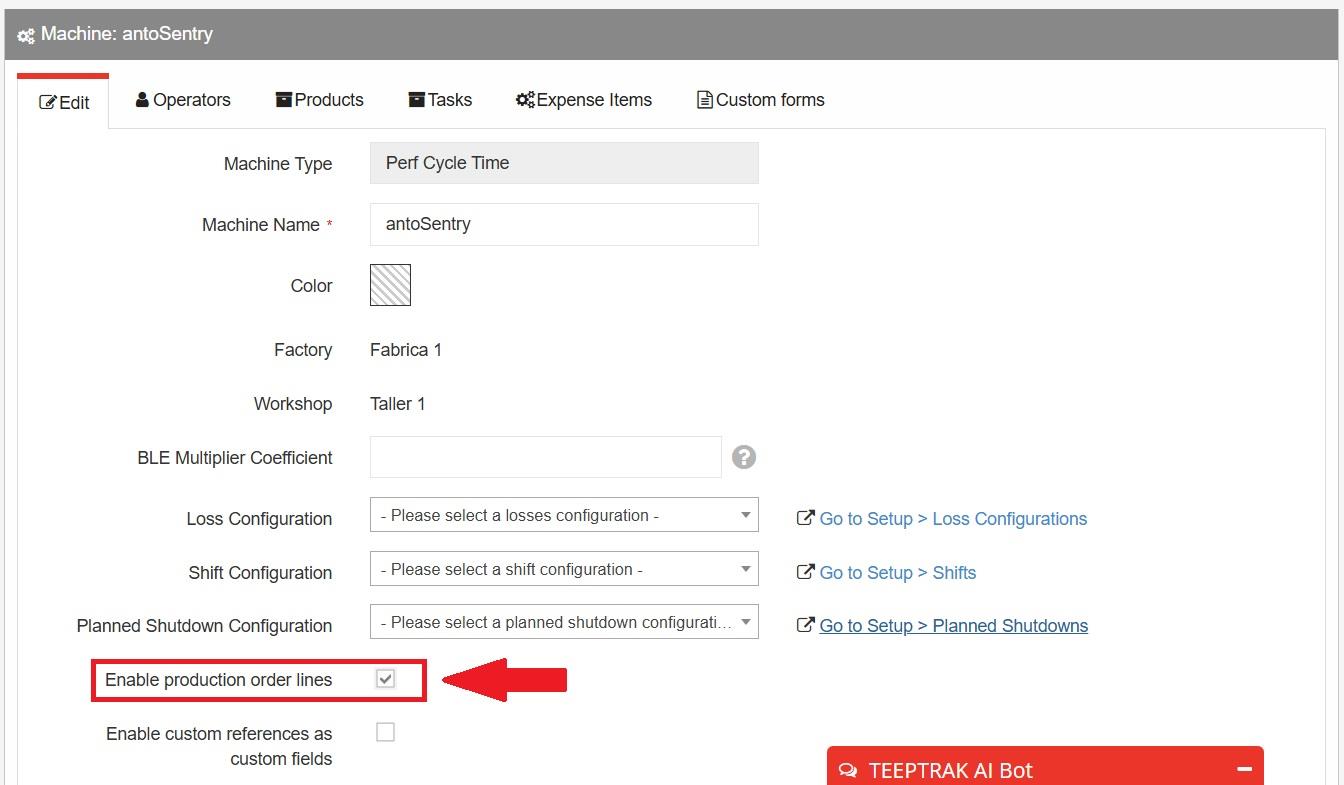
Tick the box Enable production order lines and save your changes.
2. Activating the option on the tablet
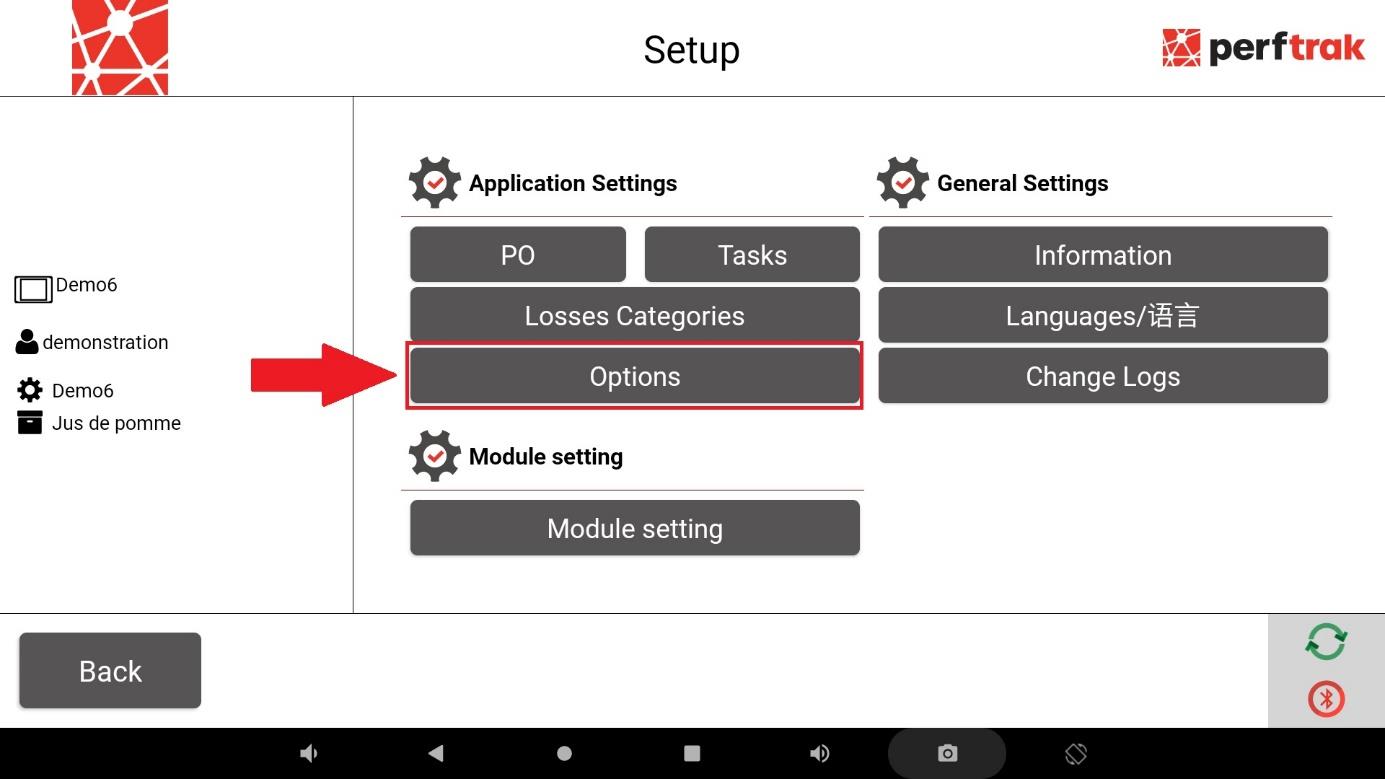
To enable the tracking of POs without planning on the PerfTrak tablet, go to the settings and select Options.
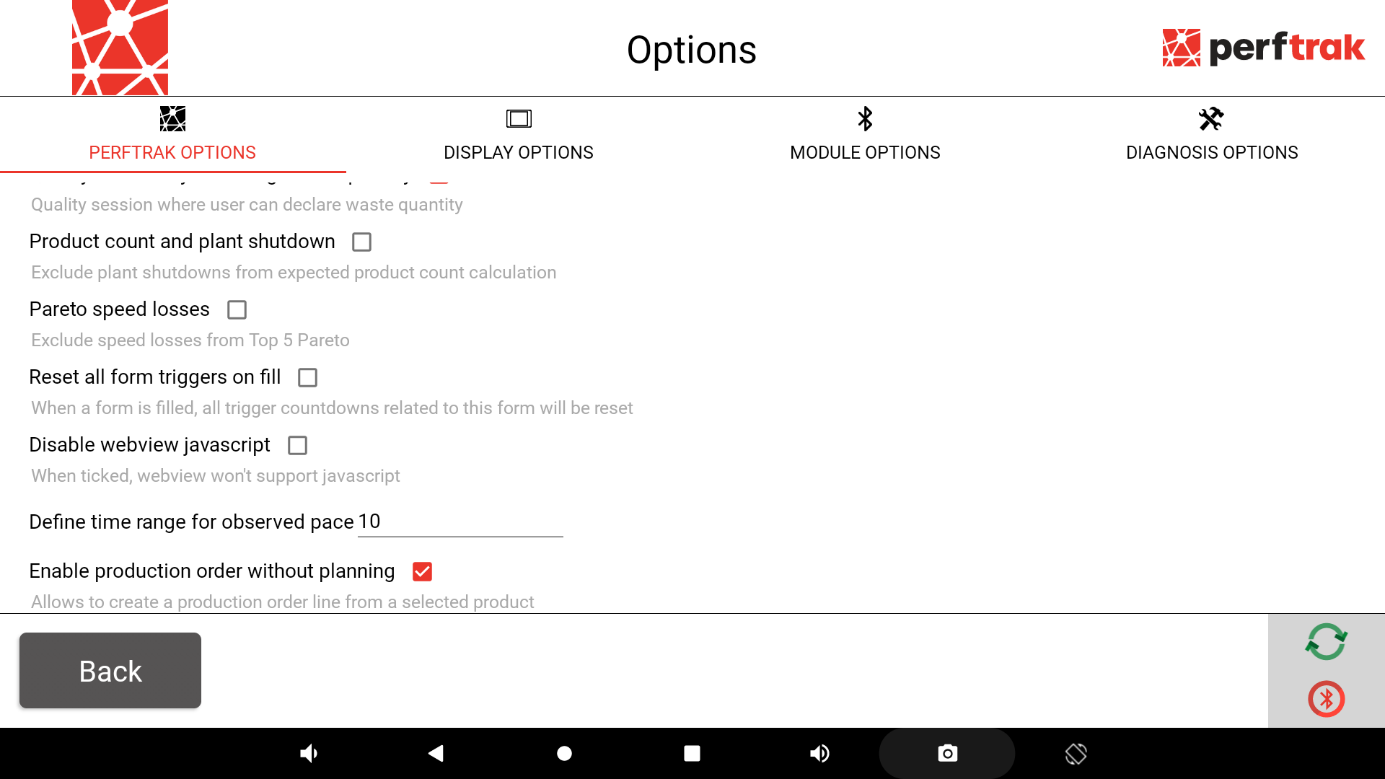
At the bottom of the PerfTrak options section, activate the option Enable production order without planning.
3. Displaying the POs
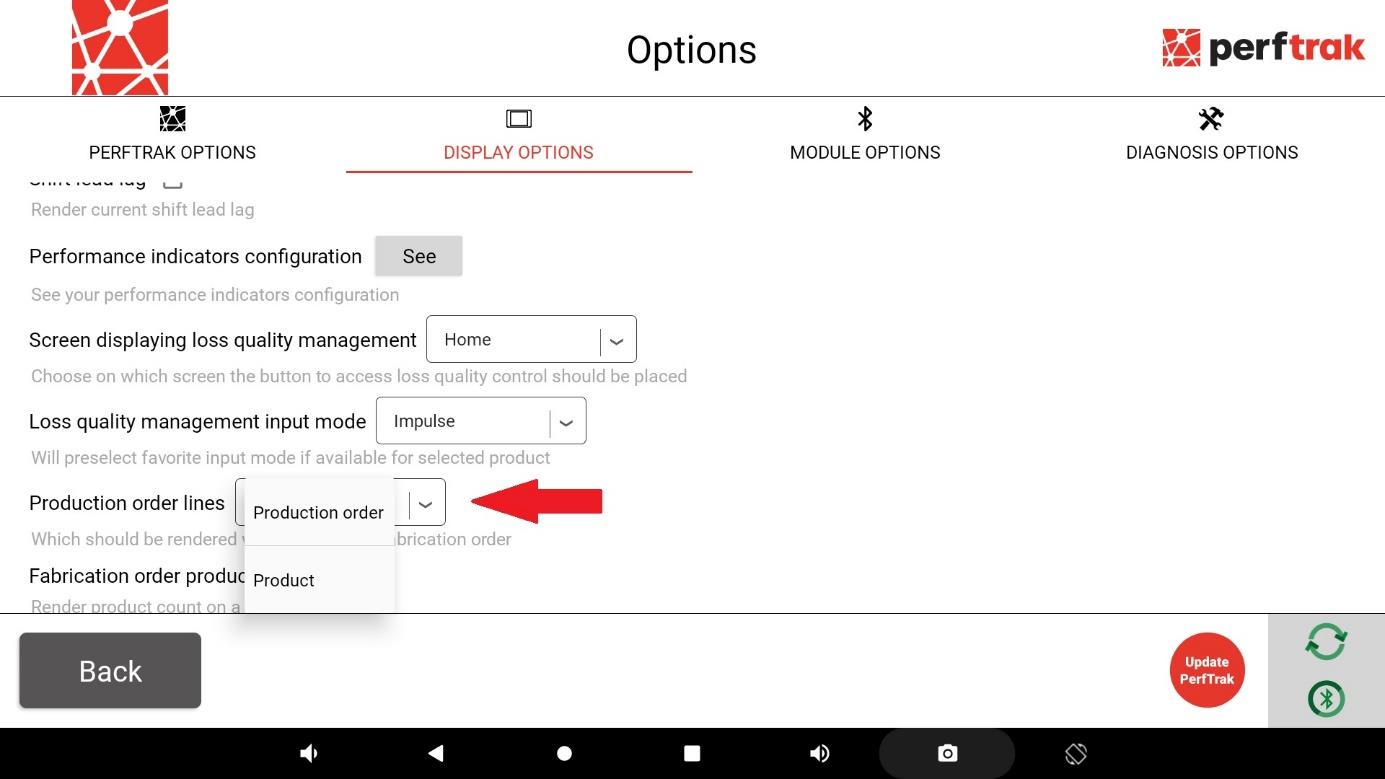
Still in the tablet settings, switch to the Display options tab. To enable the display of the production order, select Production order on the Production order lines row.
This is what allows production to start with a PO number.
4. Using POs without planning
To start using unscheduled POs, simply press Change PO.
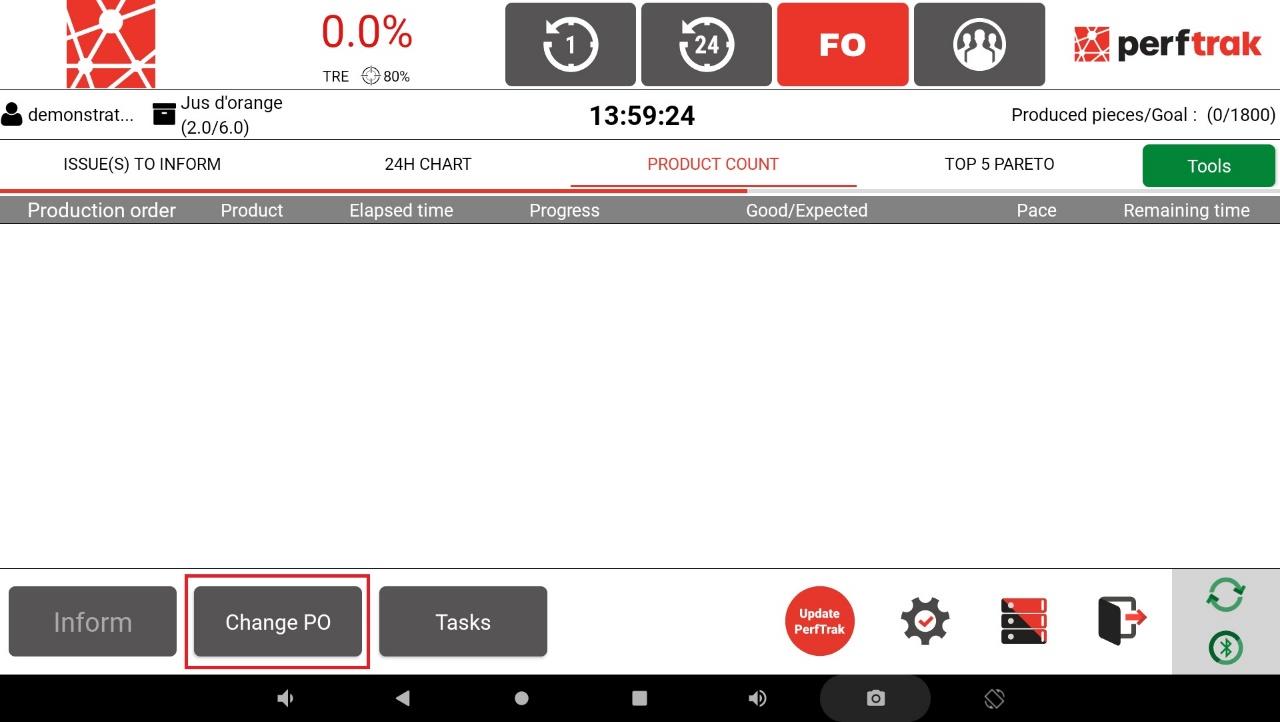
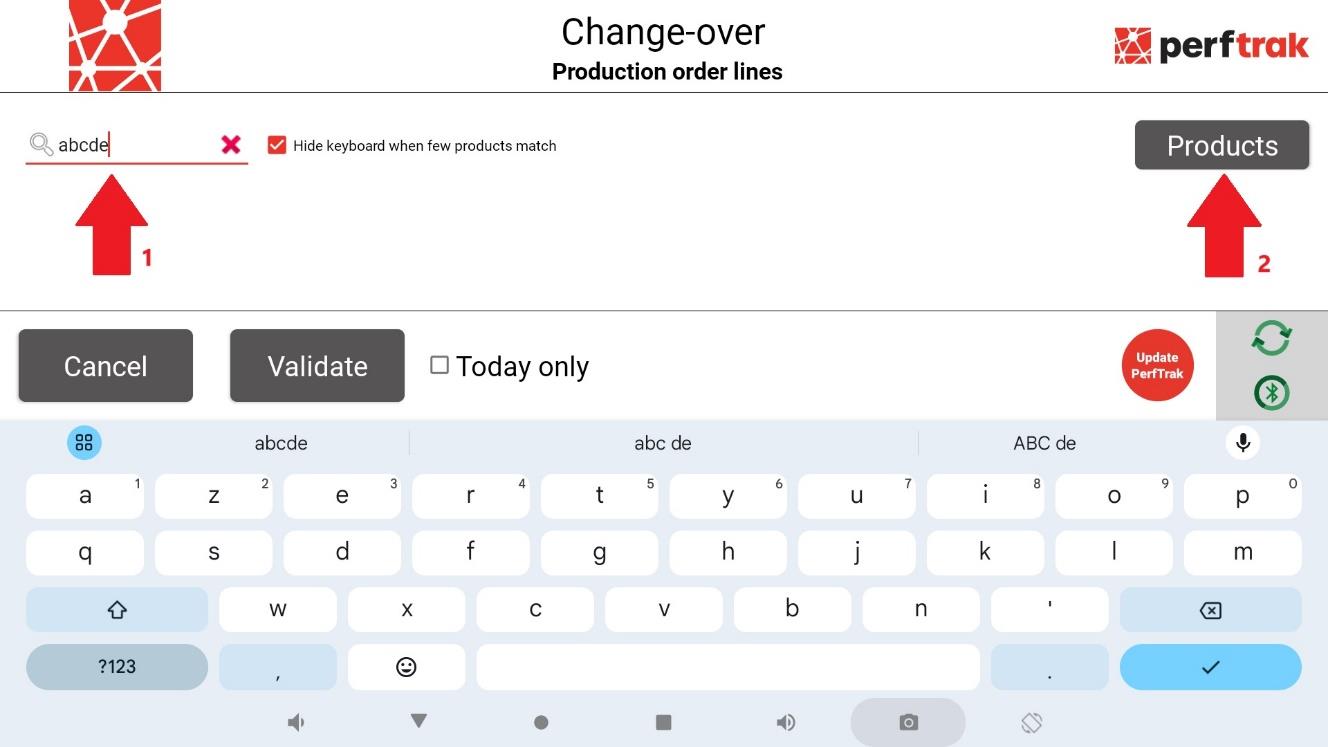
The existing POs are displayed. You can use the search bar to find a specific one. After entering your PO number in the search bar, two outcomes are possible:
- The PO appears — it was already scheduled in the database, and you can select it.
- The PO does not exist — you then need to create it by assigning a product to it. To do so, press the Products button.
Then select the product associated with the PO and, if needed, enter the quantity to be produced.
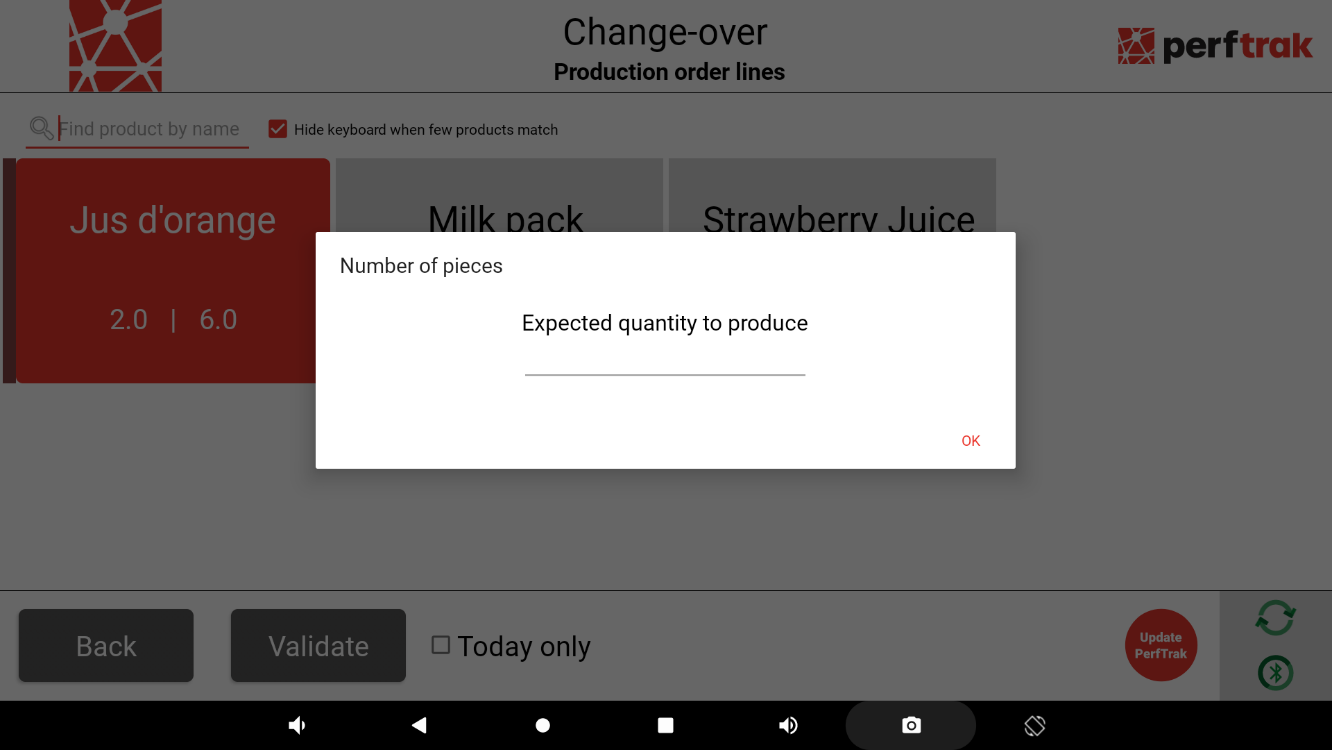
You are now using production tracking with unscheduled POs.