Overview
Under-production lets the operator indicate on the tablet that a piece of equipment is no longer running at full capacity, without stopping production. PerfTrak then automatically records the corresponding loss.
It applies to products made in simultaneous batches, defined by a grouping coefficient: a 6-cavity mould, a 4-head machine, a multi-station tool. The operator enters the number of heads actually active; the difference with the coefficient is counted as under-production.
Typical use cases:
- a mould with one or more unusable cavities;
- a filling head or nozzle out of order on a multi-head machine;
- a replacement tool with a lower capacity than the nominal tool.
The feature is available in product mode and in production order (PO) mode, on tablets in cycle time mode only (not in Start&Stop mode).
Calculation principle
On each cycle, PerfTrak counts as many parts as there are active heads. The missing parts are not scrap: they were never produced. The corresponding time is booked as an "Under-production" performance loss; quality is not affected.
Under-production parts per cycle = Coefficient − Number of active heads
Time booked per cycle = (Under-production parts ÷ Coefficient) × Cycle time
| Coefficient | Active heads | Parts produced per cycle | Under-production per cycle | Under-production share |
|---|---|---|---|---|
| 4 | 4 | 4 | 0 | 0 % (standard operation) |
| 4 | 3 | 3 | 1 | 25 % |
| 6 | 4 | 4 | 2 | 33 % |
| 20 | 12 | 12 | 8 | 40 % |
Example: 8-head mould, 40 s cycle
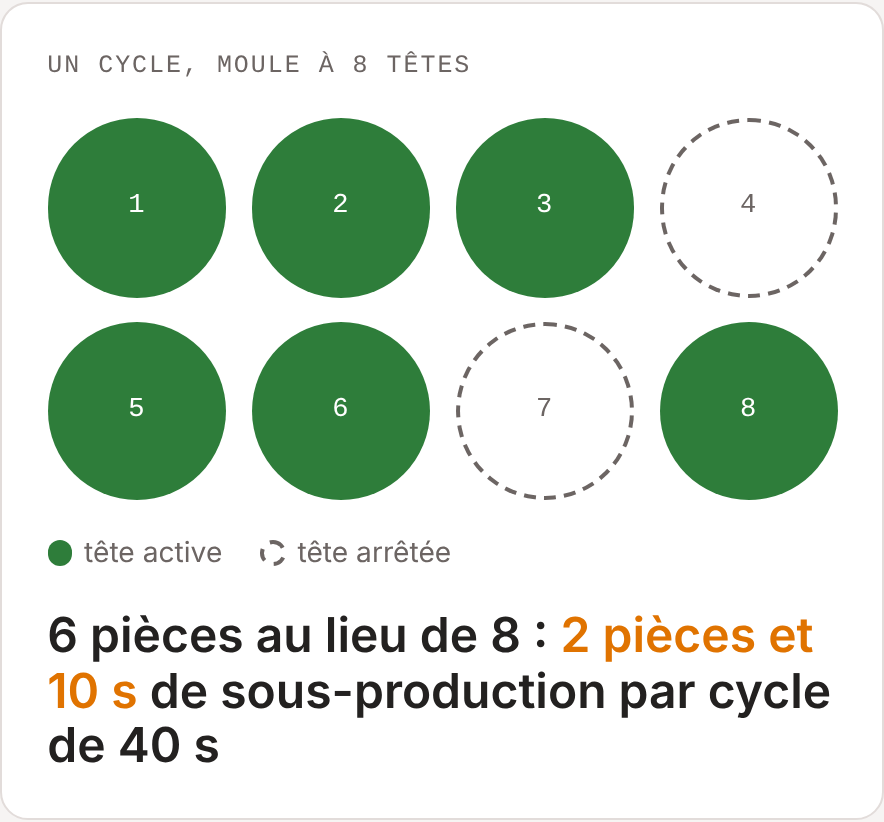
Two heads stopped: 6 parts instead of 8, i.e. 2 parts and 10 s of under-production per cycle.
Over one hour, i.e. 90 cycles:
| Without the feature | With the feature | |
|---|---|---|
| Parts counted | 720 | 540 |
| "Under-production" loss | 0 | 15 min |
| Effect on OEE | Hidden loss | Lower performance, unchanged quality |

Breakdown of one hour of production, with and without declaring the active heads.
Under-production applies from the moment the number of heads is changed until the next change. It is booked to the cause defined in the configuration (see step 2). Nothing is declared during a task (maintenance, setup), since production is stopped.
Prerequisites
| Where | Condition |
|---|---|
| Platform | The under-production option is allowed for the customer. Otherwise, it does not appear on the tablet. |
| Tablet | Cycle time mode. The feature does not exist in Start&Stop mode. |
| Tablet | Under-production option enabled. The setting applies to the whole tablet, and therefore to all its machines. |
| Product | Whole coefficient greater than 1. It is used as the maximum number of heads. A decimal coefficient disables the choice of heads. |
| Loss tree | Recommended: a level 2 loss dedicated to under-production. Otherwise, the tablet uses default labels in English. |
With production orders, the maximum comes from the coefficient of the PO line, and the chosen number of heads is stored on that line.
Configuration
Configuration is done in three steps, in this order.
-
Ask Teeptrak Support to enable the feature on your customer account.
-
Define the under-production cause. First create in the loss tree the cause that will be booked automatically, for example "Under-production". Then, in the Attributes (Level 2 categories) section, select this cause in the Level 2 under-production field.
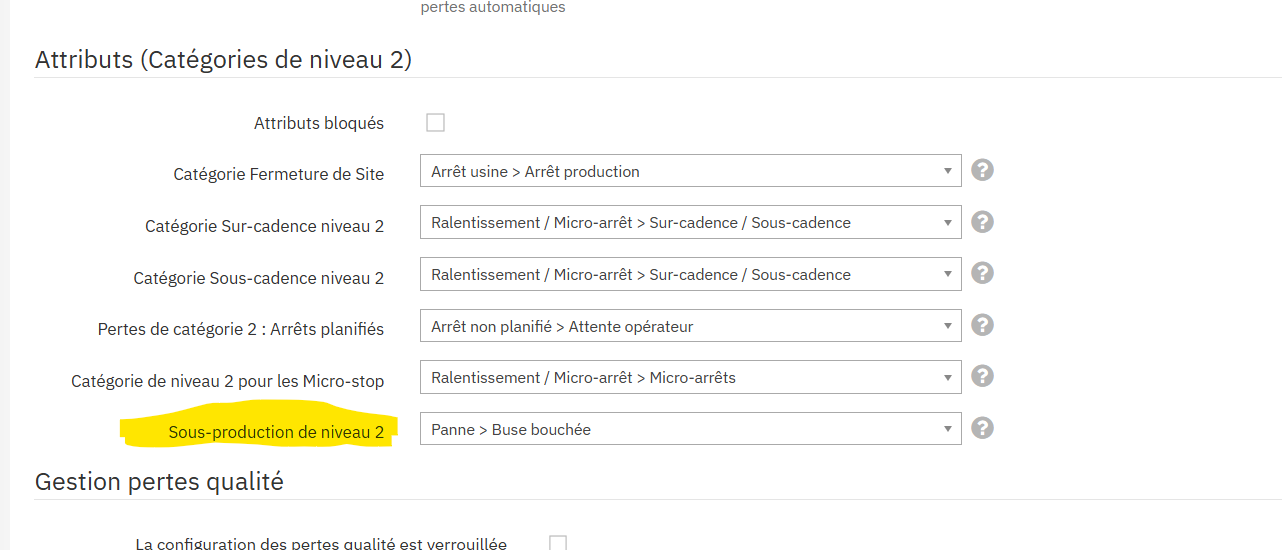
"Level 2 under-production" field in the level 2 categories (the cause shown is an example).
-
Enable the option on the tablet. In the tablet Options, category Production & fabrication orders, tick Under-production. Do this once per tablet; the setting applies to all its machines. The number of heads is then offered to the operator for products whose coefficient is a whole number greater than 1.
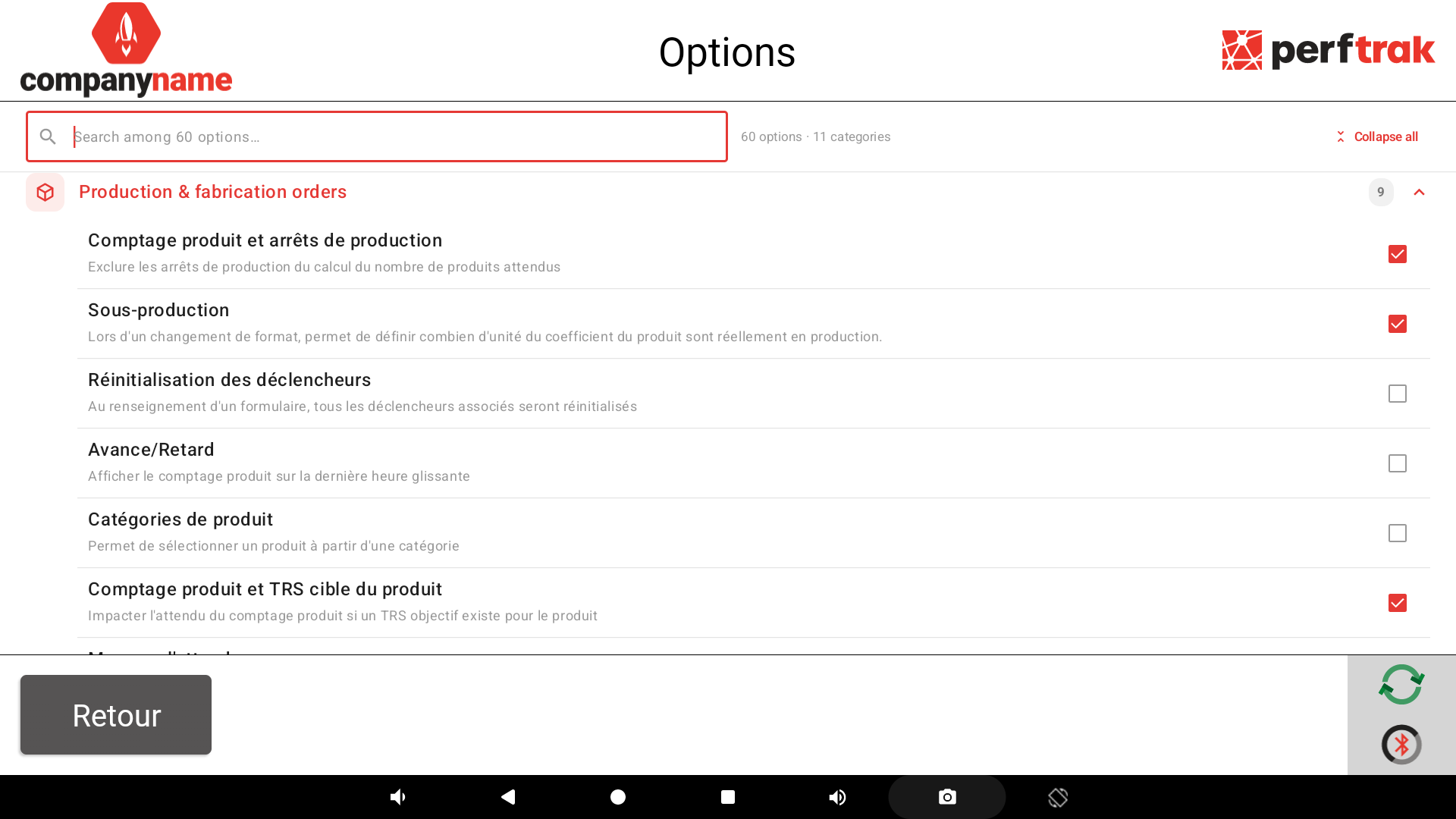
Tablet options, Production & fabrication orders category: Under-production option ticked.
Tip: choose a generic, dedicated cause rather than a specific breakdown (e.g. "Clogged nozzle"). The same cause will be applied whatever the reason for the drop in the number of heads.
Using it on the tablet
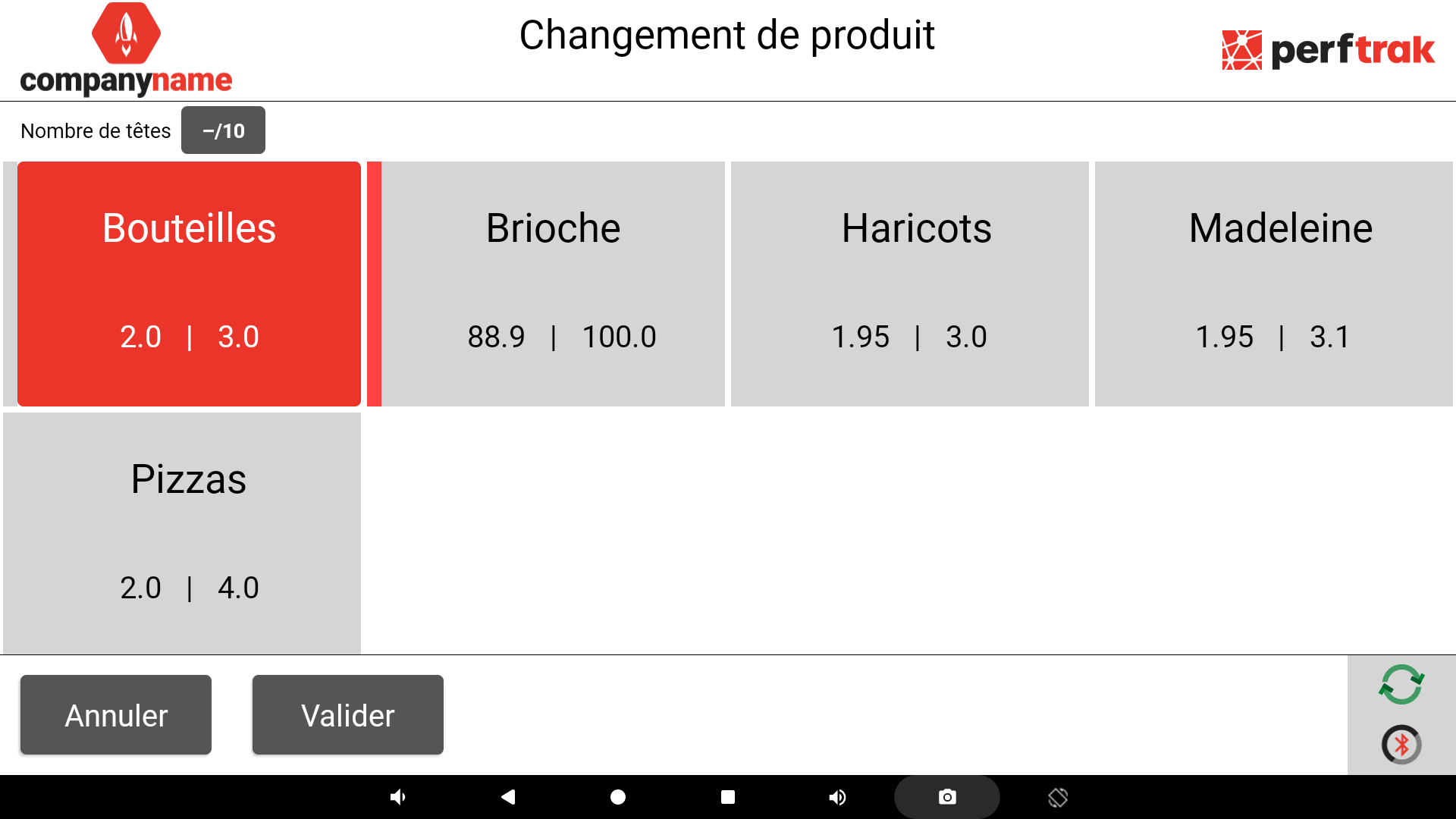
The operator enters the number of heads from the Product change screen, when starting a product or a PO as well as during production.
-
Open the Product change screen.
-
Select the product or the PO. To change the number of heads during production, select the product or PO already running.
-
Tap the Number of heads field at the top of the screen. It shows the current value against the maximum, for example 5/10 (or –/10 if no value has been entered yet).
-
Enter the number of active heads on the keypad, then tap Confirm in the window.
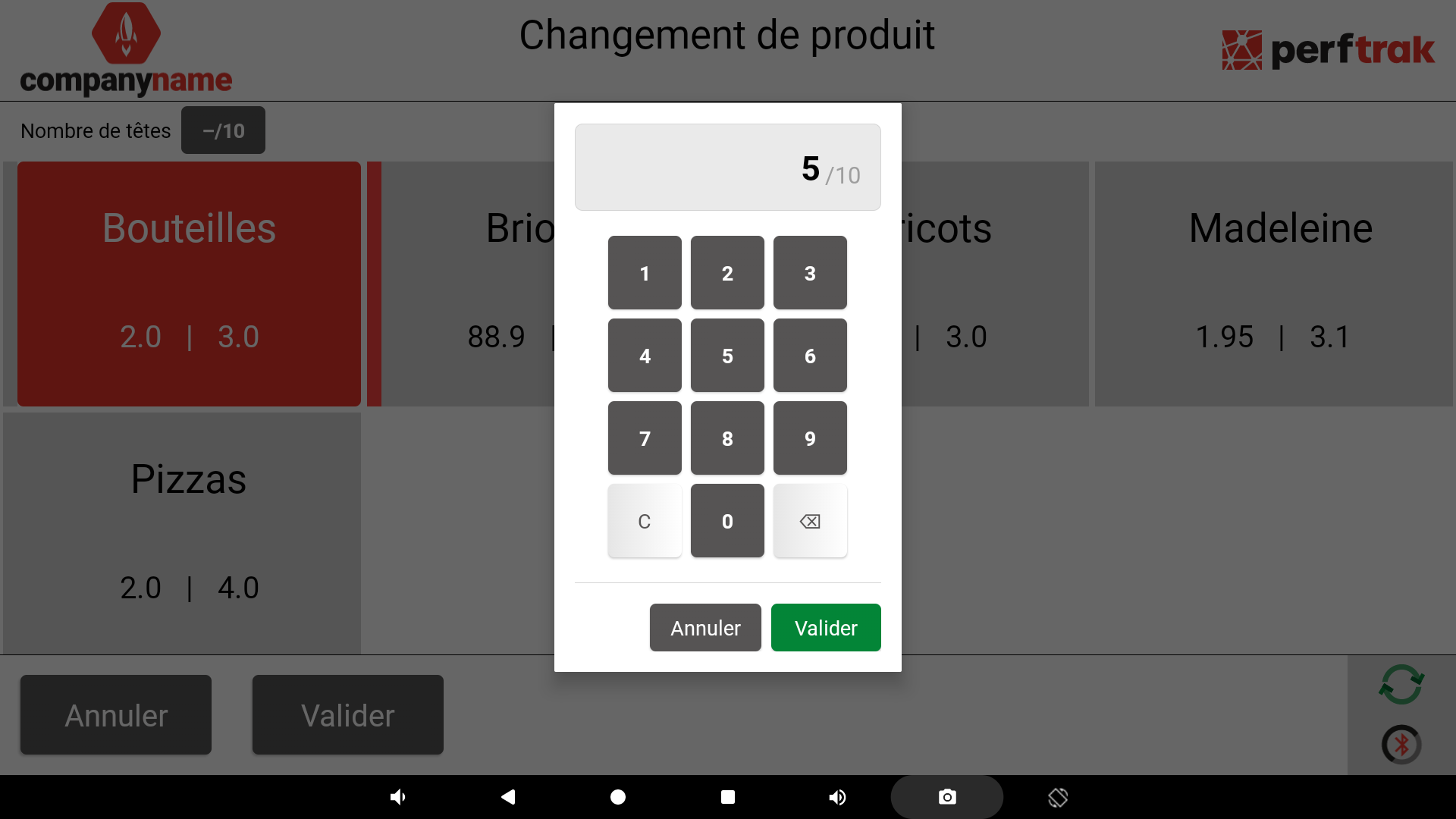
The field shows the new value:
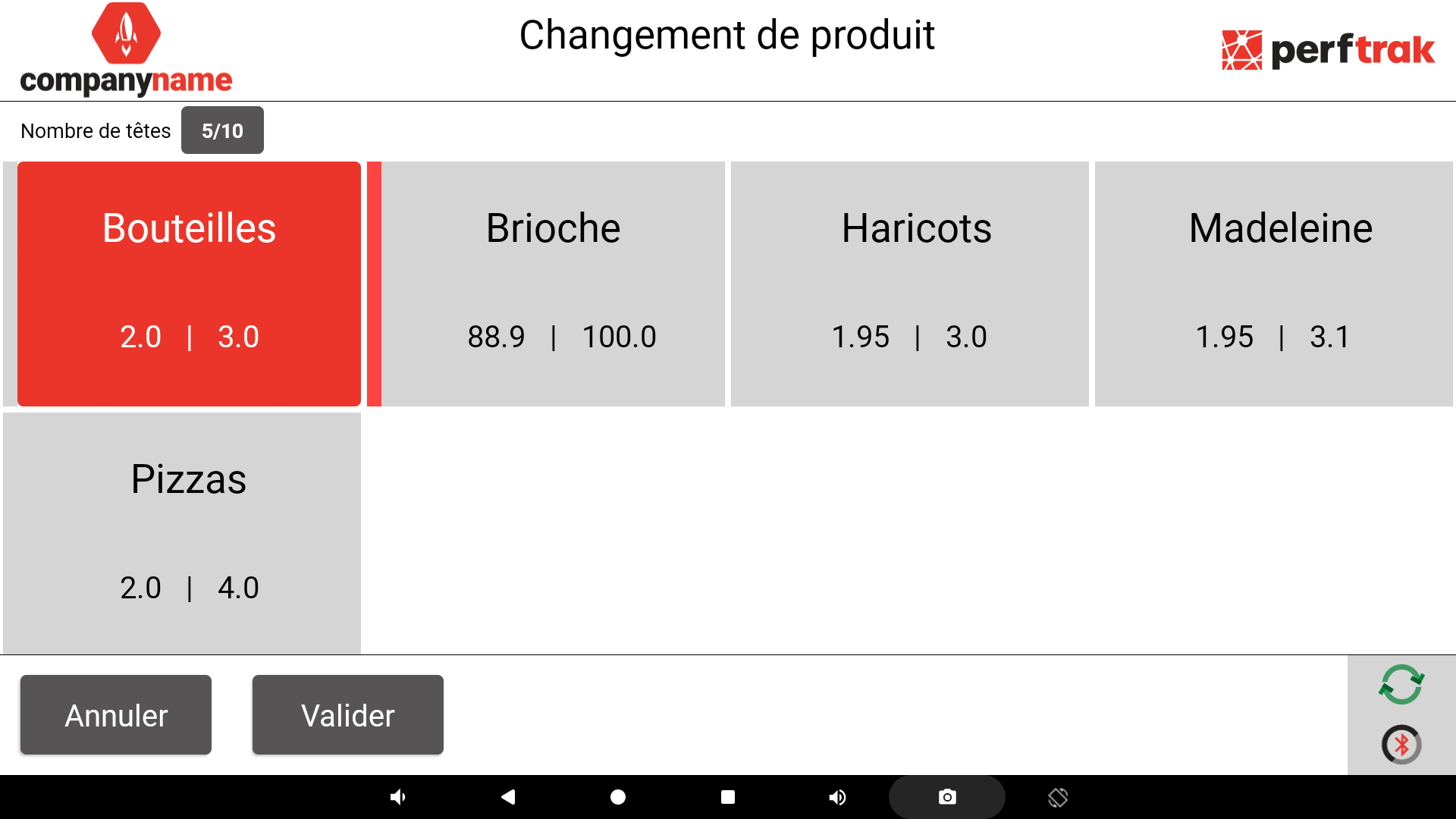
-
Tap Confirm at the bottom of the screen.
-
Check on the home screen: the declared number of heads is shown in square brackets next to the product name, for example [5/10].
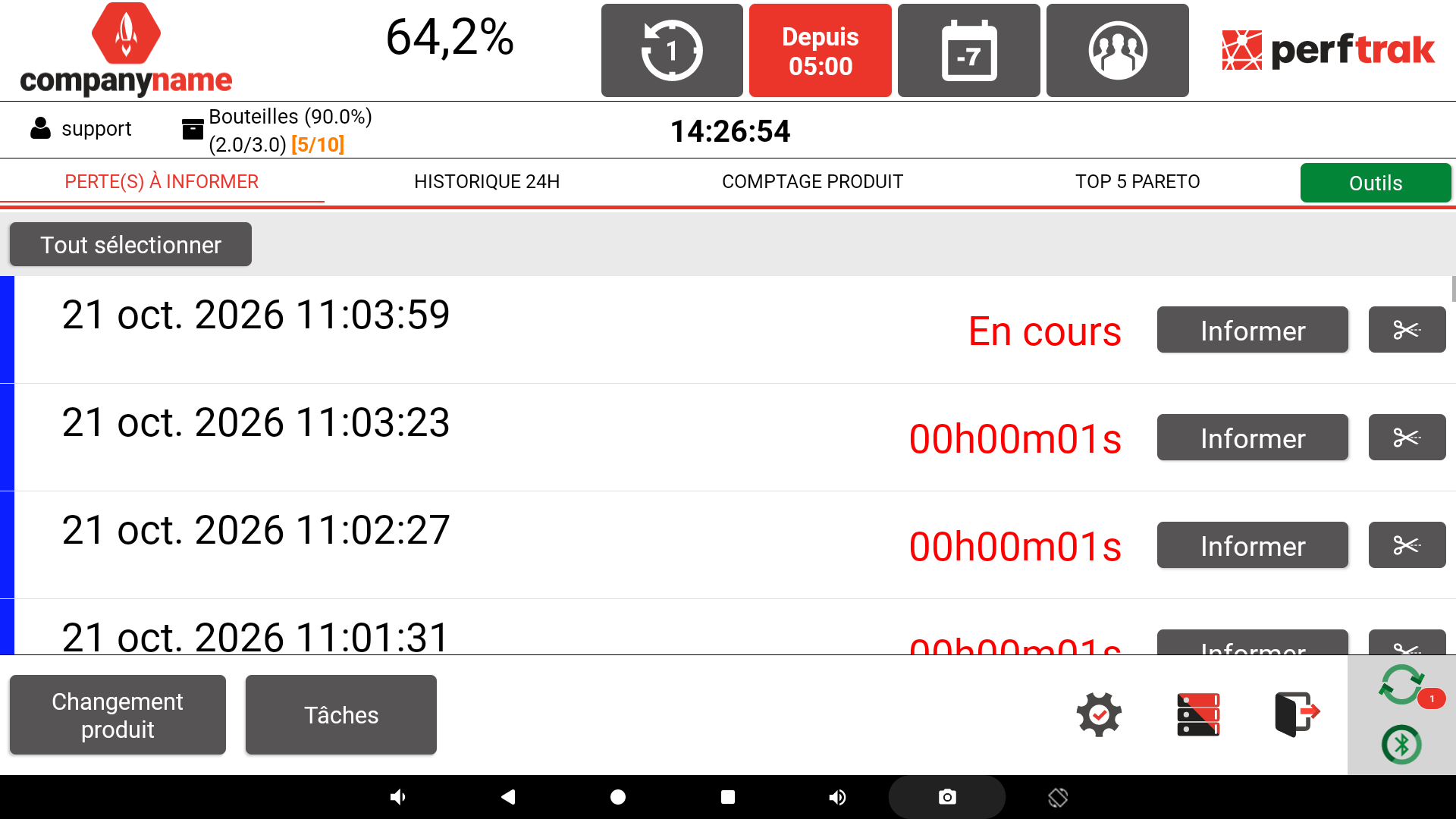
The keypad accepts a value from 1 to the maximum; a digit that would exceed the maximum is ignored. With a demultiplier, the choice is made by group of heads: 10 heads and a demultiplier of 2 give a choice out of 5.
Default value offered: the current value if the product is already in production, otherwise the maximum coefficient (standard operation, no under-production).
Once the equipment is repaired, the operator performs a new product change with the same reference and re-enters the maximum number of heads.
What PerfTrak does on each cycle
As long as there are fewer active heads than the maximum, on each detected cycle and without any operator action:
- An under-production declaration is created for the missing quantity (2 parts in the example). No screen opens.
- The equivalent time is booked as an "Under-production" loss (10 s per cycle in the example), removed from production time.
- These parts can no longer be scrapped: 6 scrappable parts per cycle remain in the example.
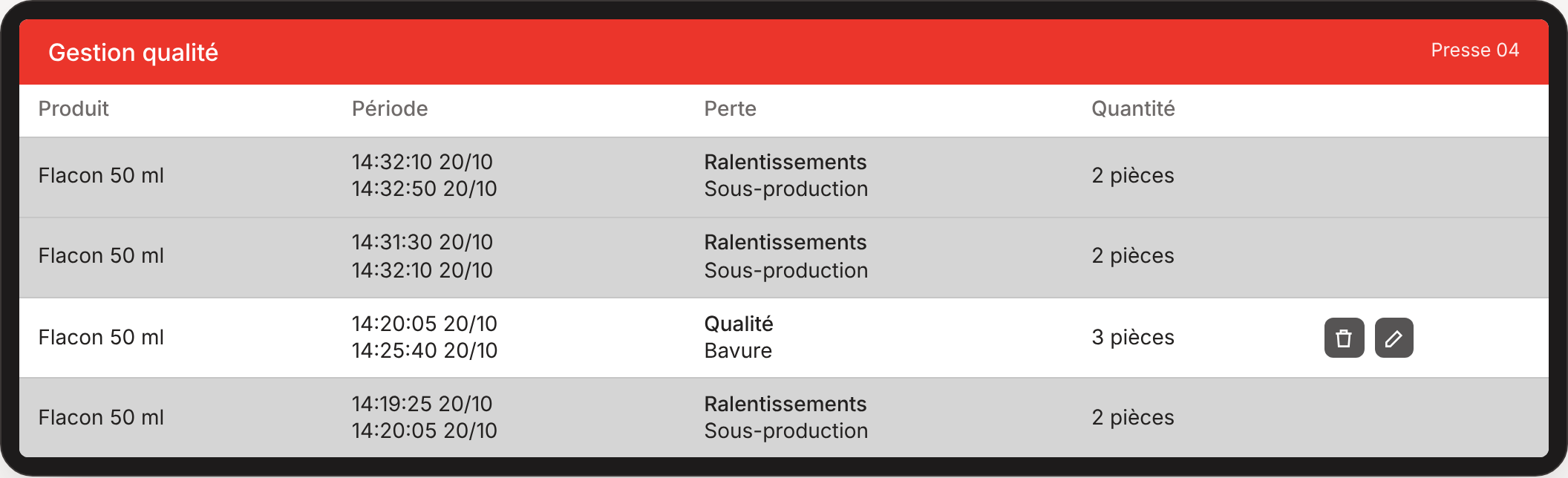
Illustration of the quality history: one greyed-out line per cycle, which cannot be edited; only the scrap declaration (white line) can be edited or deleted.
Effect on the counters
On the tablet, under-production does not appear as a separate quantity on any screen. Depending on the counter, it is deducted, ignored or counted as scrap. Values for the example after one hour: 90 cycles, 6 heads out of 8, no scrap, PO of 2,000 parts.
| Screen | Quantity | Percentage, time | Display |
|---|---|---|---|
| Product count, in parts (default) | Deducted | Deducted | 540/720 · 75 % |
| Product count, "Raw product count" option | Ignored | Deducted | 90/90 · 75 % |
| PO count | Deducted | Ignored | 540/2000 · 36 % |
| Home screen part counter | Ignored | – | 720/720 |
| Ahead/behind for the shift | – | Ignored | 0 s instead of 900 s behind |
| Weight counters in control forms | Counted as scrap | – | Scrapped parts and weight |
| Scrap column of the product count | Excluded | – | 0 parts |
On teeptrak.net, enabling the option adds an Under-production column to the table in the Product count tab.
Points to note
- Remember to go back to the maximum number once the equipment is repaired: as long as the value is not changed, under-production keeps being recorded.
- No correction from the tablet: under-production declared by mistake (for example forgetting to reset the maximum) can be neither edited nor deleted. Cycles already produced are not recalculated.
- The counters do not match each other: the home screen, ahead/behind and the raw count include all heads; the product count and the PO count deduct them. On a PO line, the quantity achieved deducts it, but not the progress or the remaining time.
- Busy history: one declaration per cycle gives one line per cycle in the quality history, and a timeline split at every cycle.
- Changing heads means changing product: the change goes through a product change, recorded as such.
- Per-tablet setting: the option is enabled for all machines on the tablet. Products with a coefficient of 1 are not affected.
- Choice of cause: the category selected in step 2 determines where the loss appears in the analyses. A dedicated cause makes it easier to track under-production in the loss Pareto.
Glossary
| Term | Definition |
|---|---|
| Head, cavity | Part of the machine that produces one part per cycle. |
| Coefficient | Number of parts produced per cycle when all heads are active. |
| Cycle, pulse | Signal sent by the PerfTrak module on each machine cycle. |
| Demultiplier | Module setting that groups several pulses into one counted cycle. |
| Under-production | Parts not produced because heads are stopped, while the machine runs at its normal rate. |