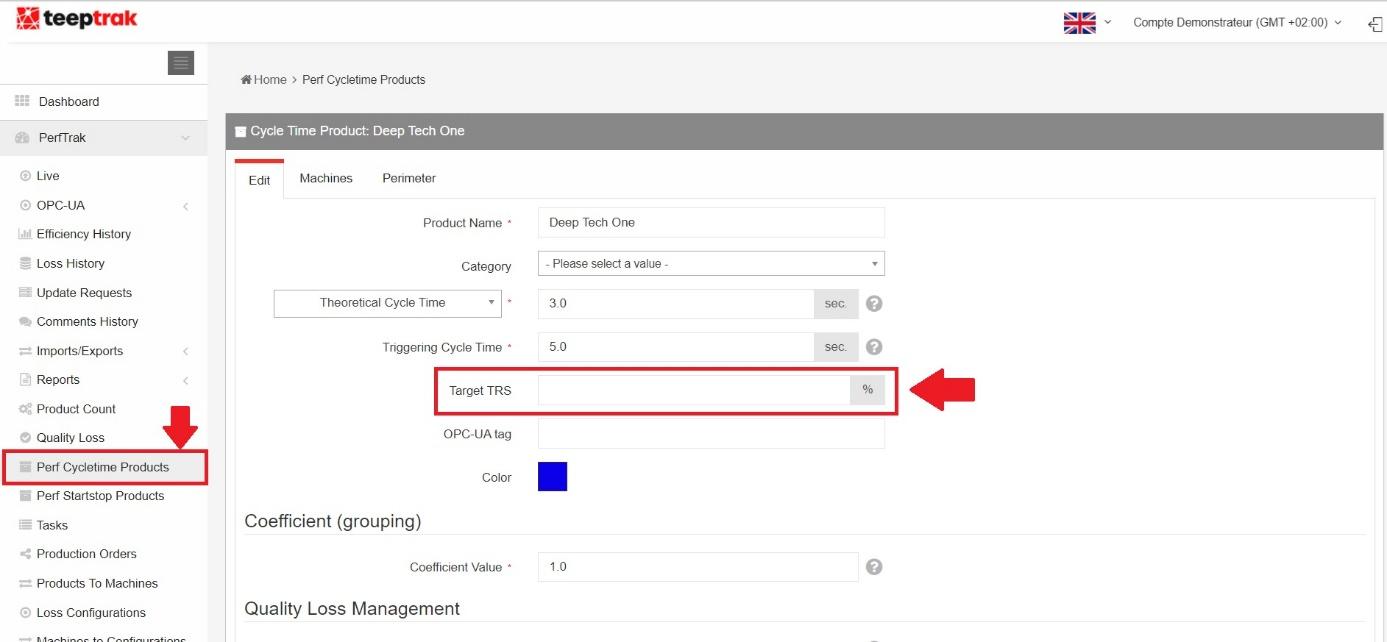
Path: PerfTrak > Product Configuration > Perf Cycletime Products > Target TRS
Overview
The OEE by product feature — product target TRS in the interface — lets you set a percentage threshold qualifying the performance rate expected of a product. It has two consequences:
- a colour code indicating whether the performance rate meets expectations, changing according to whether the OEE is above or below the configured threshold;
- the optional adjustment of the product counting target, in proportion to the chosen OEE.
Configuration
Go to PerfTrak > Product Configuration > Perf Cycletime Products. In the Target TRS field, set the target — or expected — OEE percentage for the corresponding product.
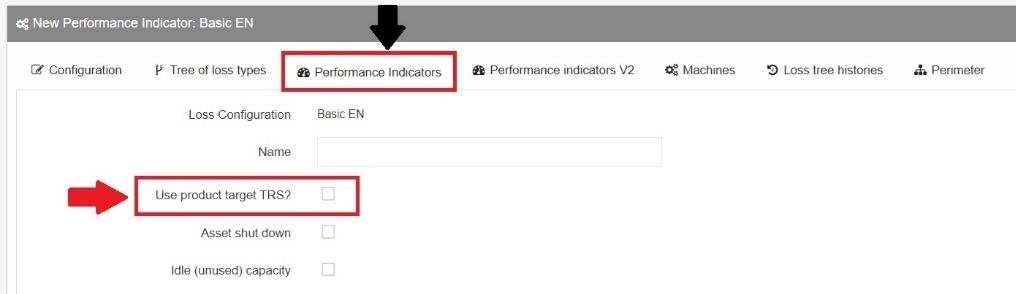
Then configure a Performance Indicator V2 in PerfTrak > Loss Configuration > Loss Configurations > Performance Indicators V2 of the machine concerned, and tick Use product target TRS?.
Colour code of the target KPI
Configuring the OEE by product enables a colour-coded system on the target KPI:
- Red — the OEE is below the target.
- Green — the OEE is above the target.
This colour coding applies both to the KPI set from the loss tree and to the real-time KPI Machine Performance (Gauge), indicating the state of the OEE at a given moment.
Note: the target value itself is not displayed. Only the colour code indicates whether the OEE is above or below the target defined for the product.
Impact on the product count
⚠️ Important: the target OEE may affect the expected product count. If the target OEE is set to 50 %, for instance, the expected product count is halved.
If you do not want the count on the tablet to be affected, go to the tablet settings, Display options, and untick Product Target OEE impact product count.
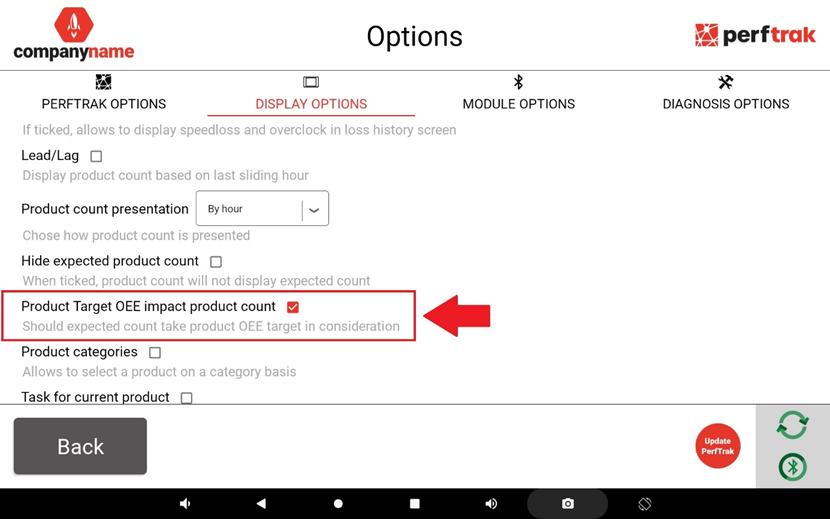
That option is what makes the expected piece count adjust in proportion to the target OEE value.