In Start&Stop mode, the module reads a signal that tells it whether the machine is running or stopped. This article covers how to reverse that signal, and how to check that status changes are correctly detected.
1. Reversing the signal
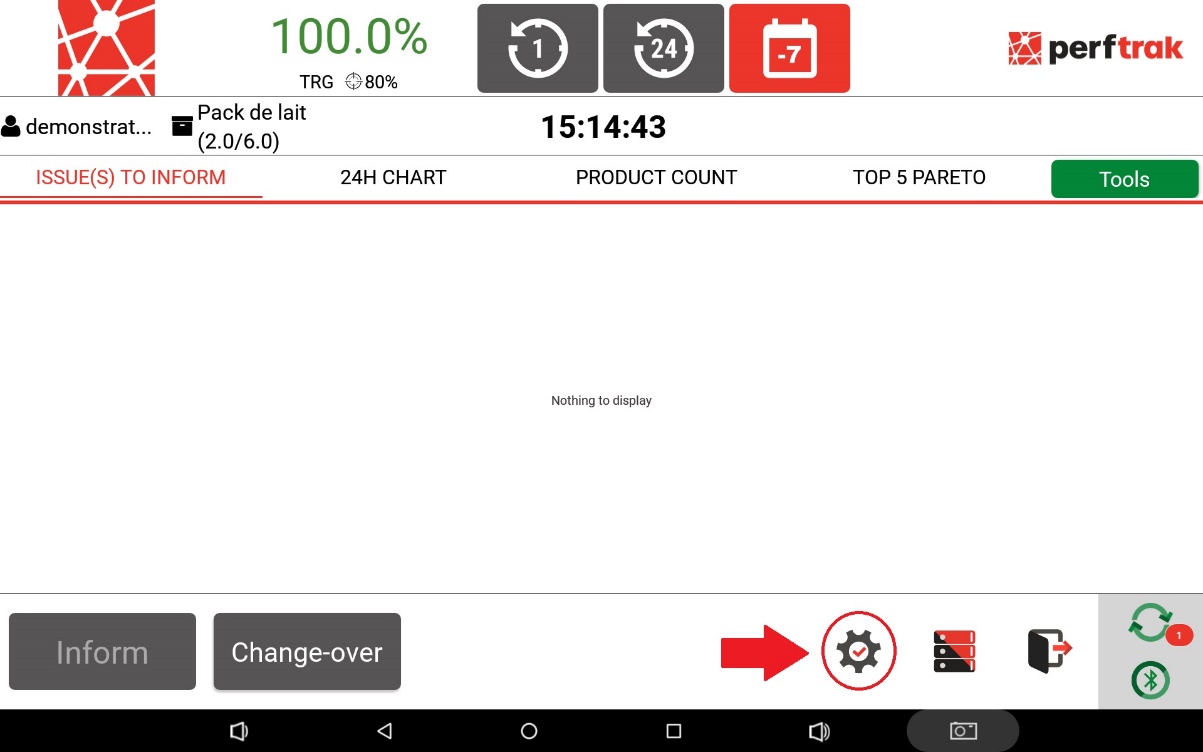
On your tablet, once logged in to the PerfTrak application, select the cogwheel at the bottom right corner of the screen.
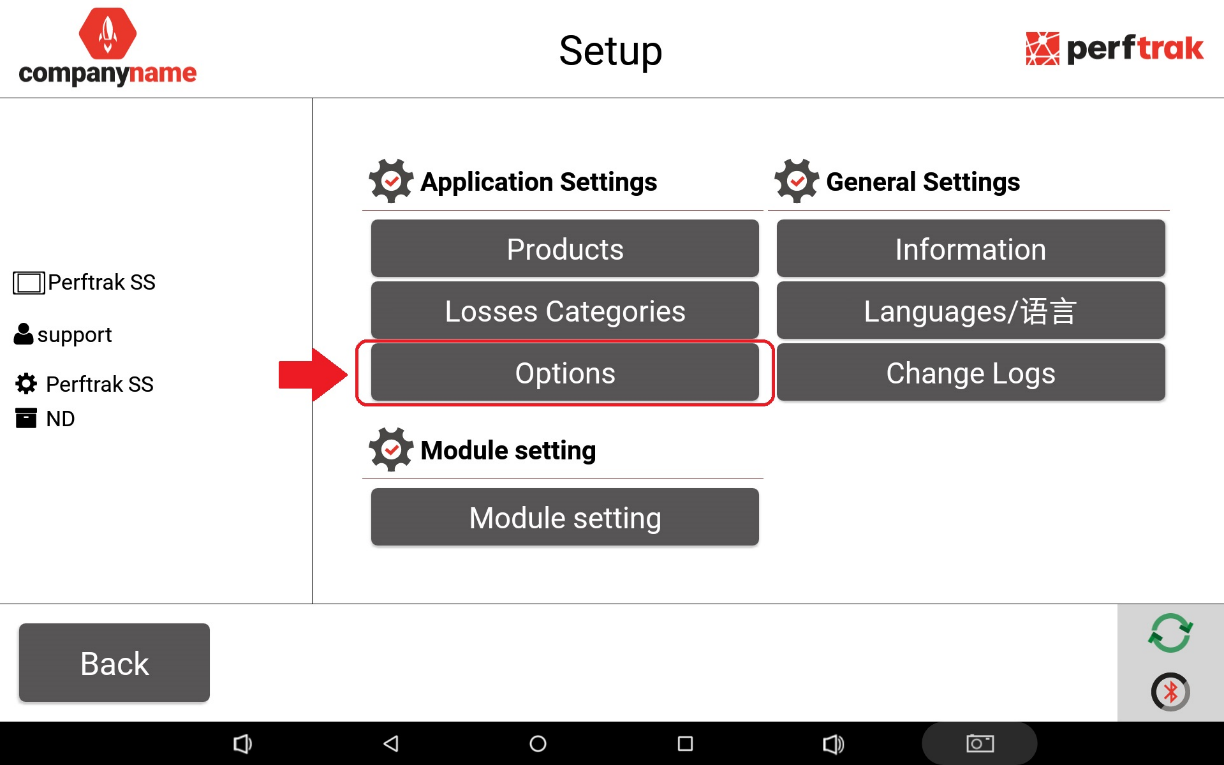
In the settings, select the Options button.
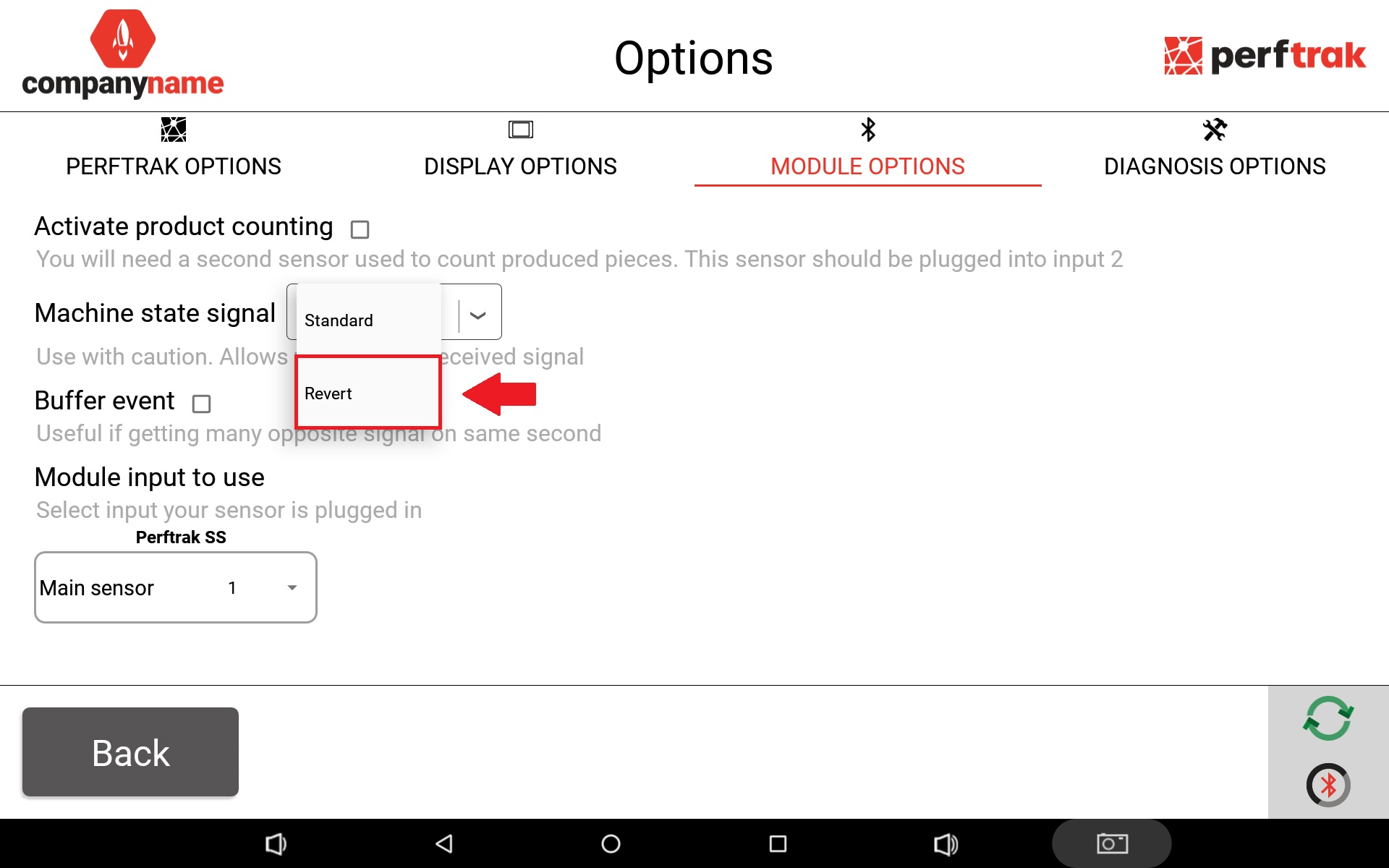
Open Module options, then Machine state signal. By default the signal is set to Standard; select Revert to apply the inversion.
- Standard — a high signal, on a rising edge, identifies the running state.
- Revert — a low signal, on a falling edge, identifies the running state.
2. Testing the machine status change
To check that status changes are detected, use the machine dialogue.
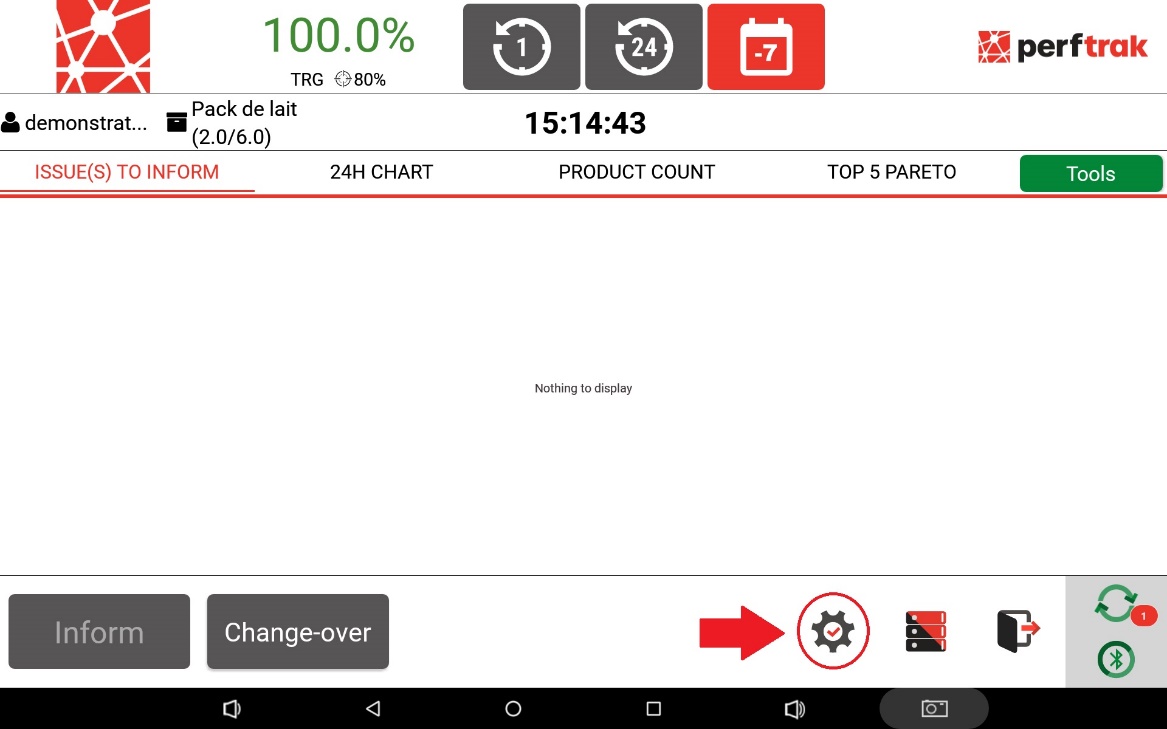
On your tablet, select the cogwheel at the bottom right corner of the screen.
Go to Module setting.
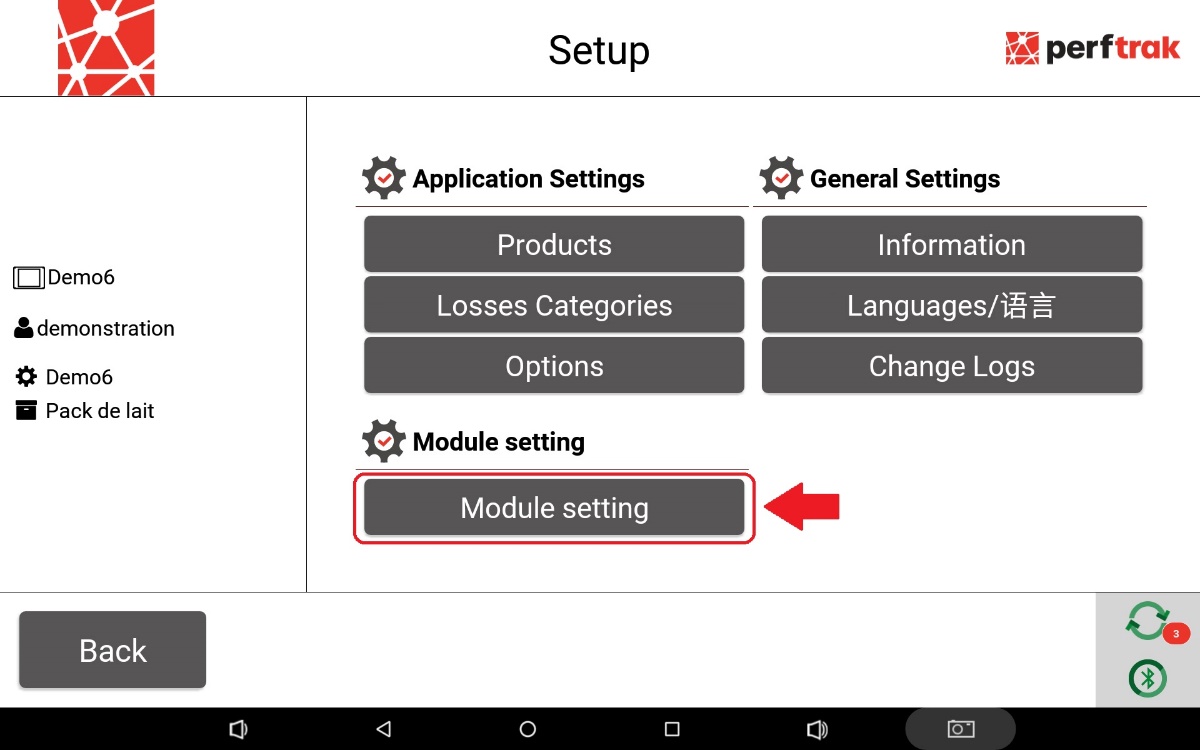
Open the machine dialogue and check that a U1-D1 appears on screen every time the machine changes state — from on to off, or from off to on.
The U1-D1 should appear, with the date and time, 1 to 2 seconds after the module receives the 0 V or 24 V signal that causes the status change.
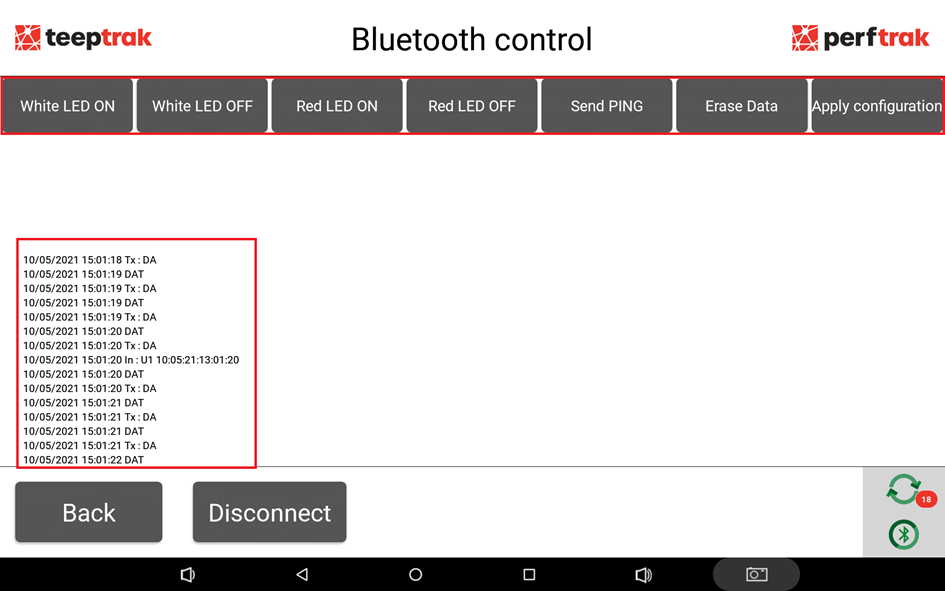
Note: on the screenshot above, only a U1 is visible, because the machine used runs in cycle time mode. Start&Stop offers the same type of display; the only difference is the addition of a D1 after the U1.