Path: PerfTrak > Product Configuration
Overview
Two types of products can be configured on the platform. Choose the one that matches your situation:
Cycle Time product
Start/Stop product
Cycle Time products
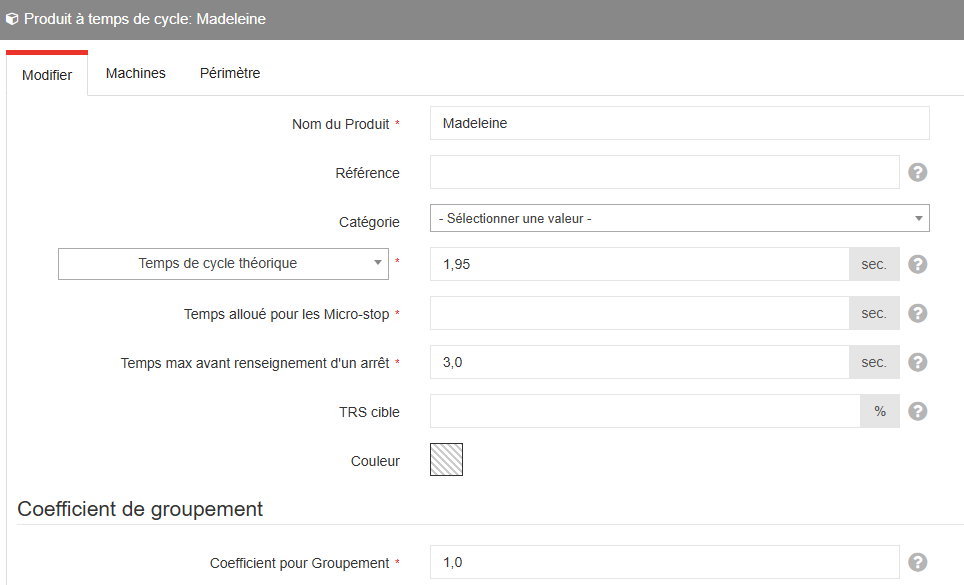
For cycle time products, you must configure:
The theoretical cycle time: the ideal duration between two pulses, in seconds, or the rate in parts per hour.
⚠️ The cycle time must be higher than 1 second. Below that, contact the TEEPTRAK team.
The triggering cycle time: the threshold beyond which the operator must qualify a loss on the tablet.
A grouping coefficient: a multiplier applied to the count, useful for counting by batch, package or pallet.
How losses are detected
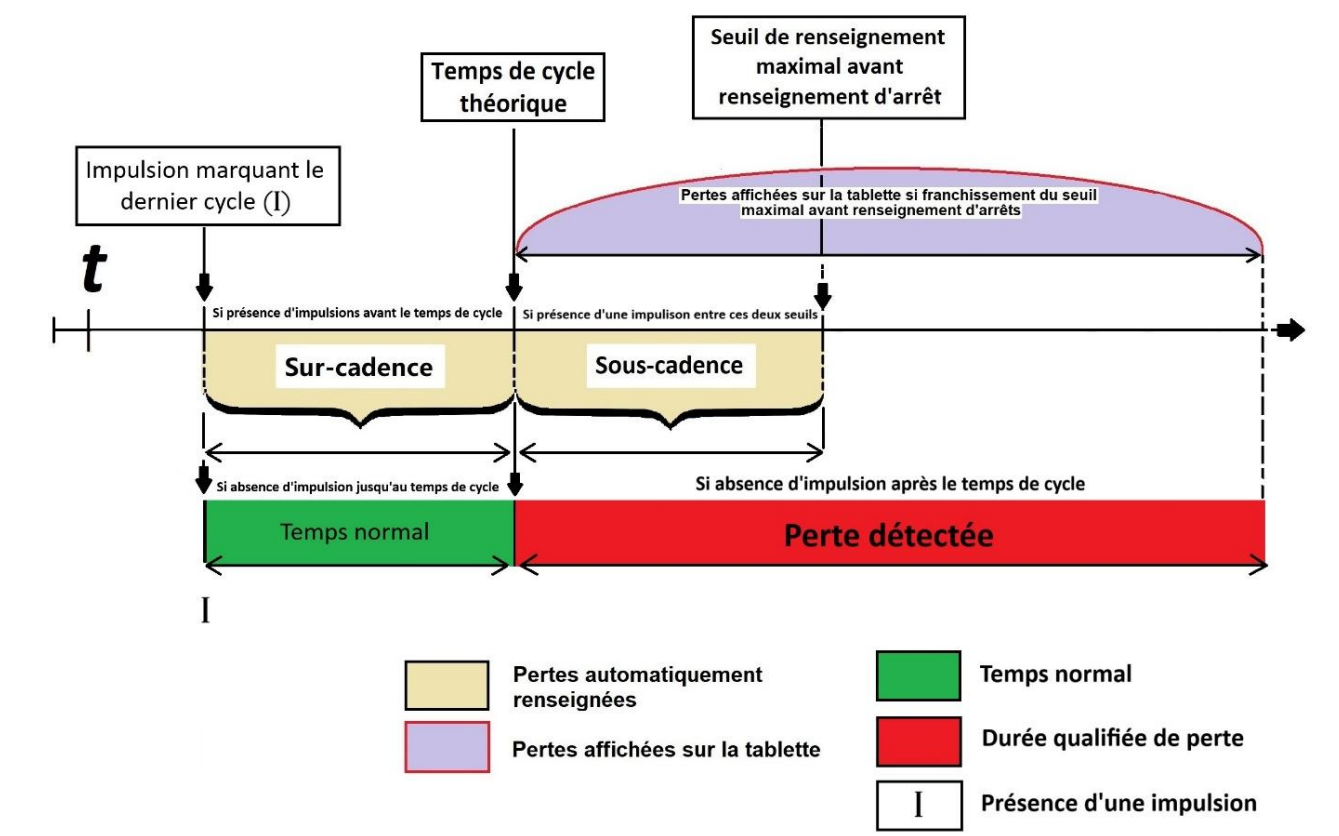
The system interprets each interval between two pulses according to three situations:
Overclock: a pulse before the theoretical cycle time — a rate above the standard, recorded automatically.
Speed loss: a pulse between the theoretical cycle time and the triggering threshold — the loss is qualified automatically.
Loss to be informed: no pulse beyond the triggering threshold — the loss is displayed on the tablet and the operator must qualify it.
Perimeter and import
Once you have saved, go to the "Perimeter" tab to associate the product with the factories, workshops and machines concerned.
ℹ️ The assignment to a specific machine is done later in the configuration; ignore this field at this stage.
You can import a list of products in bulk from a CSV file. A template is available at the top right of the screen — "CSV example".
Note: if you want to cap the theoretical cycle time that is allowed, go to Setup > General configuration > PerfTrak and fill in the "Maximum cycle time" field, in seconds.
Start/Stop products
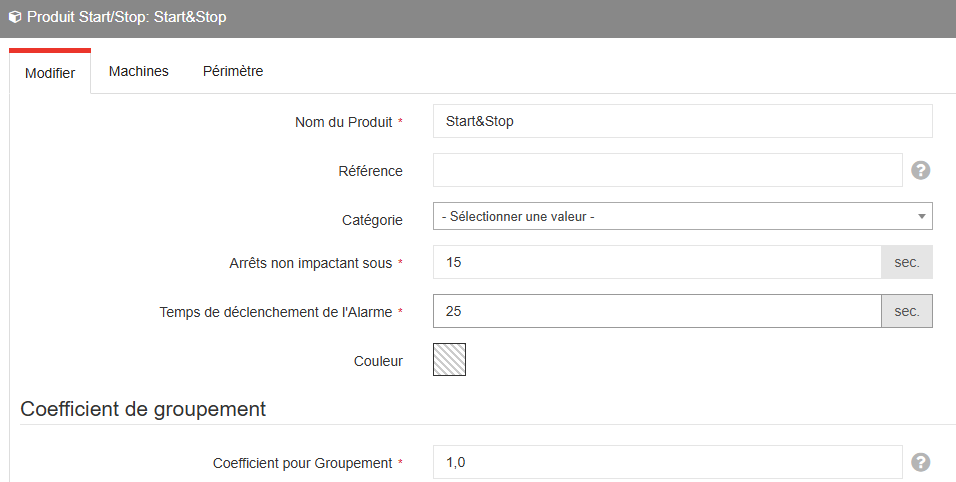
Start/Stop products are not based on a cycle time. Losses are qualified from two time thresholds:
The non impactful stoppage time: the duration below which a stoppage is ignored. The default value is 1 second.
The triggering stoppage time: the threshold beyond which the loss must be qualified manually by the operator.
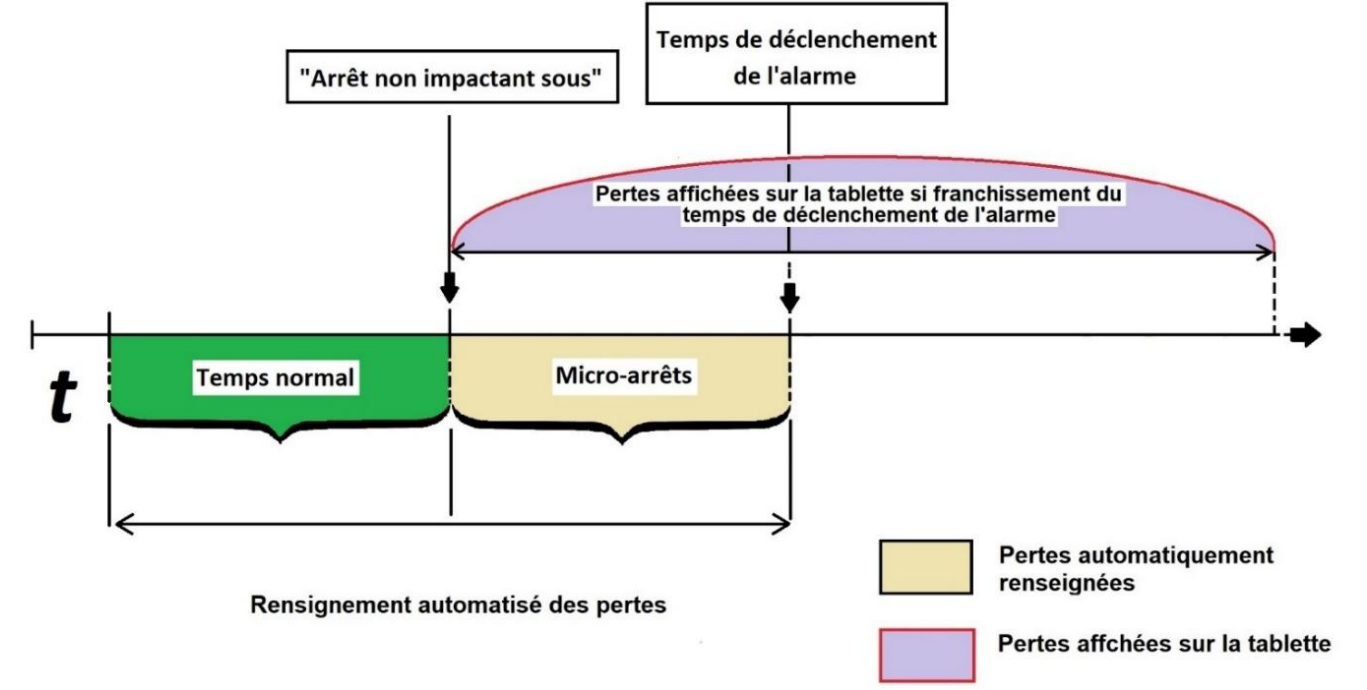
Stoppages between these two thresholds are automatically qualified with the loss label defined in level 2 of the loss tree — usually "Micro-stoppages".
Practical example
With a non impactful threshold of 15 s and an alarm threshold of 25 s:
Stoppage < 15 s: automatically qualified as a micro-stoppage.
Stoppage between 15 s and 25 s: automatically qualified as a speed loss.
Stoppage > 25 s: the loss is displayed on the tablet and must be qualified manually by the operator; it is also reported through the TEEPTRAK mobile application.
Perimeter and import
Once you have saved, go to the "Perimeter" tab to associate the product with the factories, workshops and machines concerned.
ℹ️ The assignment to a specific machine is done later in the configuration; ignore this field at this stage.
You can import a list of products in bulk from a CSV file. A template is available at the top right of the screen — "CSV example".
Assigning the products to the machines
Once your products have been created, they must be associated with their respective machines:
Go to the PerfTrak tab.
Click Products to Machines.
Make the assignments you need.
Synchronisation with the tablet
Once the products are configured on the website, those assigned to the monitored equipment appear on the tablet, in the Settings. After any modification of the products on the website, remember to refresh the product list in the tablet settings, then exit and relaunch the PerfTrak application.
On the tablet, the "Change-over" button in the main menu displays the list of products available for the monitored equipment, allowing the operator to select the product currently being manufactured.