The tablet interface
The main interface of the tablet is divided into two main areas:
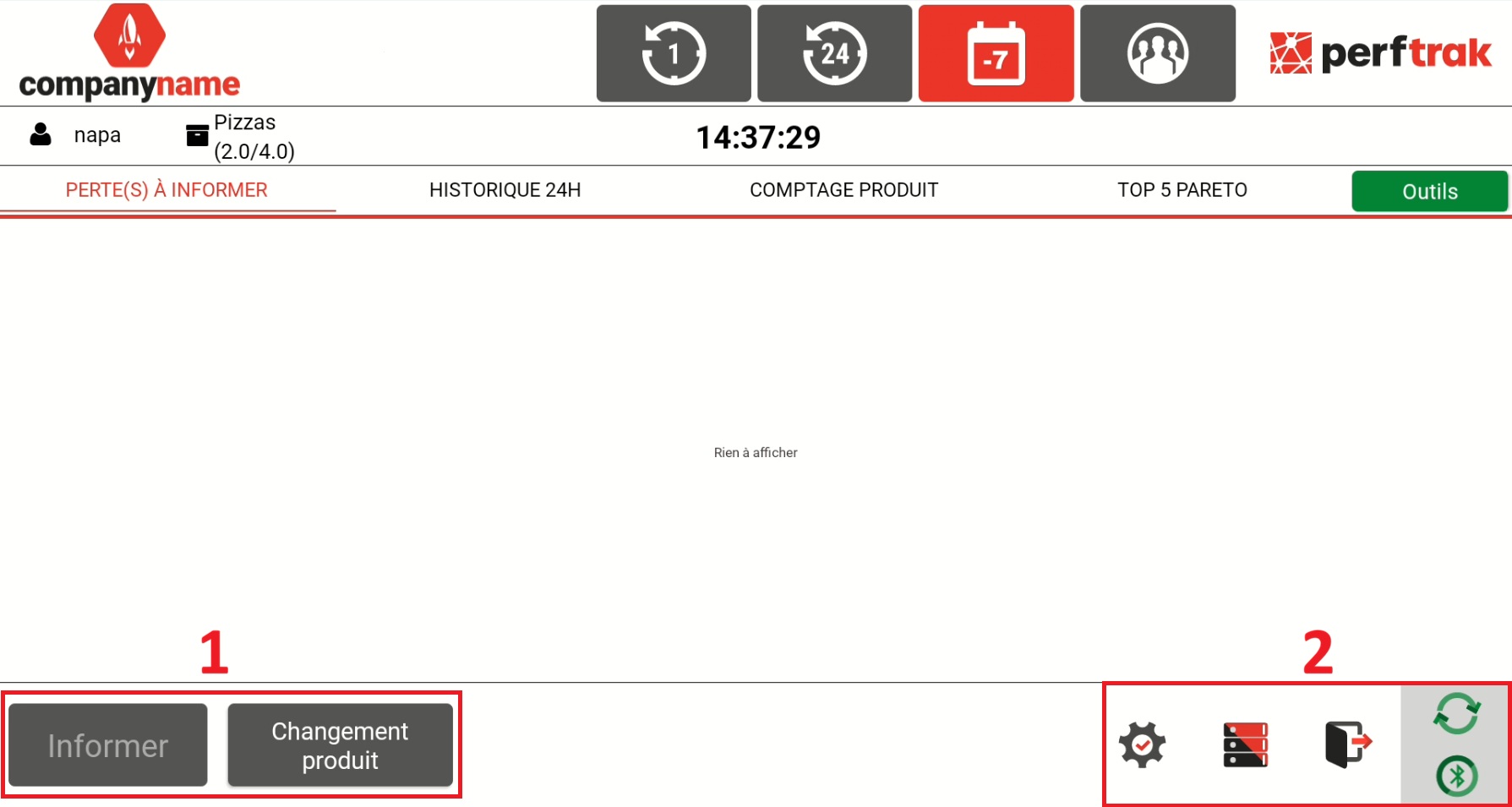
1. Stoppage entry tools
They allow the operator to start production and to quickly record the stoppages of the monitored machine:
Change-over: see the "Starting production" section for more information.
Inform: see the "Informing a loss" section for more information.
2. Advanced menus, reserved for authorised accounts
These menus give access to the advanced features:
Settings:

Efficiency History:

It allows authorised users — administrators, managers, or operators with the option enabled — to view all the recorded stoppage causes. This screen makes it possible to:
view the stoppage causes that have been informed,
modify stoppage causes retroactively,
split a loss after it has been recorded,
view the comments added by the operators.
Sign out:

WiFi connection status:

Green: internet is available
Red: internet is not available
Red and black, moving: synchronisation with the website in progress
Bluetooth connection status:

Green: Bluetooth is connected
Red: Bluetooth is disconnected
Clicking the Bluetooth icon displays the strength of the Bluetooth signal.