What you will need
The tablet-related components provided in your PerfTrak package are:
- 1 Android tablet and its power cable
- 1 WiFi antenna
- 1 tablet arm (mounting bracket)
- VESA screws
Optional: an Ethernet adapter, if your WiFi connection is unstable, and an EMI filter, if electromagnetic interference can disturb the mains supply.
Step 1: Connect the charger
Plug the power cable provided into the tablet's power port — the second one from the top, on the left-hand side of the tablet — then connect the cable to a power outlet.
⚠️ Caution: the charger must never be plugged into the wrong port.
Note: if your tablet is discharged, plug in the power supply and wait a few minutes before switching it on, so that it has the minimum charge needed to start.
Step 2: Install the WiFi antenna
Screw the WiFi antenna clockwise onto the single port on the right-hand side of the tablet.
Step 3: Fix the tablet arm
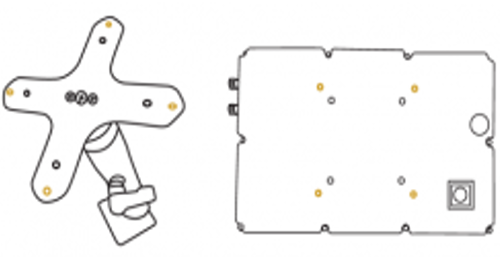
- Use the bag of VESA screws included in the kit to attach the tablet arm to the back of the tablet.
- Then secure the arm to any flat surface, near the operator workstation.
⚠️ Caution: when installing the mounting bracket, do not overtighten the screws.
Step 4: Install the PerfTrak app
This step should only be performed if the application is not already installed on the tablet.
- Switch on the tablet by pressing the grey button on the back.
- Go to the tablet's Settings:
- Connect to the WiFi network.
- Check the date, the time — including the time zone — and the language. Correct them if necessary.
- Open the web browser and go to www.teeptrak.net.
- Log in with your credentials:
- Administrator: with the codes provided by the TEEPTRAK team.
- Manager: with the codes provided by your administrator.
- Once logged in, go to the PerfTrak > Downloads menu.
- Download the file that corresponds to your situation:
- PerfTrak – Start – Stop – ***.apk for the Start/Stop version.
- PerfTrak – CycleTime – ***.apk for the Cycle Time version.
- If a warning message appears — "This type of file can harm your device…" — click OK.
- Accept opening the file and install the application.
Step 5: Declare the tablet
This step is essential to make the tablet and its machine appear on the analysis and configuration website (www.teeptrak.net).
- Launch the PerfTrak app on the tablet.
- Select the "Europe 1" server, for all customers outside China.
- Tap "Tablet declaration".
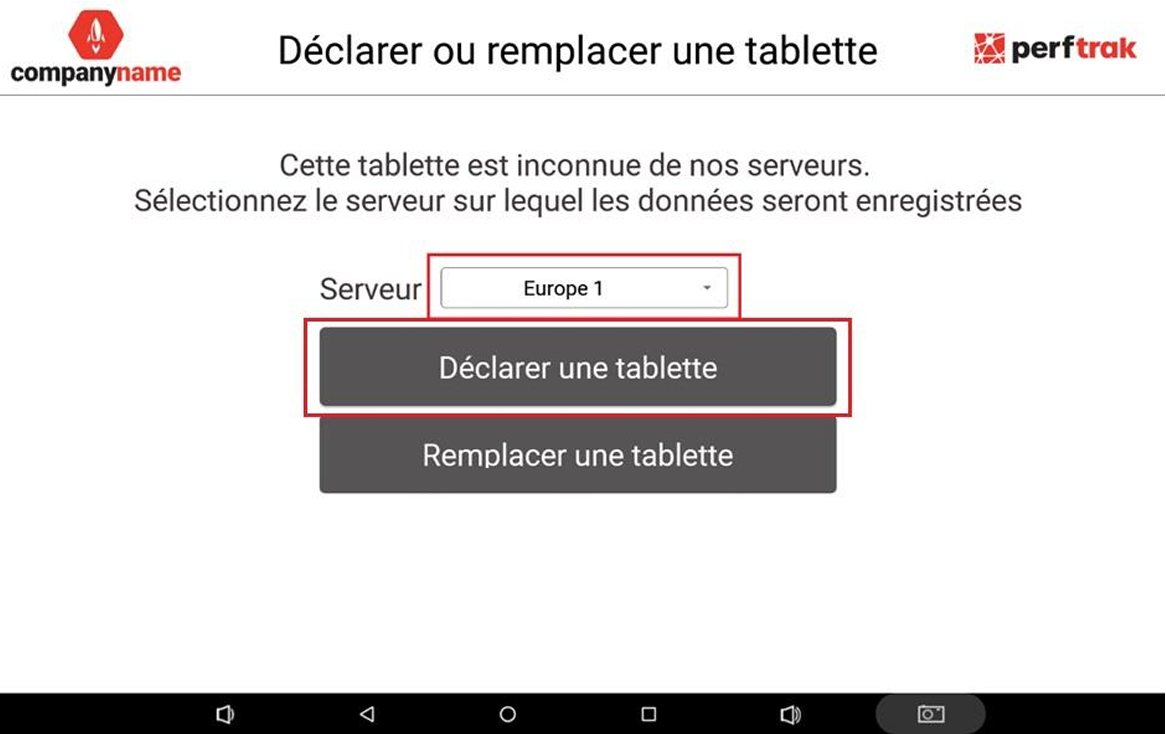
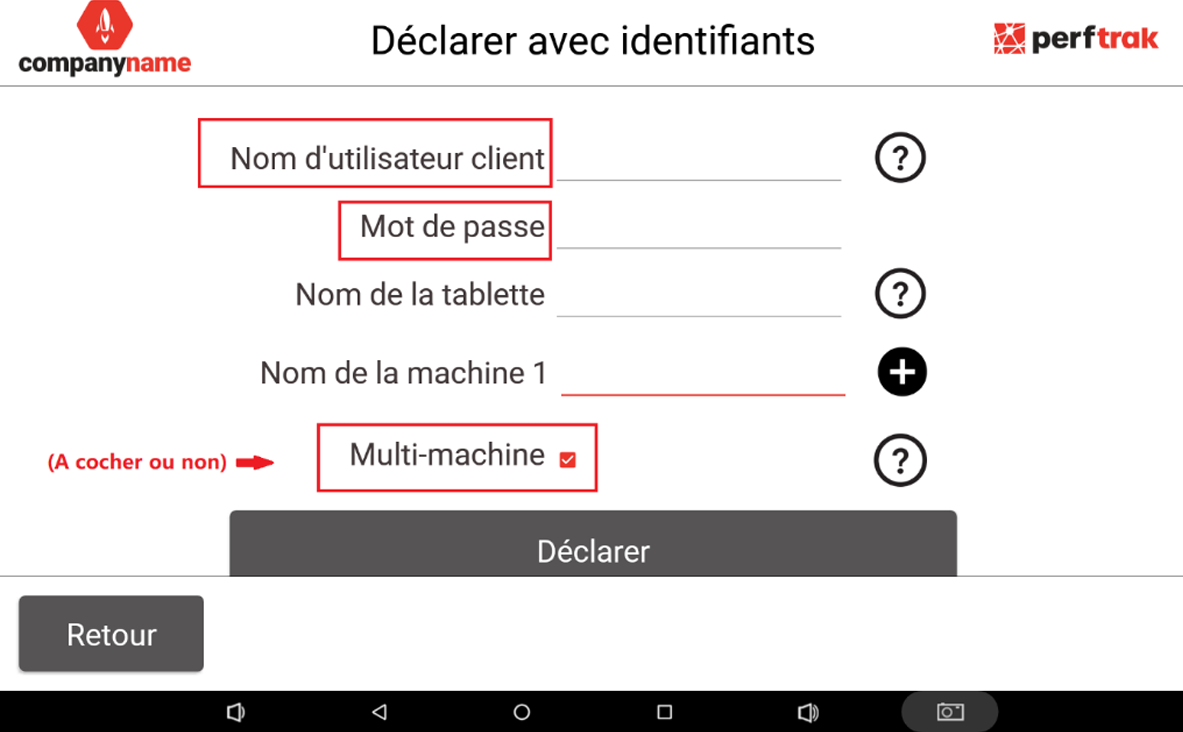
- Enter your CUSTOMER / MANAGER username — not an operator's one — along with the corresponding password.
- Enter the tablet's name: it will correspond to the name of your machine.
- If you have several measurement points, tick the "Multi-machine" box and enter the names of the machines to monitor.
- Tap "Declare".
Your tablet is now installed and declared. The next step is to configure the website in order to create your virtual factory.