Once the tablet is installed, set up the supervision website www.teeptrak.net to create the elements that will appear on the tablet and constitute your "virtual factory". At the end of this step, you will need to go back to the tablet to synchronise the configurations, then return to the website for the last adjustments.
Log in to your customer interface with the credentials provided by our team.
1. "Setup" tab: creating the virtual factory
Create the model that corresponds to your installation, starting with the plants and finishing with the employees:
- Plants: create one or several plants via Plants, then Add.
- Workshops: do the same via Workshops, defining which plant they belong to.
- Managers: define their permissions (right to create sub-managers, right to create plants) and their scope (which plant, workshop or machine they will have configuration rights on).
- Employees: fill in the form, setting a username and a password for each of them, and associate them with one or more workshops. The Setup Access button authorises them to modify the tablet's settings; History Access authorises them to modify a stoppage cause.
Reminder: in some countries, performance tracking by operator is forbidden. We recommend creating "operator position" accounts whose name is linked to the position concerned.
2. Shifts
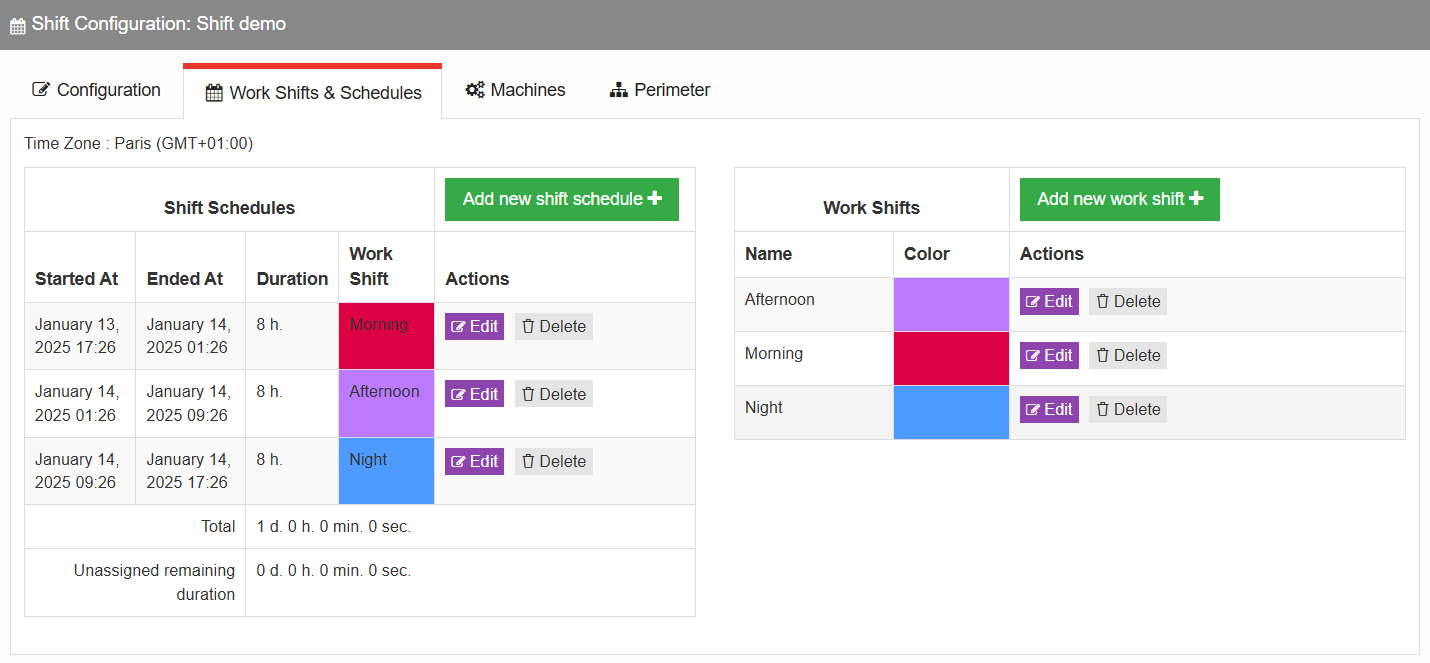
The Shifts tab lets you track performance by shift. Create a schedule (starting date, number of days of the standard schedule — it repeats automatically), then, in the Work Shifts & Schedules tab, create your teams and add them in chronological order with their duration. Then assign the schedule to a machine: Licenses & Machines > Machines > Edit > Shift Configuration.
Shift analysis is only available in automatic reports.
3. Loss trees
In the PaceTrak tab > Loss trees, create the level 1 and level 2 cause categories that will appear on the tablet. The categories in the left-hand column (Loading, Availability, Performance, Quality, Custom) are non-modifiable calculation references and do not appear on the tablet. Then define your indicators in Configuration > Performance indicators, and the scope of the tree in the Perimeter tab.
4. Assigning the workstations to the loss trees
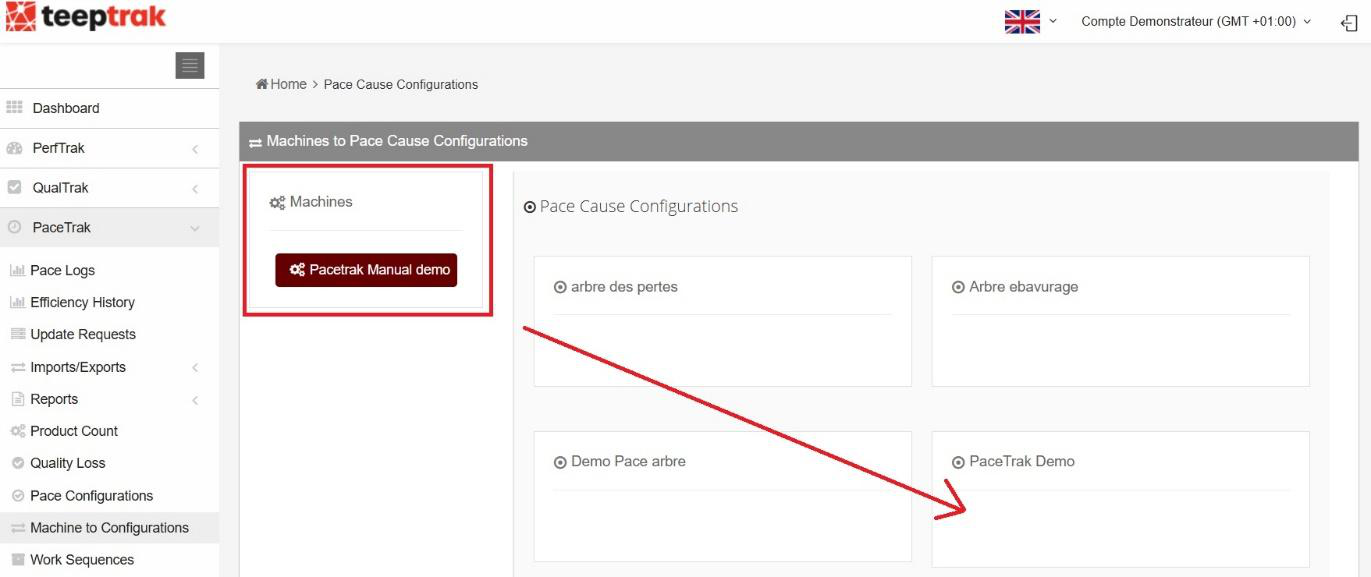
In PaceTrak > Substations and loss trees, the list of your machines (the workstations declared from your tablets) appears at the top left. Drag each machine onto its loss tree.
Finally, in the Assign tab, associate each tablet with a workshop (Tablets & Workshops) and each operator with their tablet(s) (Operators & Tablets).
For the creation of the routings, see the Routings article of the Platform section.