Path: PerfTrak > Loss Configuration > Loss Configurations > Loss tree histories
Introduction
The History tab of a loss tree stores records of losses prior to the current tree. It gives a clear view of the performance of the tracked equipment, especially when filters are applied to the loss levels. It also lets you retrieve groups of pre-existing losses to add them back to your current tree.
Operationally, these recorded losses matter when loss trees are modified: they help identify and qualify the data, so that the user can decide which losses to display and which to hide.
Practical case
Phase 1. A loss "A", associated with the level 0 Planned shutdowns, was created, and the cause "A" was recorded during the first day of production.
Phase 2. Loss "A" was deleted and replaced by loss "B" in the same level 0 of the loss tree, during the second day of production.
When viewing the performance, the user selects the two-day interval and wants every level 0 of the tree to appear except Planned shutdowns.
- If loss "A" was not stored in the history, it still appears in the performance history despite the level 0 being deselected, because the system cannot associate it with any branch of any loss tree.
- If loss "A" was stored in the history, it disappears from the display, because it is identified as belonging to the level 0 to which it previously belonged.
Creating a historical loss
Configuring the loss tree
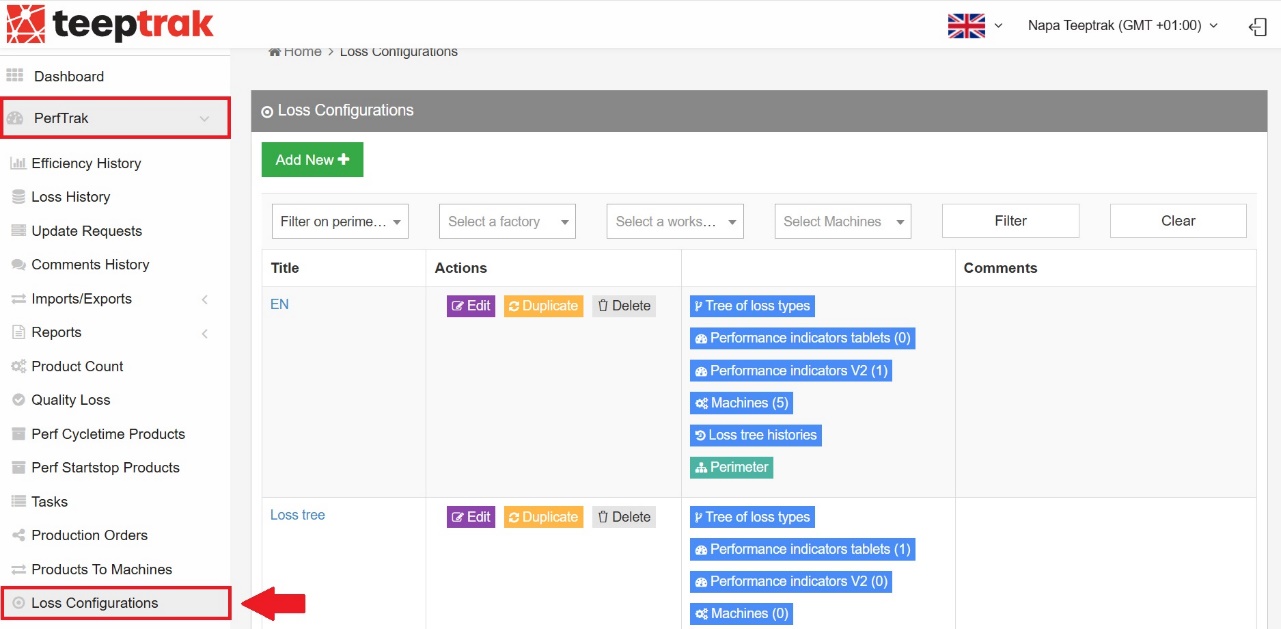
After logging in, click PerfTrak > Loss Configuration > Loss Configurations.
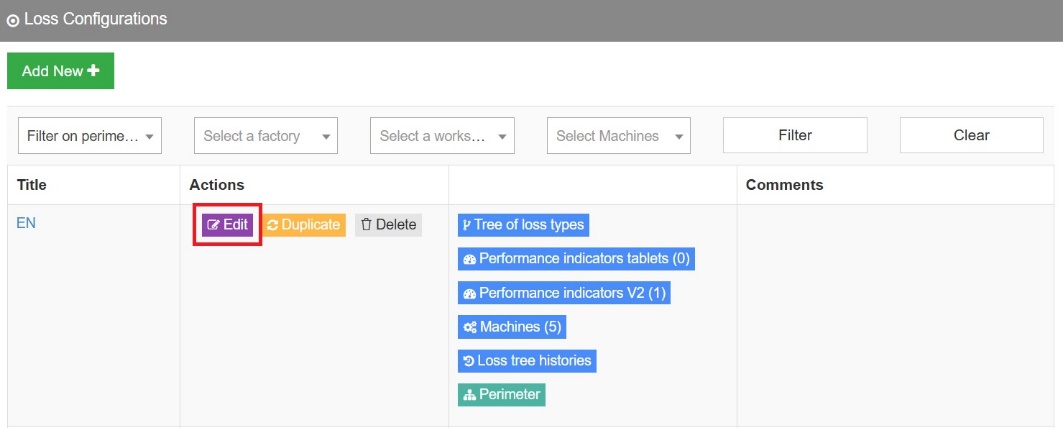
In the Edit tab, configure your tree by adding, deleting or modifying a loss.
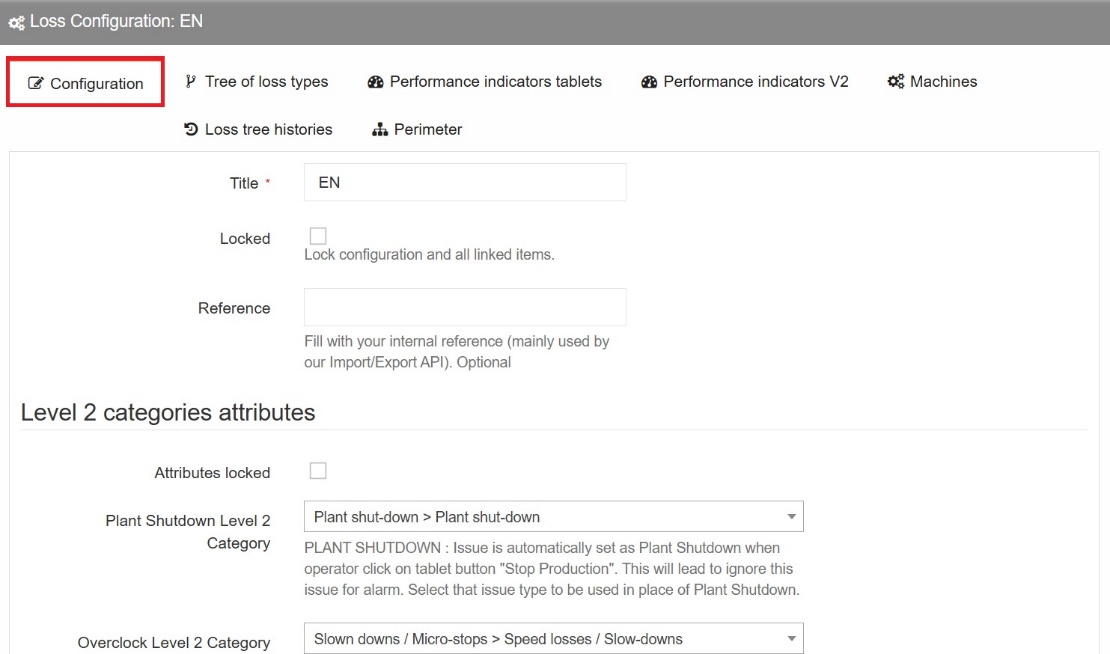
This tab offers several configuration levels, covering the category 2 attributes — used for the automatic losses — as well as the loss groups associated with quality loss management.
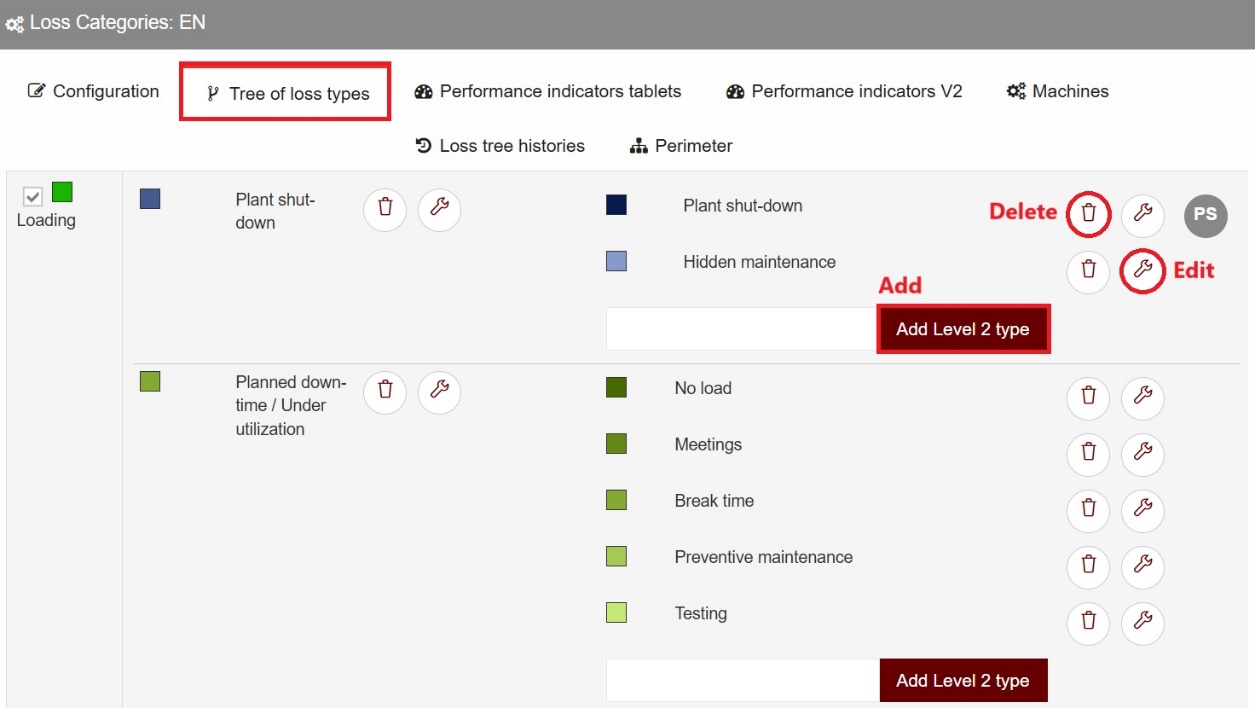
The Tree of loss types tab corresponds to the structure of your reference loss tree. There you can add, delete or edit the content of the losses associated with the tree.
Reaching the loss tree histories
Identify the loss tree you want to modify, then click the Loss tree histories button in the options area.
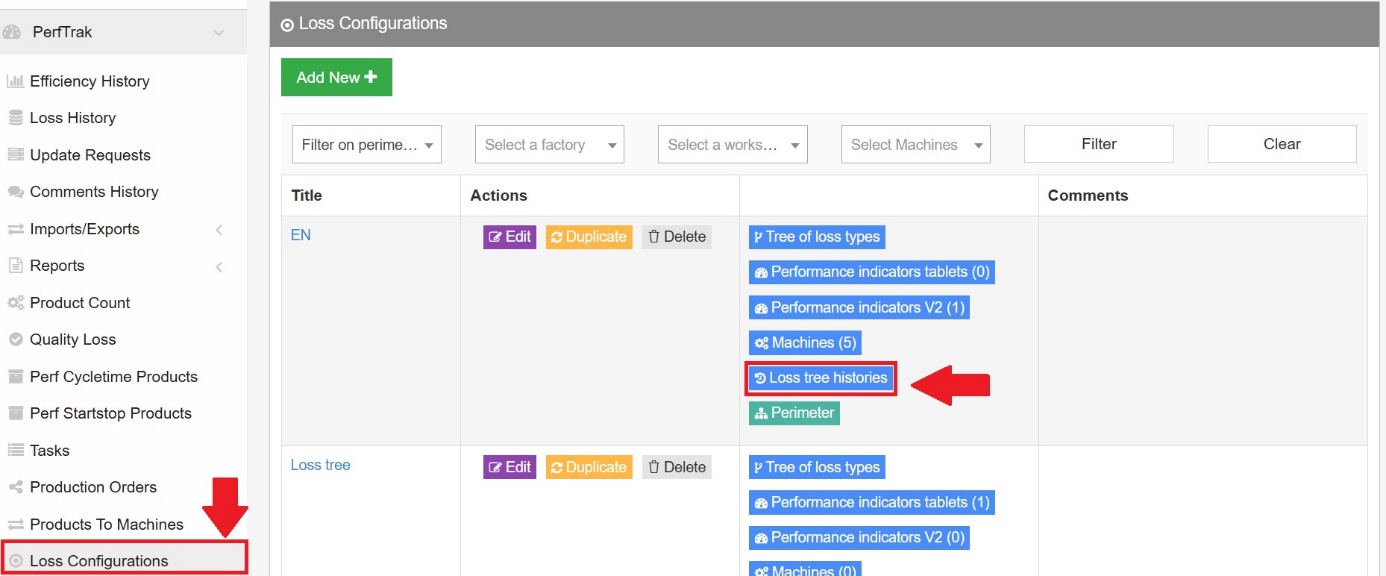
You can also reach the tab from the upper tabs of the loss configuration, if you opened it with the Edit option.
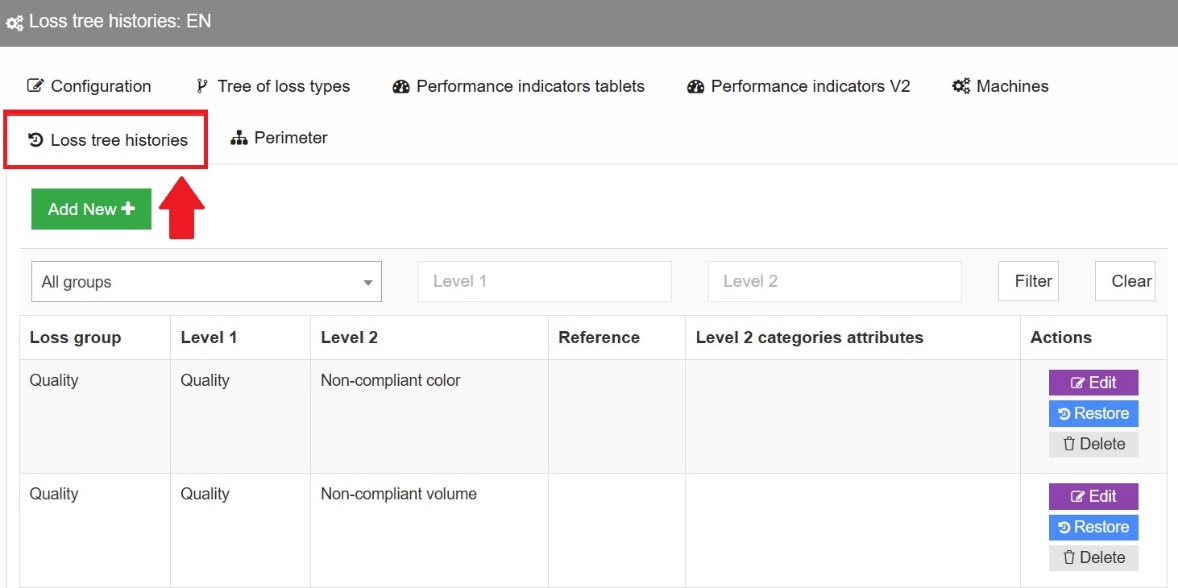
This tab lets you configure your tree by adding, editing, restoring or deleting a historical loss.
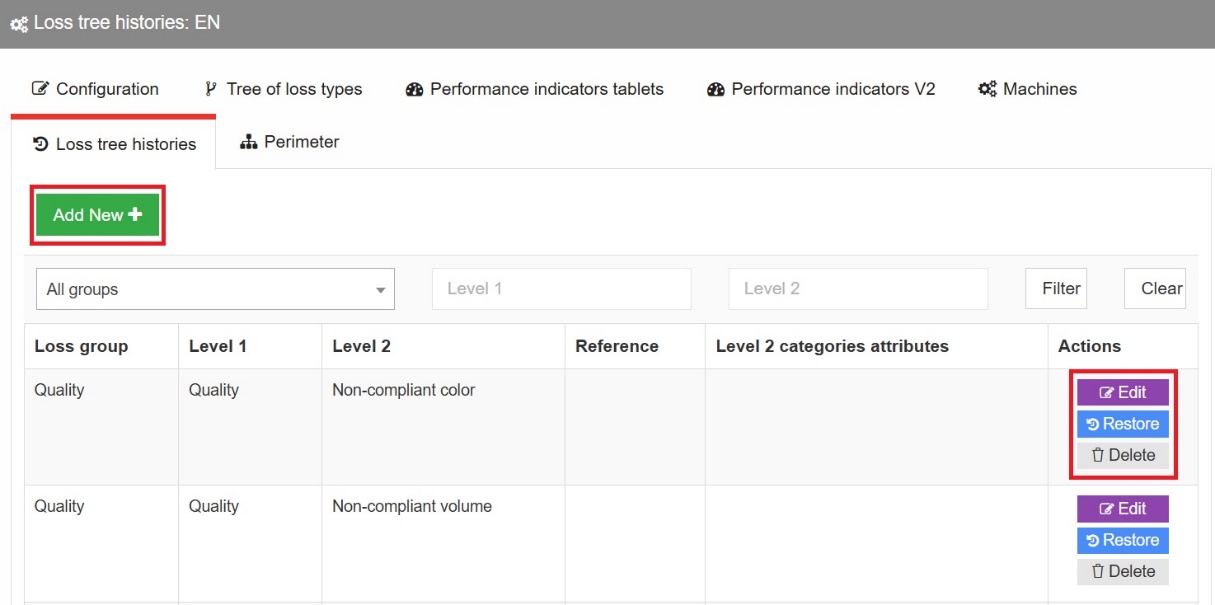
Adding a loss to the history
To add a loss that you modified or deleted from your tree, click Add and select the level 0 group to which that loss belonged before its deletion or modification.
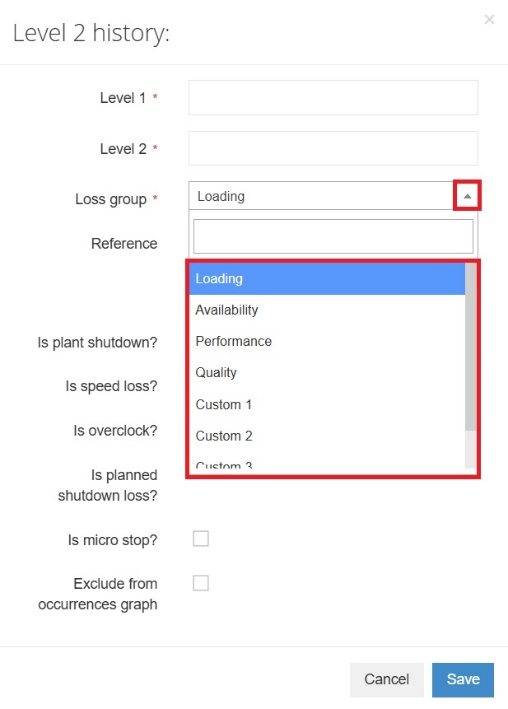
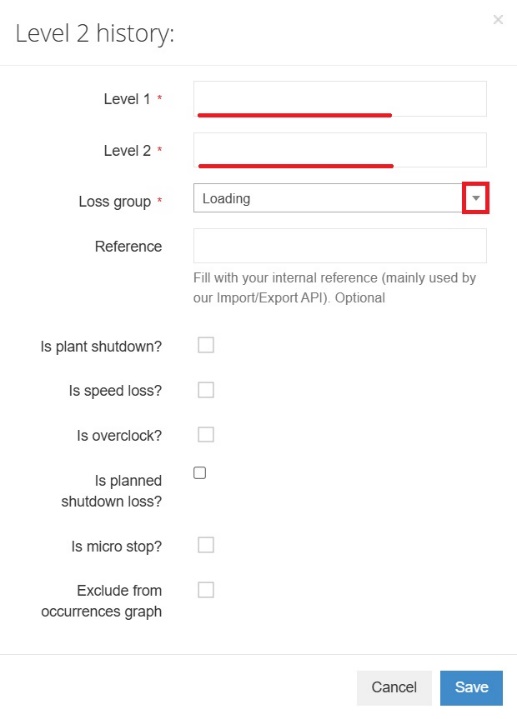
In the example above, the level 0 Loading is selected. The level 1 and level 2 losses are then entered manually in their respective fields.
You can also add an internal reference associated with the loss, for importing and exporting losses through the API. This remains optional.
Six checkboxes let you qualify the historical loss:
- Is it a plant shutdown?
- Is it a speed loss?
- Is it an overspeed?
- Is it a planned shutdown loss?
- Is it a micro stop?
- Exclude from occurrences graph.
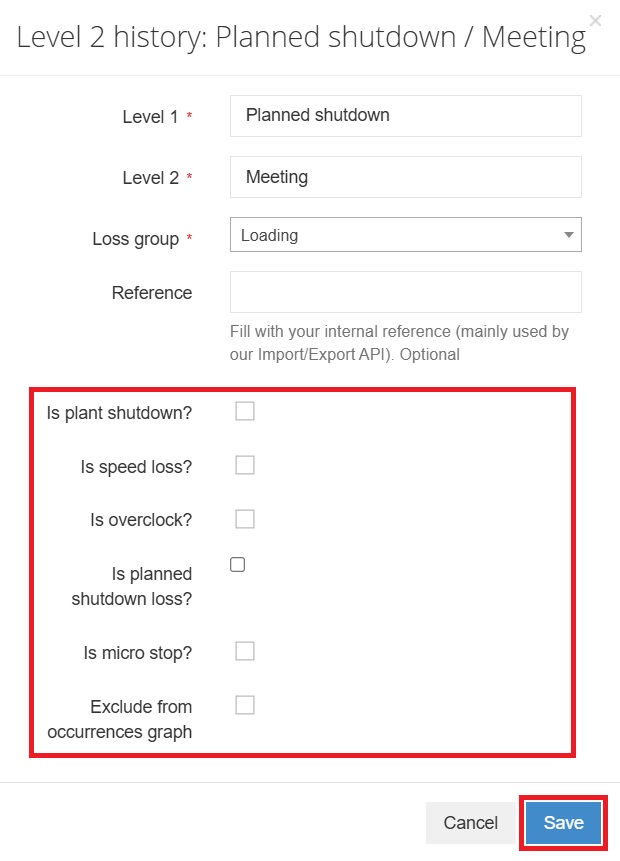
Save your selection: the historical loss is created.