Path: PerfTrak > Reports & Exports > Reports
Overview
The PerfTrak Reports feature generates customised performance summaries, either automatically on a scheduled basis, or manually on demand. Reports are available from the PerfTrak > Reports & Exports > Reports tab of the main menu.
1. Automatic reports
Automatic reports are generated and sent by email at a defined frequency.
1. Create an automatic report
-
Go to PerfTrak > Reports & Exports > Reports, then click Automatic.
-
Fill out the form, specifying:
- The name of the report.
- The email addresses it is sent to.
- The perimeter concerned: factory, workshop, machine.
- The language of the report.
- The time and frequency of sending: on a fixed date (daily, weekly, monthly, and so on), by shift, or at the end of a production order (PO).
- The generation delay, in minutes, for reports triggered at the end of a production order — 24 hours maximum.
- The reference time for the report period.*
*The reference time defines the closing time of the report for a given day. The data displayed covers the 24 hours preceding that time.
Example: if the reference time is set to 4:30 am and the interval is "previous day", the report covers the data between D-1 at 4:30 am and D at 4:30 am.
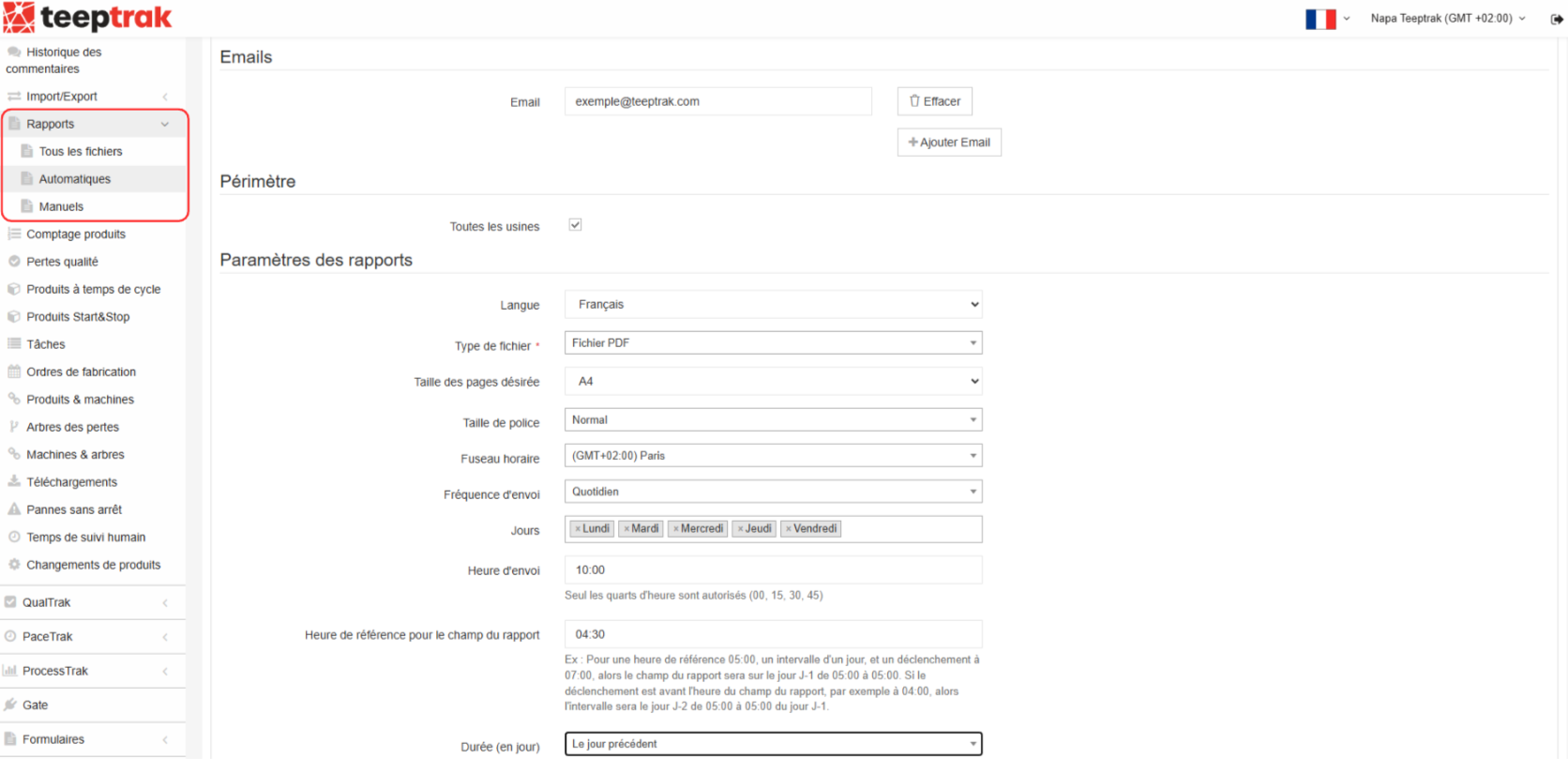
The "End of PO" trigger
When the sending frequency "End of PO" is selected, the report is generated automatically every time a production order is closed, whether from the platform or from the tablet. The data interval covers the whole production order, from the first to the last production record.
You can set a delay — from 0 to 1440 minutes, that is 24 hours — between the closing of the production order and the generation of the report. This delay gives operators and managers time to finalise the production order — qualifying stoppages, adding comments, entering produced quantities — before the report is issued.
Example: with a delay of 120 minutes, a production order closed at 2:00 pm produces a report generated at 4:00 pm, including all the corrections made in the meantime.
Points to note:
- End-of-PO reports are only available in PDF format.
- Form data is not included in these reports. It remains exportable per production order from the interface.
- A report regenerated afterwards recalculates the production order data, including the modifications made after the first generation.
2. Add items to the report
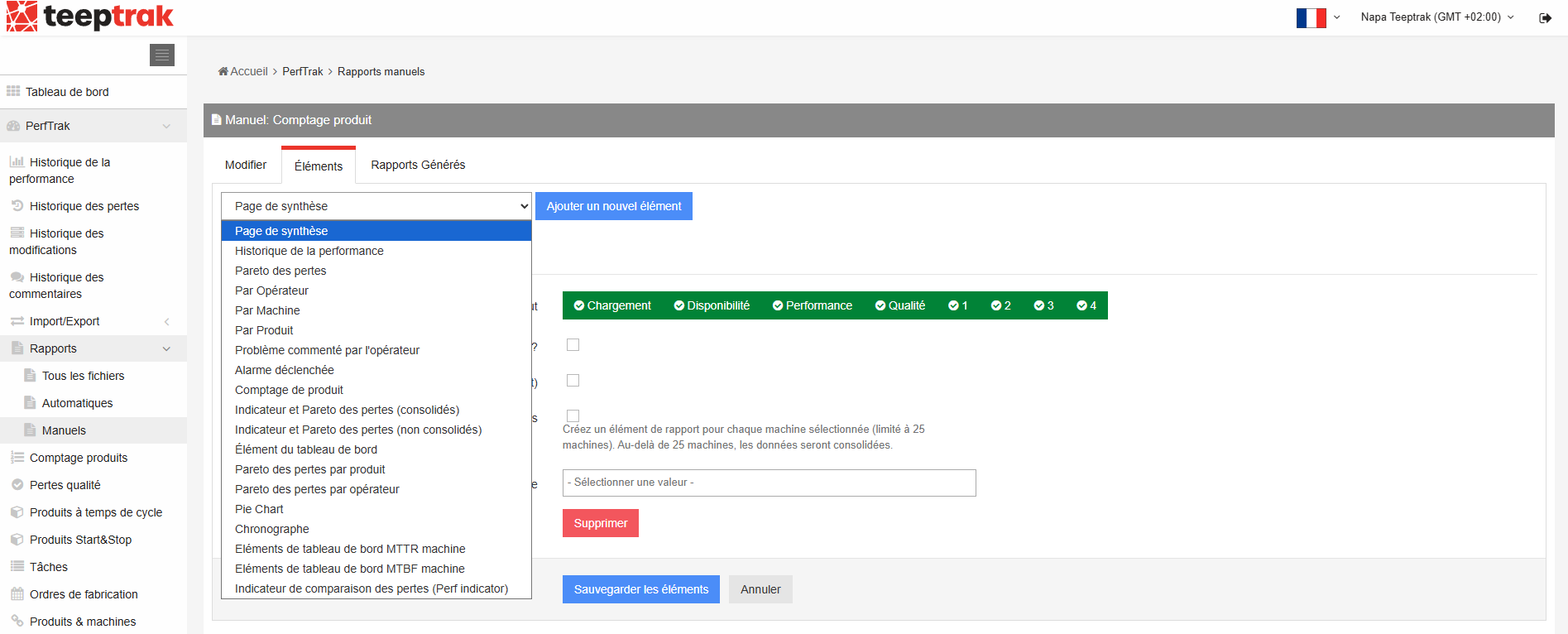
Choose the items to include from the following options:
- Efficiency history,
- Losses Pareto,
- By operator,
- By machine,
- By product,
- Issues commented by the operator,
- Triggered alarms,
- Product count, and so on.
The selection is done item by item. Once an item is selected, you can customise the details that are displayed. The order of the items can be changed by dragging and dropping them.
Once the items are configured, click "Save Items". The report is then generated automatically according to the scheduled frequency.
2. Manual reports
The process of creating a manual report is identical to that of an automatic report, except for the sending time and frequency settings.
1. Create a manual report
- Configure the items you want, then click "Save Items".
- Switch to the "Generated Report" tab.
- Select the period you want to analyse.
- Click "Generate Report".
The report appears in the table of generated reports. Three actions are then possible: view the report, rebuild it or delete it.
3. Managing the reports
The "All files" tab keeps every report that has been issued. For each report, you can:
- Rebuild it, which recalculates the data.
- Modify its configuration.
- Deactivate it, for automatic reports.
- Delete it.
