Introduction
Tab: PerfTrak > Data Forcing > Synthetic Adjustments
Synthetic adjustment lets you retroactively correct the production count of a machine over a past period. When the actual production was not properly reported by the sensors, this feature injects production events into the history, as if the machine had indeed been producing during the downtime concerned.
The OEE and the performance indicators are automatically updated to reflect the change.
Example use cases:
Sensor obstruction — a physical obstruction in front of the sensor during a shift prevented 200 parts from being reported. The operator notices it at the end of the day: the parts are there, but the counter does not reflect them. With a synthetic adjustment, those 200 parts can be re-injected over the period concerned, and the OEE is corrected.
Requalifying a stop — a stop was classified as a "failure" when the machine was in fact producing (a badly configured triggering threshold, for instance). The team can convert that downtime into effective production through a synthetic adjustment.
Note: this feature is only available if it has been enabled for your site. If you cannot see it in your interface, contact your administrator.
Who can use this feature?
Access to synthetic adjustment is subject to user permissions. Depending on how your site is configured, some restrictions may apply. Contact your administrator to find out your rights.
Prerequisites
Before launching a synthetic adjustment, make sure that:
the tablet associated with the machine is switched on and connected;
the data is synchronised over the period concerned. If the tablet has not yet synchronised the data for that period, the result may be incomplete;
no operator is using the tablet: during processing, the tablet screen is automatically locked to prevent any interaction;
the stops linked to a quality session cannot be adjusted. The quality feature takes precedence: no stop referenced in a quality session will be modified. Close or dissociate the quality session concerned before relaunching the adjustment.
Filling in the form
The synthetic adjustment form is made up of the following fields.
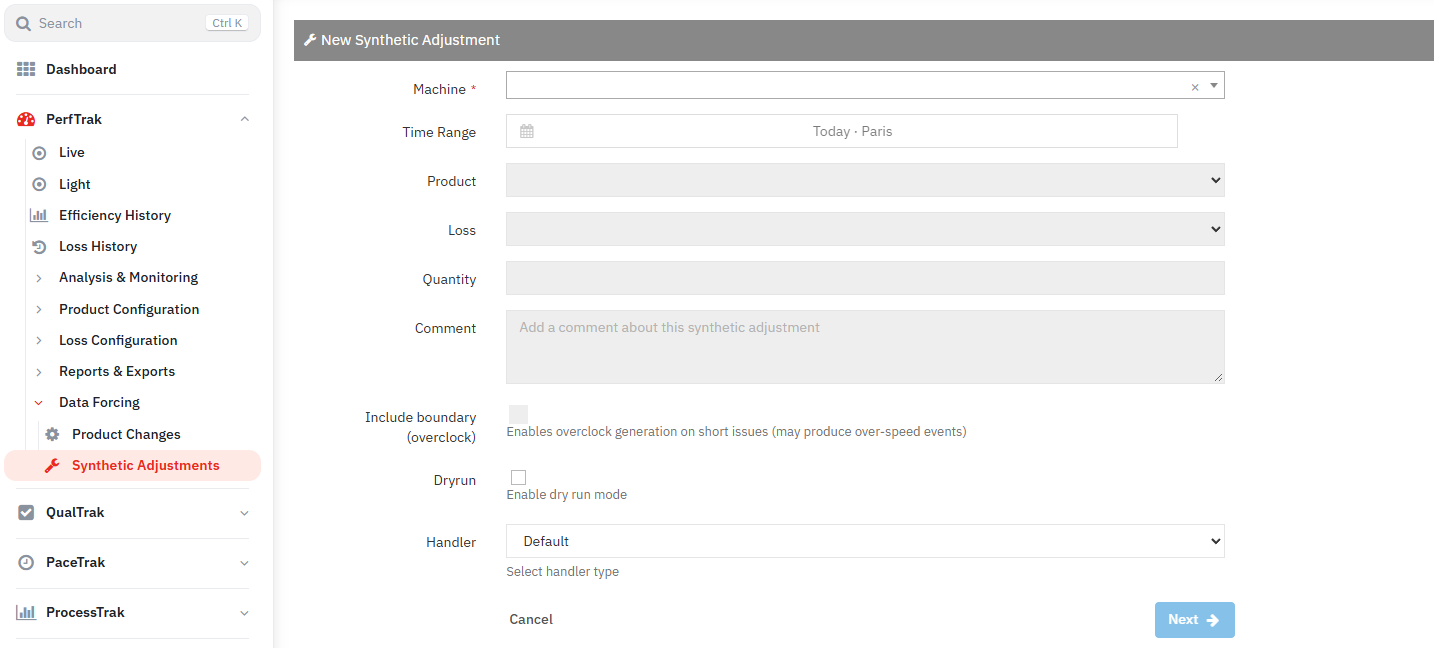
1. Machine
Select the machine whose production count you want to correct.
2. Time range
Define the period covered by the correction:
start date and time,
end date and time.
Check carefully that the range matches the actual period during which the uncounted production took place. You can select the time zone of your factory.
3. Product
Select the product — or the production order — concerned by the correction. Only the products actually produced over the selected range are offered.
4. Type of loss to convert
Choose which types of stop are to be converted into production. You must select at least one loss pair, made up of:
level 1: the stop category,
level 2: the sub-category.
Only the stops matching the selected pairs will be used to insert production events. The other stops remain unchanged.
4. Quantity
Enter the number of pulses you want to add. The form may display an estimate of the maximum quantity that can be injected over the period, given the available stops.
The inserted pulses are necessarily whole.
If the product has grouping coefficients, take them into account when calculating the number of pulses to insert.
5. Allow overclocking
This option controls what the system does when the long stops are not enough to reach the requested quantity:
Disabled (default) — the system only uses stops that are long enough. If the quantity cannot be reached in full, the result will be partial.
Enabled — the system may also use stops shorter than the cycle time to insert additional events. This can generate overclock segments in the history.
Note: when in doubt, leave this option disabled. A partial result is always preferable to unwanted overclocking. You can always relaunch with the option enabled if necessary.
Understanding the processing
Once the form is validated, the system proceeds in several steps.
1. How does it work?
The system goes through the requested time range and looks for the downtime periods matching the criteria you defined (type of loss, product). It then progressively inserts production events into those periods:
The longest stops first — where there is the most "room" to insert events without creating overclocking. The system makes two complementary passes over these long stops to maximise the filling.
Then the short stops, only if overclocking is allowed — when the long stops are not enough, the system may use stops shorter than the cycle time of the product. This generates overclock segments, which is the expected behaviour in that case.
The system stops as soon as the requested quantity is reached, or when no stop is left available.
2. Processing time
Processing can take from a few seconds to several minutes, depending on the volume of data and the complexity of the range. The maximum duration is 15 minutes per task.
Throughout the processing, the tablet is locked: no interaction is possible until it finishes.
3. Partial result
The system may not find enough eligible stops to reach the requested quantity. In that case, it inserts as many events as possible and reports a partial result. The events already inserted are kept.
4. Reading the result
At the end of the processing, you can consult:
the quantity actually inserted, compared with the quantity requested;
the status of the task: complete success, partial result, or error.
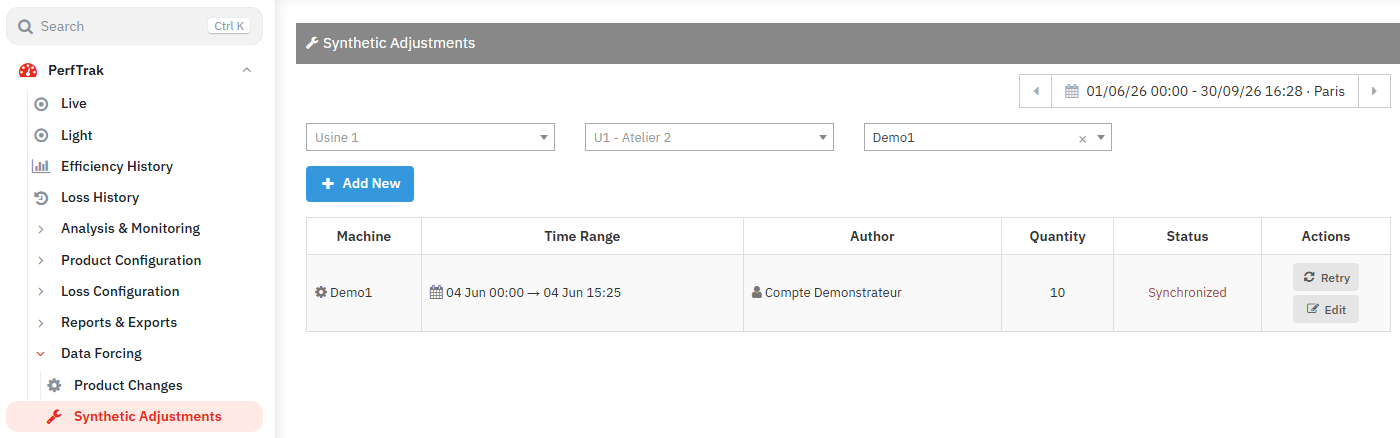
History of the adjustments
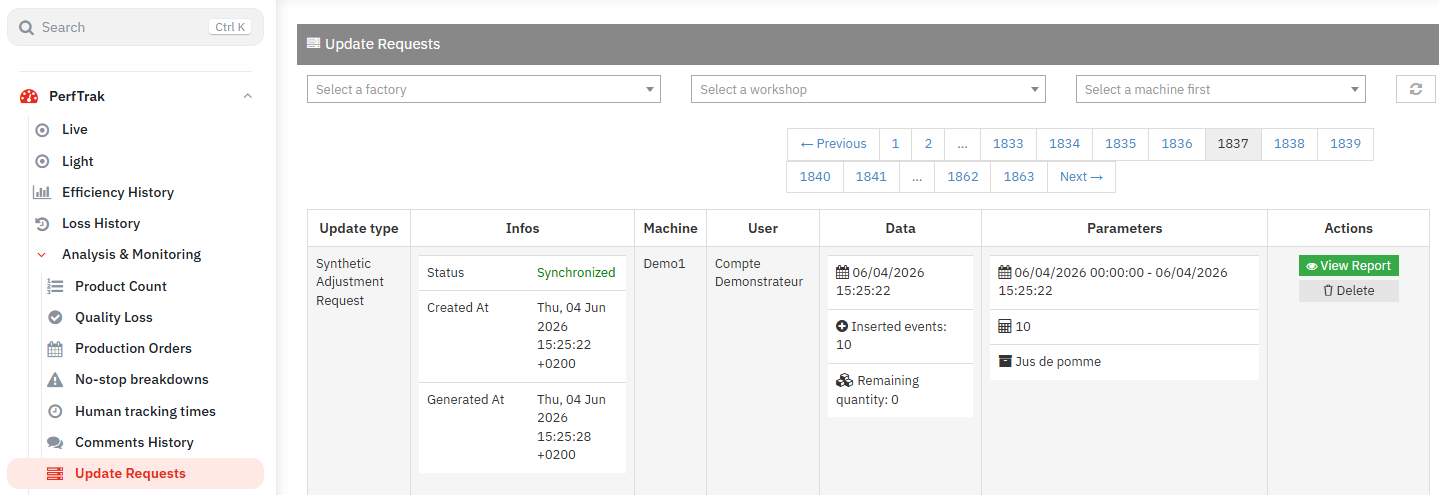
All the synthetic adjustments performed can be consulted in the update history (PerfTrak > Analysis & Monitoring > Update Requests). For each adjustment you will find the machine, the range, the quantity requested, the quantity inserted and the final status.
Error messages
Here are the messages you may encounter when using synthetic adjustment, what they mean and the recommended actions.
Message | Meaning | What to do |
|---|---|---|
Invalid product definition | The product information is incomplete: the name or the cycle time is missing. | Contact support to check the configuration of the product on your site. |
No eligible stop found | There is no stop matching your criteria over the requested range. | Widen the time range, check the selected product, or change the types of loss chosen. |
All stops are linked to a quality session | The stops found are locked by an ongoing quality session and cannot be modified. | Close or dissociate the quality session concerned before relaunching the adjustment. |
Invalid time range | The start and end dates are inconsistent (end before start, or missing values). | Check that the end date is indeed later than the start date. |
Quantity partially reached | The system did not find enough "room" in the stops to insert all the requested parts. | Check the estimated maximum quantity. If overclocking was not allowed, you can relaunch with that option enabled. |
Execution time exceeded | The processing took more than 15 minutes and was interrupted. | Reduce the time range or the requested quantity, then relaunch. |
Data integrity error | An inconsistency was detected in the machine data. | Contact technical support, specifying the machine and the time range concerned. |
FAQ and good practice
Can a synthetic adjustment be cancelled?
No. Once executed, a synthetic adjustment cannot be cancelled automatically. The inserted events are final. If a mistake was made, contact technical support.
What happens if the tablet loses its connection during the processing?
The processing runs locally on the tablet — or on the server if the tablet does not hold the data. Losing the network connection does not interrupt the processing under way. The result, however, will only reach the platform once the connection is restored.
Should I wait for a complete synchronisation before launching an adjustment?
Yes, that is recommended. If the tablet has not yet synchronised all the data for the period concerned, the system might only find some of the stops and produce an incomplete result. Wait until the synchronisation indicator confirms that the data is up to date.
What is the difference between a pulse and a coefficient?
A pulse is a single signal from the sensor. A coefficient — or grouping unit — is a business unit defined for the product (for example: 1 pack = 10 pulses, or 1 tray = 0.5 pulse). When you enter the quantity as a coefficient, the system automatically converts it into pulses for the calculation.
My adjustment shows "quantity partially reached", what should I do?
It means that the eligible stops over the range were not sufficient to insert the whole requested quantity. You can widen the time range, add further types of loss, or enable the overclocking option if it was not enabled.
Does synthetic adjustment modify quality sessions?
No. Stops linked to a quality session are automatically excluded from the adjustment. The quality feature takes precedence: no stop referenced in a quality session will be modified.