Creating a flow through Power Query
The following steps are carried out from your Excel file.
Open the web connector
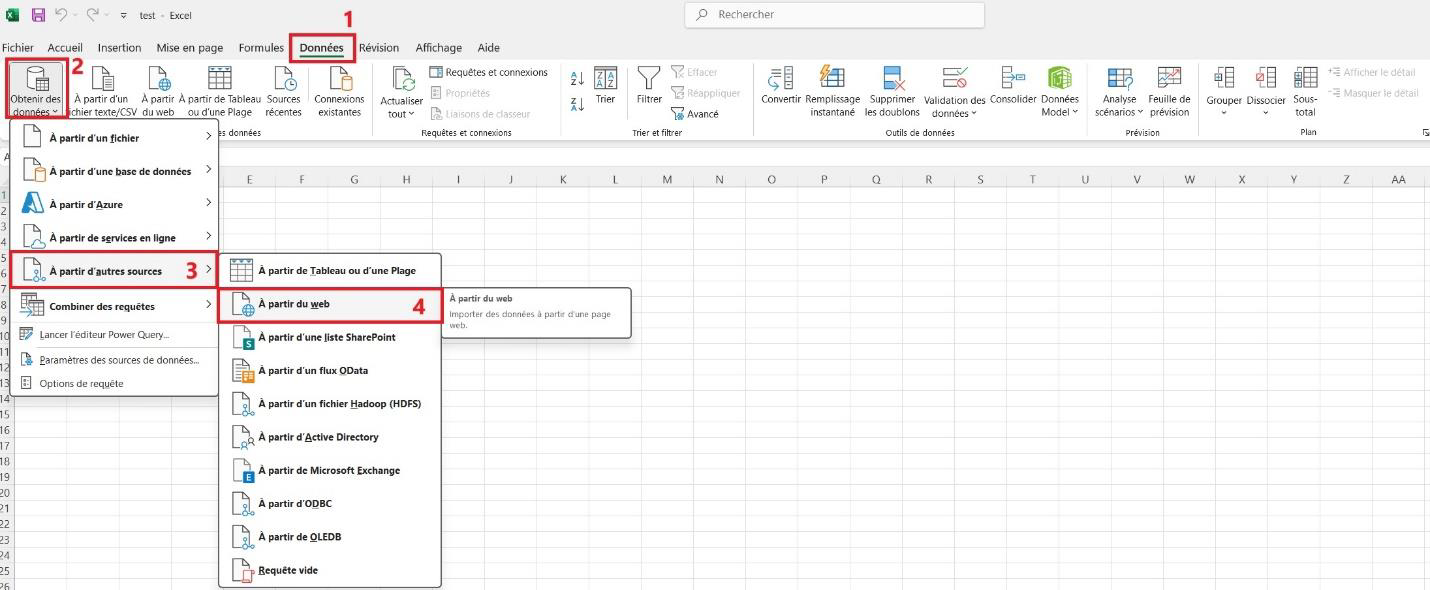
- Go to the Data tab of the Excel ribbon.
- Click Get Data.
- Select the From Other Sources category.
- Select the From Web sub-category.
Switch to advanced mode
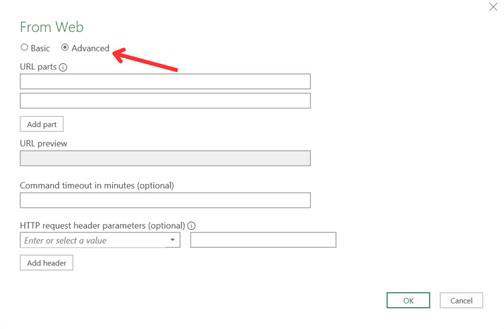
A Power Query dialog box opens: select the Advanced mode.
Enter the endpoint URL
In the URL field, enter the endpoint URL provided on TeepTrak Gate.
- JSON:
https://gate.teeptrak.net/api/v1/external/raw_data.json - CSV:
https://gate.teeptrak.net/api/v1/external/raw_data.csv
Caution: in addition to the endpoint URL, you must add the parameter that allows flows towards Power BI. At the end of your endpoint URL, add
?power_bi=true.Your URL therefore becomes:
https://gate.teeptrak.net/api/v1/external/raw_data.json?power_bi=true
Enter the Bearer token
The Bearer token is the authentication token that identifies and secures a flow. To enter it, add an HTTP request header parameter, then fill in the two fields:
- first field:
Authorization - second field:
Bearerfollowed by the key provided on TeepTrak Gate
Once the information is filled in, click OK. You are then redirected to the Power Query editor.
Optional parameters
A number of optional parameters are available in Gate.
Adding a parameter
Add a ? at the end of the endpoint URL, then type the name and the value of the parameter you want.
Example: https://gate.teeptrak.net/api/v1/external/raw_data.json?page=2
Combining several parameters
Separate the parameters with the & symbol. You can combine as many as you want.
Example: https://gate.teeptrak.net/api/v1/external/raw_data.json?power_bi=true&page=2