Introduction
Tablet messages let you send a message to the TEEPTRAK tablets installed on the shop floor, from the teeptrak.net platform. At the scheduled time, the tablet notifies the operator of an unread message, which they can open and read from the message list.
You write the message with its formatting, then choose the tablets that should receive it.
Example use cases
Safety reminder — An HSE manager schedules a "Please wear your PPE" message sent every day at the start of the shift to all the workshop tablets.
One-off instruction — A workshop manager informs operators of an organisational change (inventory, audit, customer visit) by sending a message to the relevant tablets.
Routine reminder — A quality manager schedules a weekly reminder, for example on Tuesdays and Wednesdays at 11:25, to launch a self-inspection.
End of production order — A team leader schedules a message reminding operators of the tidying and inspection tasks to carry out at the end of each production order.
Creating a tablet message
Step 1 — Open the messages
In the menu, open Administration > Tablet tools, then the list of messages, and create a new message.
A message has three tabs: Edit, Tablets and Perimeter.
Step 2 — Configure the message
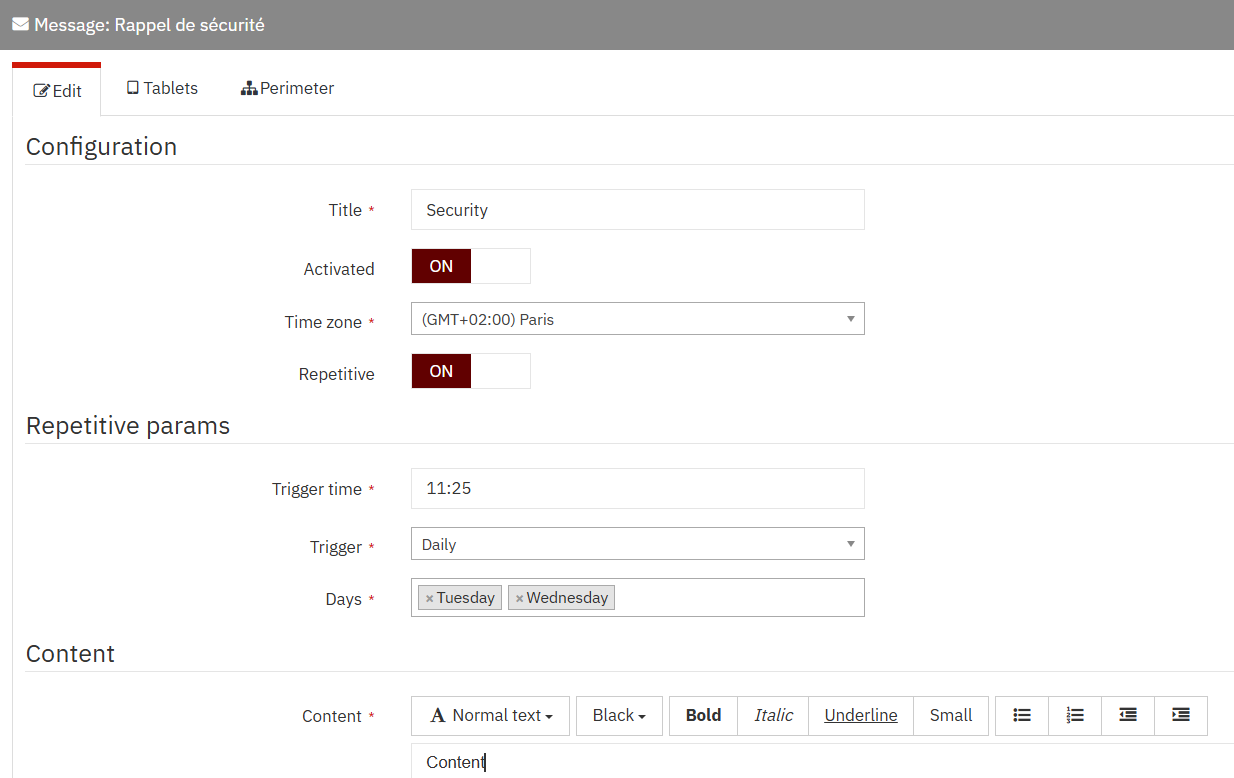
In the Edit tab, Configuration section:
Field | Required | Description |
|---|---|---|
Title | Yes | Title of the message, shown on the tablet and used to find it in the list (e.g. "Security") |
Activated | No | Turns sending of the message on (ON) or off (OFF). A deactivated message is not sent to the tablets. |
Time zone | Yes | Time zone in which the trigger time is interpreted |
Repetitive | No | When ON, the message is sent on a recurring basis according to the trigger settings below |
Step 3 — Schedule the trigger
When Repetitive is ON, the Repetitive params section appears:
Field | Required | Description |
|---|---|---|
Trigger time | Yes | Time at which the message is sent, in HH:MM format, in the selected time zone |
Trigger | Yes | Trigger frequency (see below) |
Days or Trigger day | Yes | Additional field that depends on the selected frequency: Days (days of the week) for Daily, Trigger day (1 to 31) for Monthly and Quarterly |
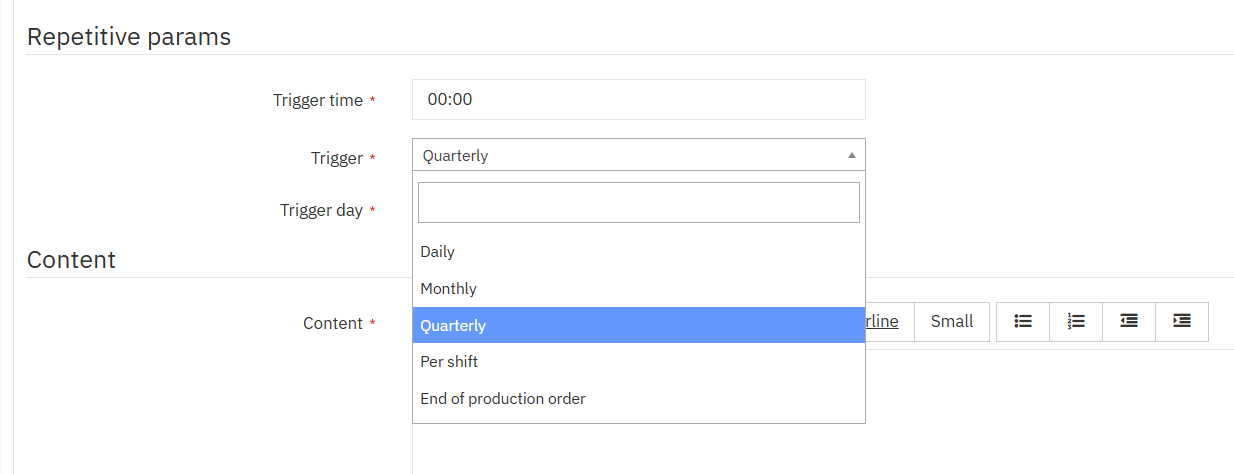
The Trigger field offers the following frequencies:
Frequency | Description |
|---|---|
Daily | The message is sent at the selected time, on the days of the week selected in the Days field (several days allowed). |
Monthly | The message is sent once a month, at the selected time, on the day set in the Trigger day field (1 to 31). |
Quarterly | The message is sent once a quarter, at the selected time, on the day set in the Trigger day field (1 to 31). |
Per shift | The message is sent for each shift. |
End of production order | The message is sent at the end of each production order. |
💡 Check the time zone: the trigger time is interpreted in this time zone, not in your browser's.
Step 4 — Write the content
In the Content section, type the text of the message. The editor lets you format the text:
Tool | Description |
|---|---|
Normal text | Text style (normal text, headings) |
Black | Text colour |
Bold / Italic / Underline | Bold, italic, underlined |
Small | Small-size text |
Lists | Bulleted or numbered list |
Indentation | Increase or decrease the indentation |
The formatting is kept when the message is displayed on the tablet. Keep the message short and readable at a glance.
Step 5 — Save
Click Save. The example in step 2 shows an activated message, sent every Tuesday and Wednesday at 11:25.
Choosing the target tablets
Once the message is saved, open the Tablets tab to choose which tablets will receive it.
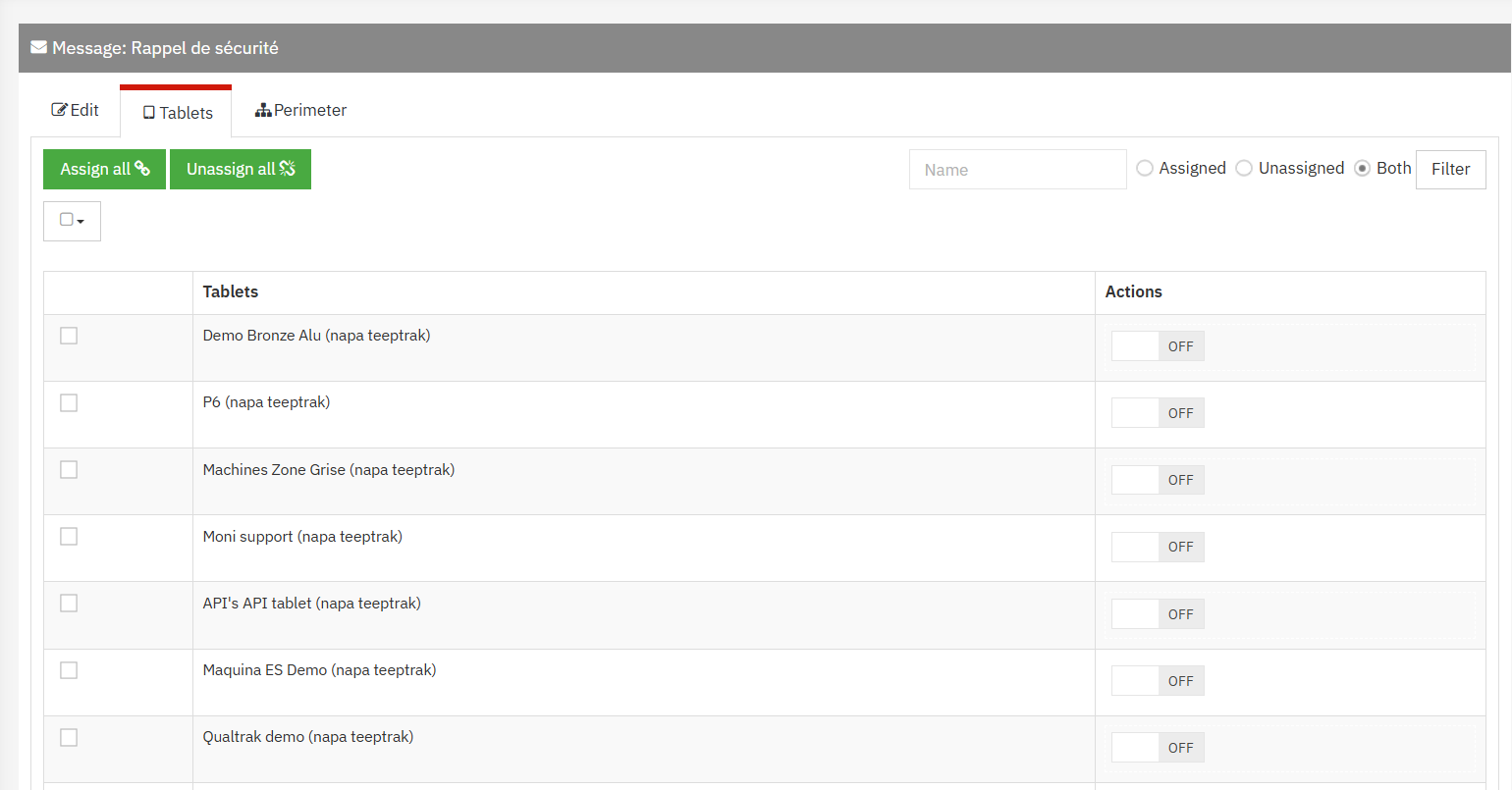
Element | Description |
|---|---|
ON/OFF switch (Actions column) | Assigns (ON) or removes (OFF) the message for the tablet on that row |
Assign all | Assigns the message to all the tablets in the list |
Unassign all | Removes the message from all the tablets in the list |
Name | Filters the tablets by name |
Assigned / Unassigned / Both | Shows only assigned tablets, unassigned tablets, or all of them |
Filter | Applies the search and the filter |
💡 Combine the name search with Assign all to quickly assign the message to a group of tablets (e.g. all tablets whose name contains "demo").
Reading messages on the tablet
Unread message notification
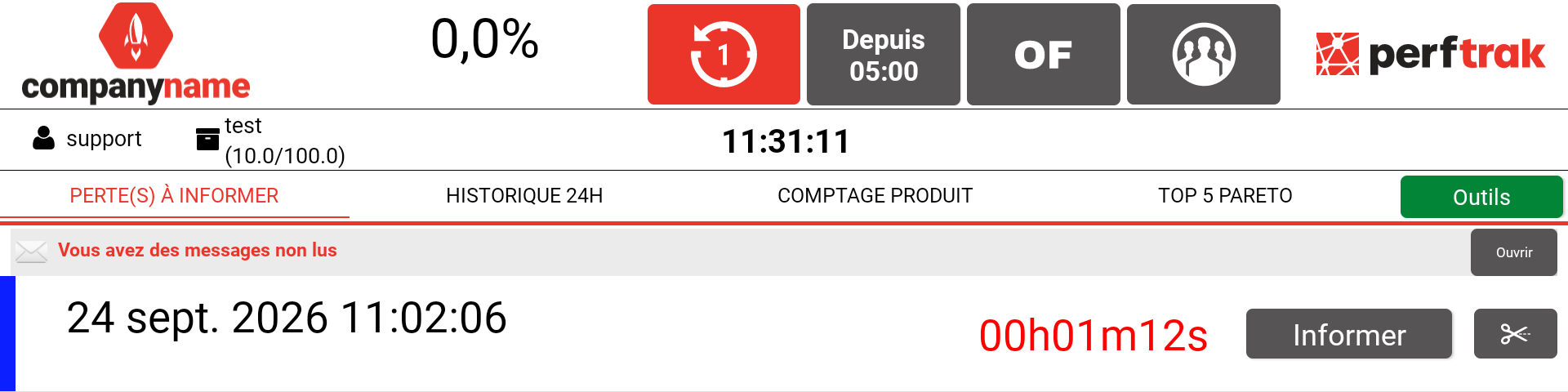
At the scheduled time, a banner informing the operator that they have unread messages appears at the top of the main screen of the assigned tablets. Tap Open to go to the message list.
Message list
The Messages screen lists the messages received by the tablet, with their title and the date and time they were received. Unread messages are shown in bold, preceded by a dot.
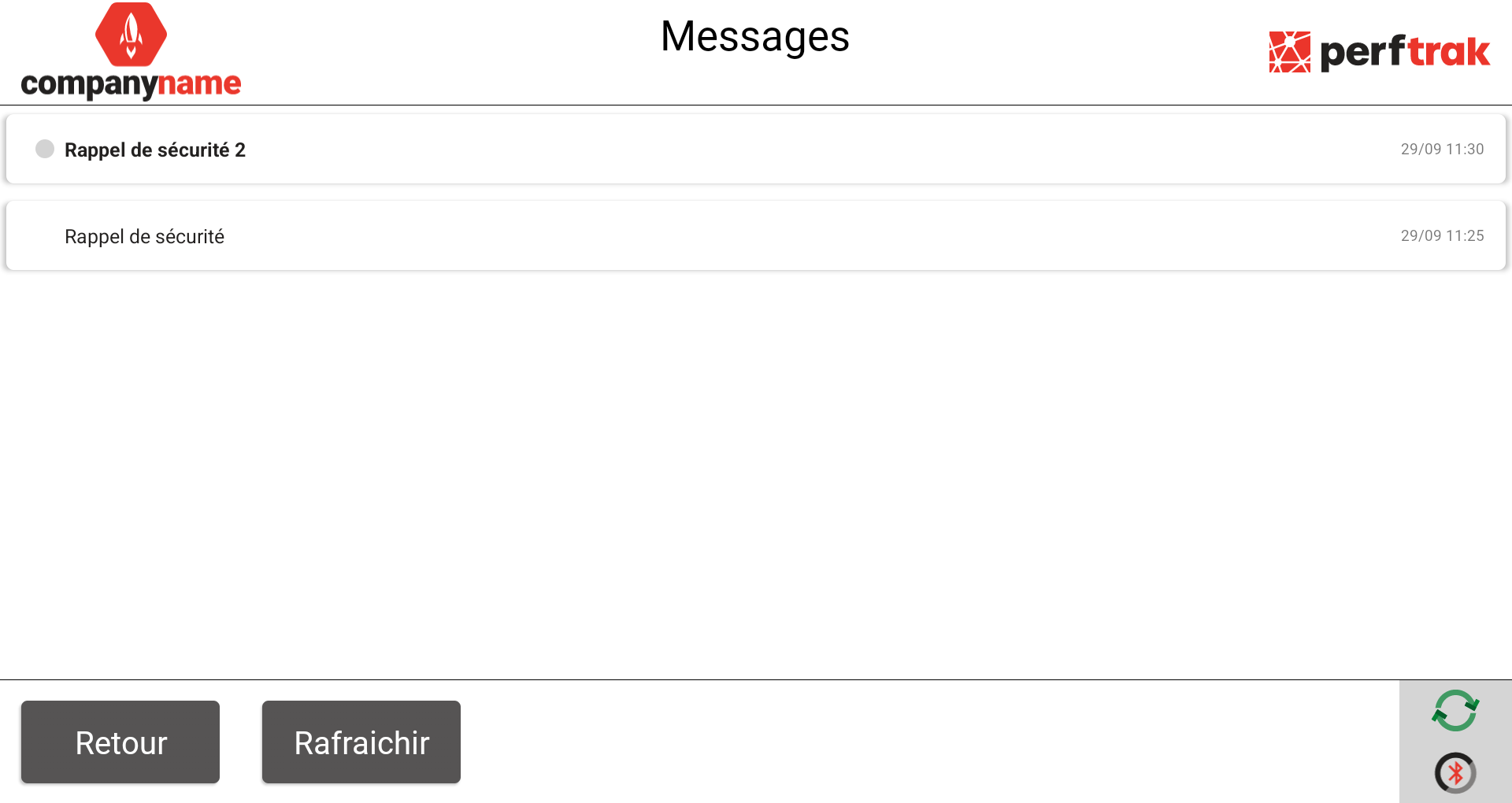
Button | Description |
|---|---|
Back | Returns to the main screen |
Refresh | Reloads the message list |
Reading a message
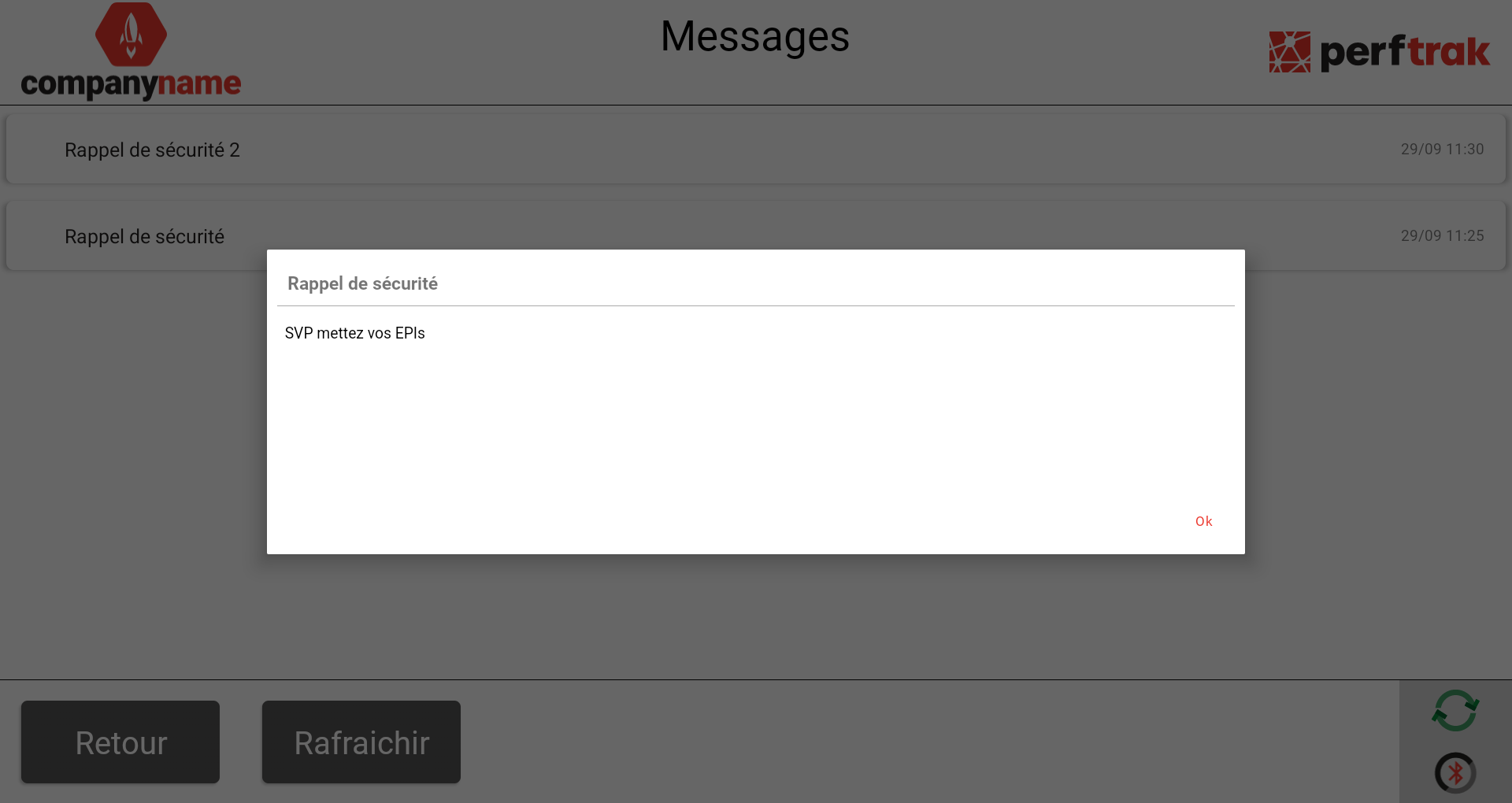
Tap a message to open it: a window shows its title and content, with its formatting. Tap Ok to close it. The message is then marked as read.
Edge cases and points to watch
Message not received. Check that the message is Activated, that it is assigned to the tablet in the Tablets tab, and that the trigger frequency, day and time are correct. On the tablet, tap Refresh in the Messages screen.
Unexpected time. If the message arrives at an unexpected time, check the message's Time zone.
Additional field left empty. In repetitive mode, the Days field (or Trigger day, depending on the frequency) is required: without it, the message cannot be saved.
Tablet outside your perimeter. Only the tablets within your perimeter appear in the Tablets tab. If a tablet is missing, contact your administrator.
FAQ
Can I pause a message without deleting it? Yes. Set Activated to OFF: the message is kept but is no longer sent to the tablets.
Can I send the same message to several tablets? Yes. A single message can be assigned to as many tablets as needed from the Tablets tab.
Can I send a message several times a week? Yes. Choose the Daily frequency and select several days in the Days field.
Can the operator read a message again? Yes. Read messages stay in the list on the Messages screen and can be reopened at any time.