An explanatory video is available here.
When a loss is detected by the module, it is automatically transmitted to the tablet over Bluetooth. Each loss appears on the main page as a bar showing:
the date,
the time,
the duration of the stoppage.
The operator then has to inform the cause of the loss associated with that stoppage.
1. Informing a single loss
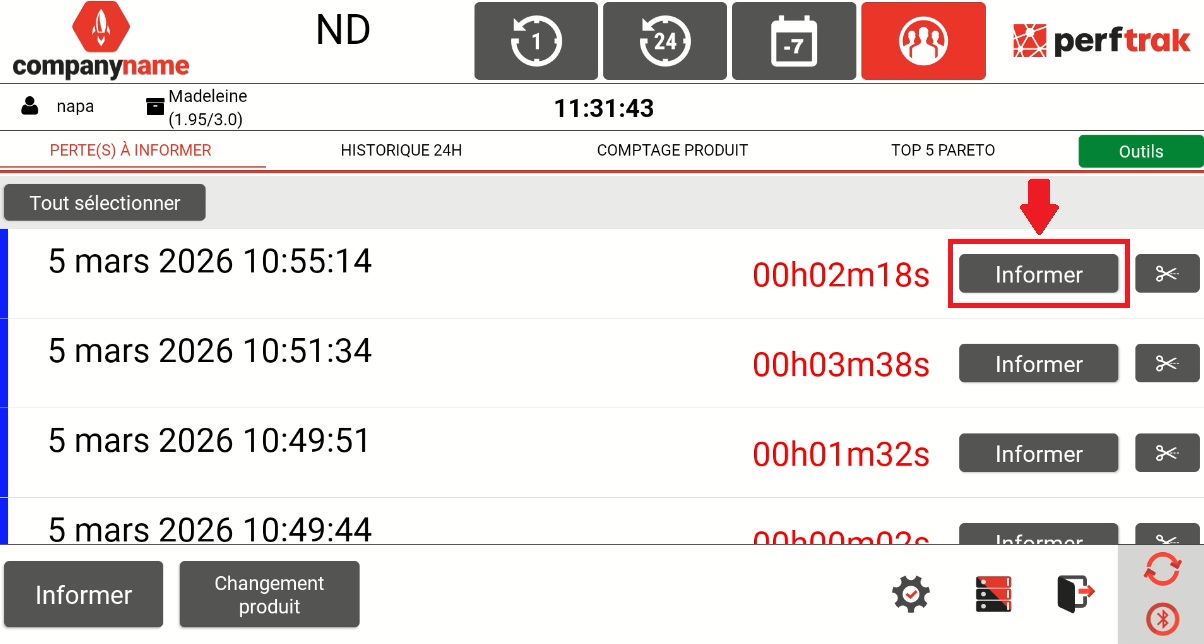
a) On the line corresponding to the detected loss, tap the "Inform" button on the right.
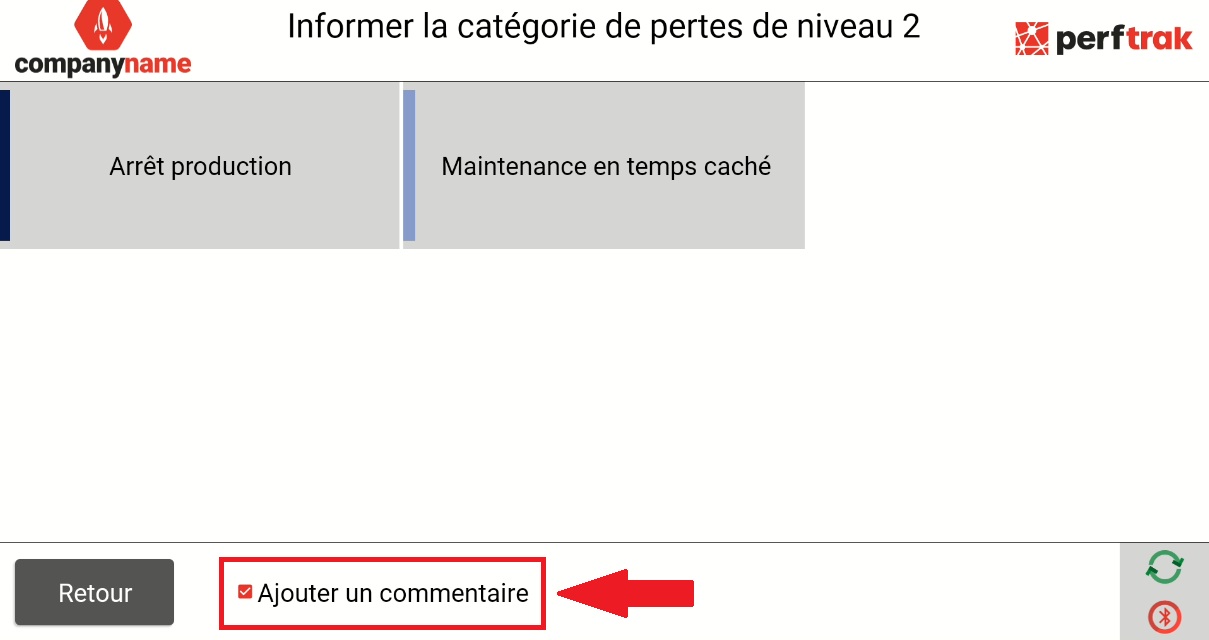
b) The loss tree opens — it is configured specifically for your site. Select the Level 1 loss, then the Level 2 loss.

c) The operator can add a comment by ticking the "Add any information" box. An option that makes comments mandatory is available in Settings > Options.
2. Informing several losses
Several losses can also be informed at once:
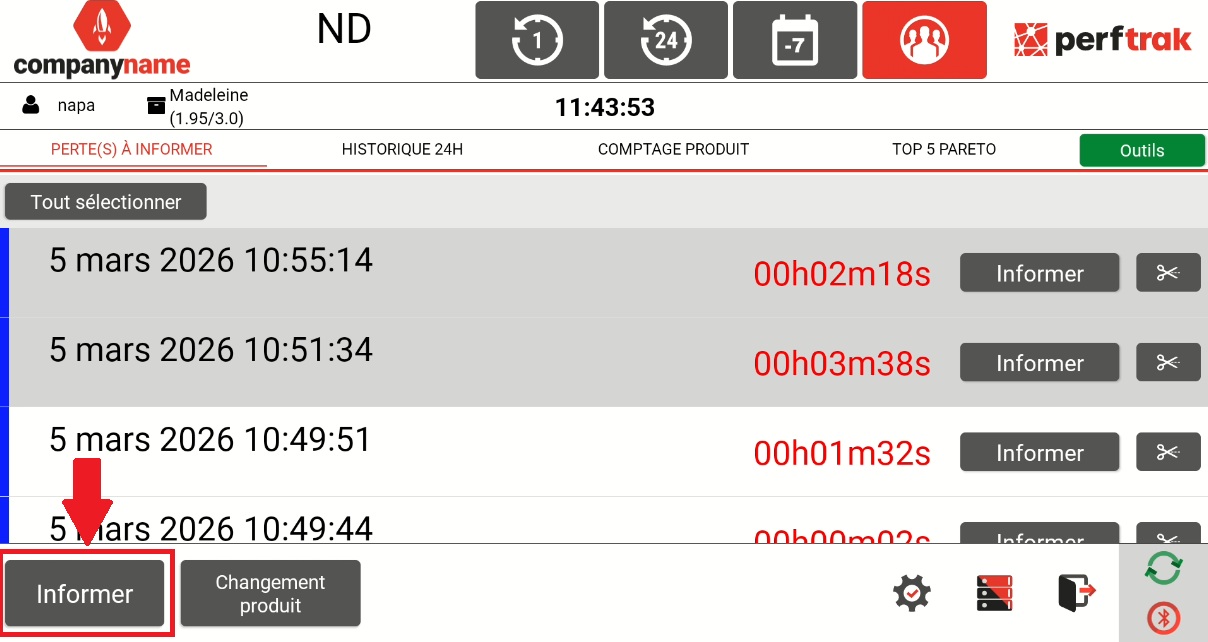
a) Select the losses concerned by ticking them one by one, or click "Select All" to inform the whole page.
b) Tap the "Inform" button at the bottom left of the screen.
c) The loss tree opens — it is configured specifically for your site. Select the Level 1 loss, then the Level 2 loss, which will be associated with each of the selected losses.
Splitting a loss on the tablet
An explanatory video is available here.
A loss can be split into several parts, in order to assign several causes to a single machine stoppage.
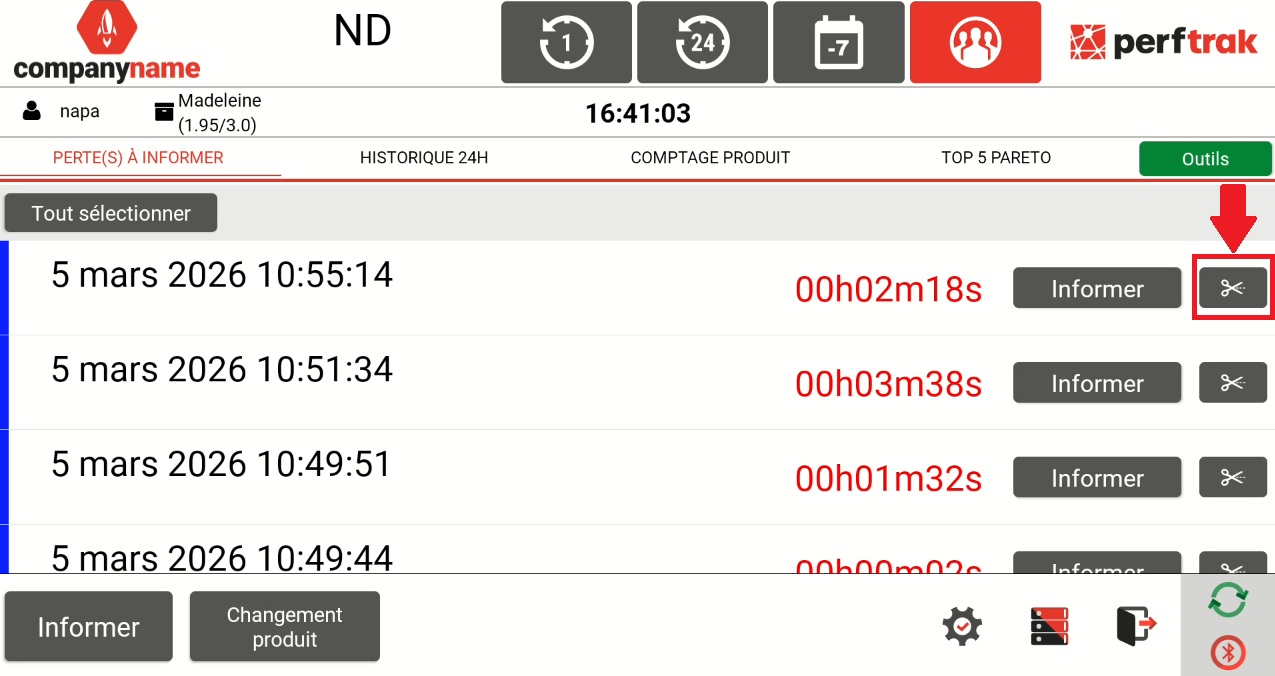
a) Select the stoppage to inform in the list of losses and click the pair of scissors.
b) Define where you want to cut the loss in two, then click Validate.
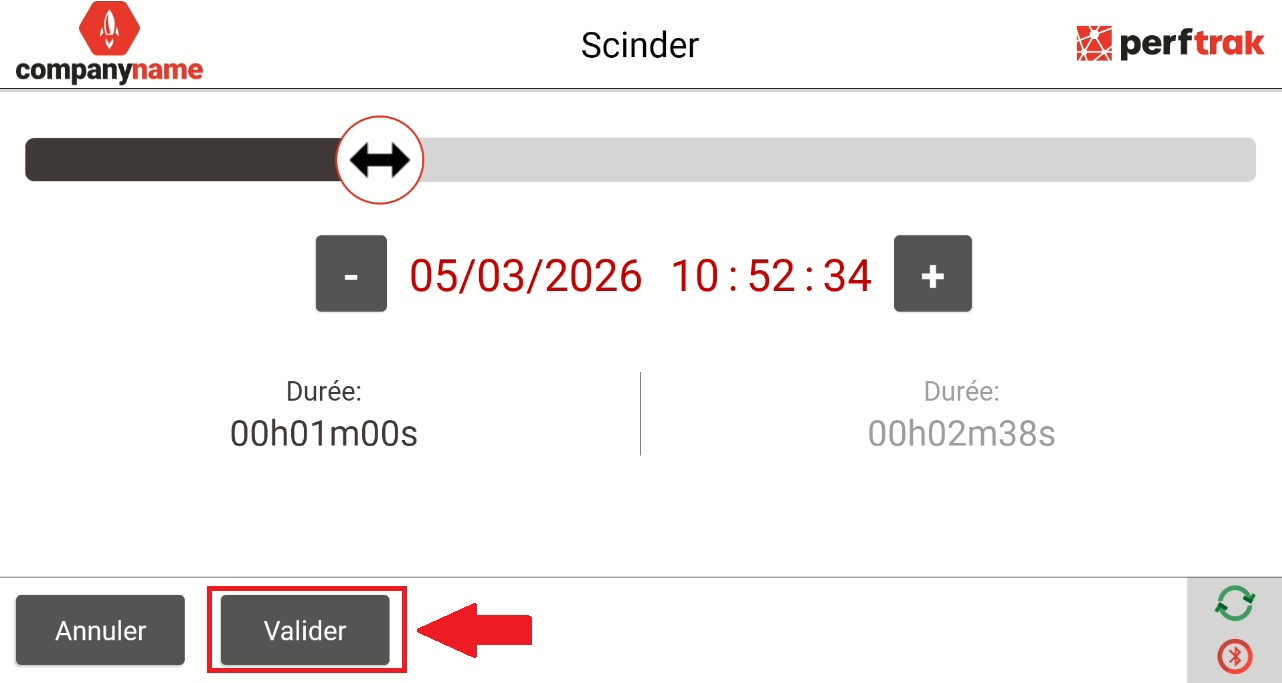
The loss is then divided into two distinct segments, which you can inform separately with different causes.