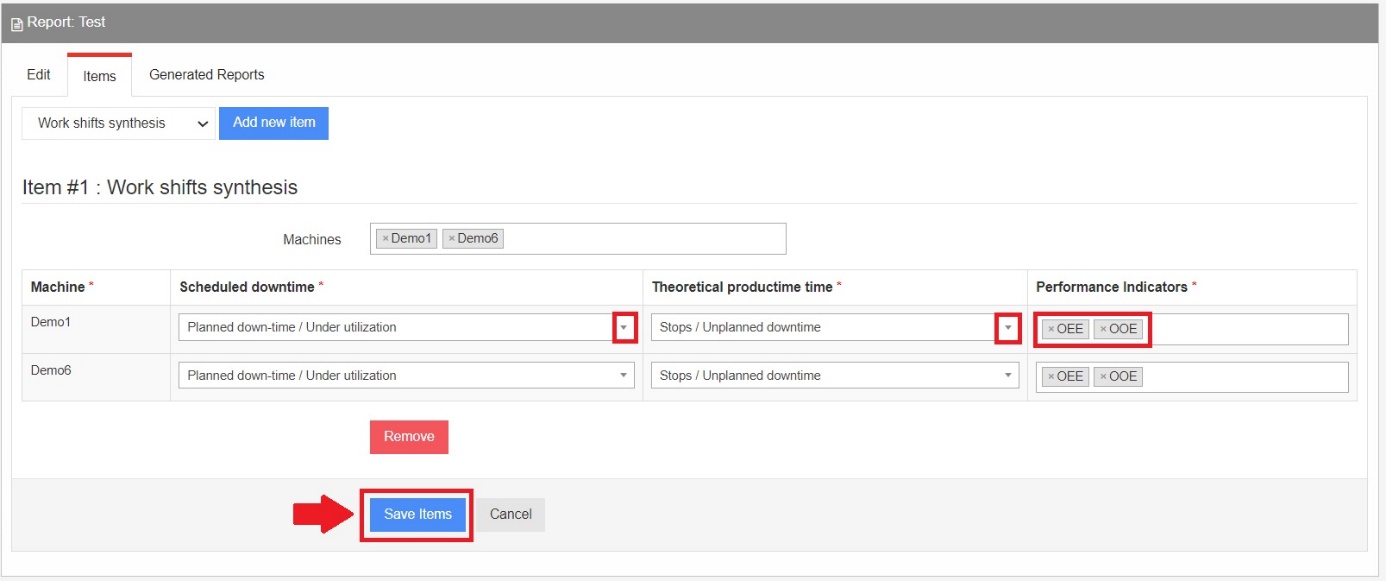
The Work shifts synthesis report element enables you to get a clear and reliable report on your shifts' and machines' performance. It also displays the product counts, the scrap reports and freely configurable KPIs, to highlight the global performance of your equipment within the time range you choose.
To configure this report element, first log in to your TeepTrak interface (on www.teeptrak.net, or on your specific TeepTrak URL if you use a dedicated server).
1. Go to the PerfTrak tab
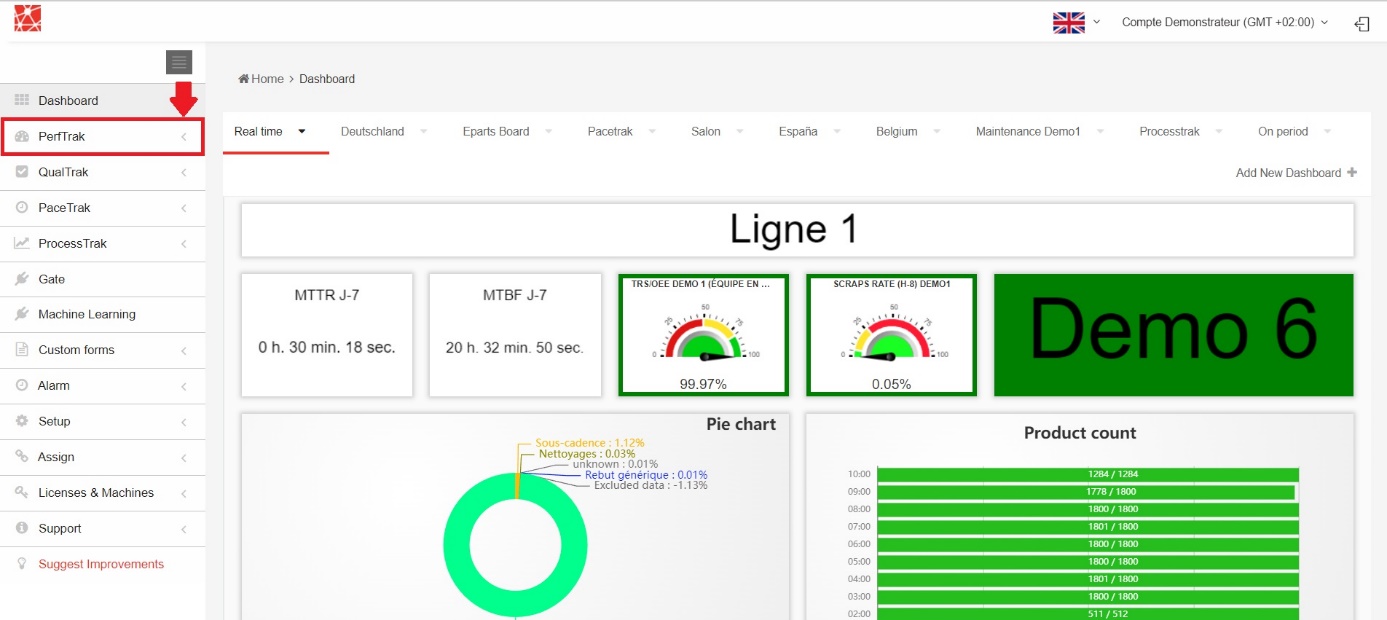
2. Open the Reports sub-tab
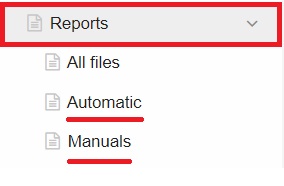
Then click the Reports sub-tab. Two types of reports are available:
- Automatic reports,
- Manual reports.
3. Add a new report
Add a new report, either manual or automatic.

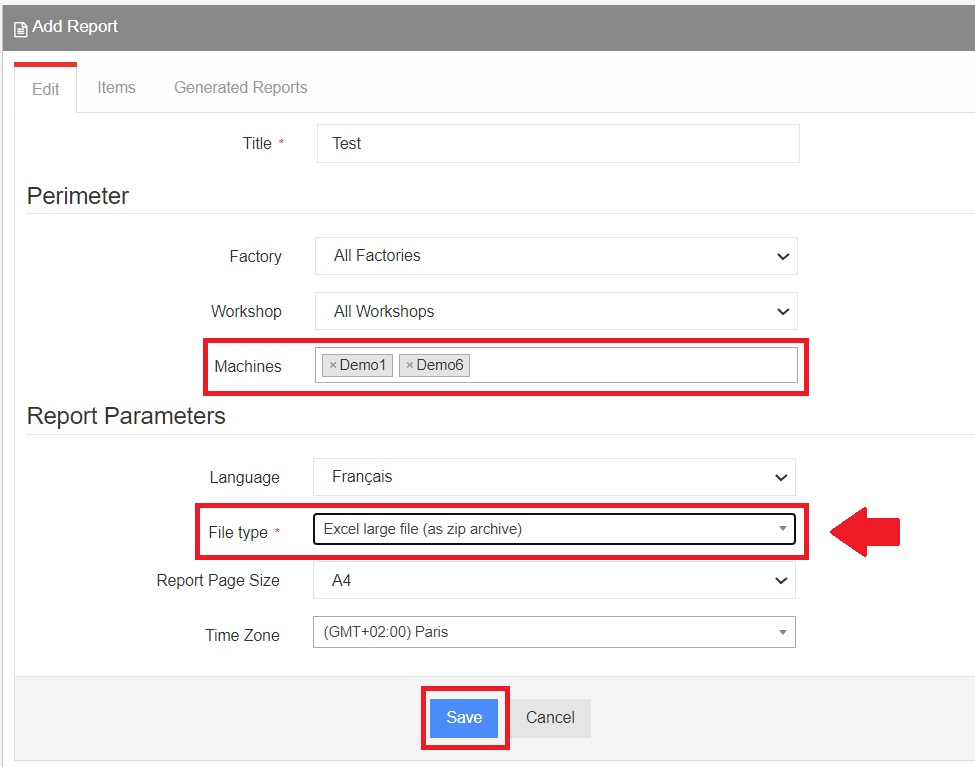
In this example we create a manual report. The configuration of automatic reports is similar, the only difference being that you also have to choose a sending interval for the report.
In the Edit section, give a title to your report and define a perimeter, in particular by adding the machine(s) associated with the report.
In the Report Parameters section, choose the file type Excel large file (as zip archive). The time zone and the report page size are also up to you.
4. Add the report element
Save your report and go to the Items section. In the list of the elements you can add (Add new item), select the Work shifts synthesis element.
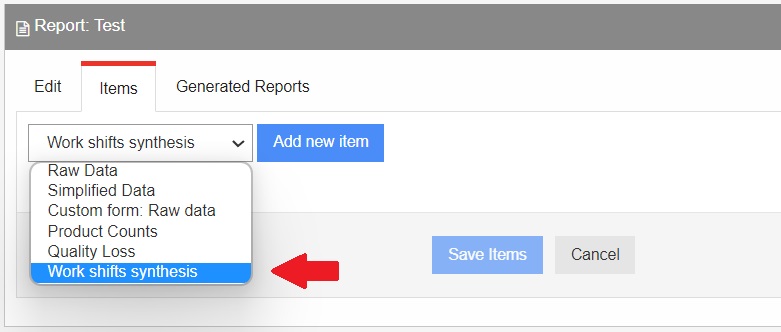
5. Configure the report element
The first part of the element concerns the machine(s) selected, according to the perimeter chosen on the Edit page.
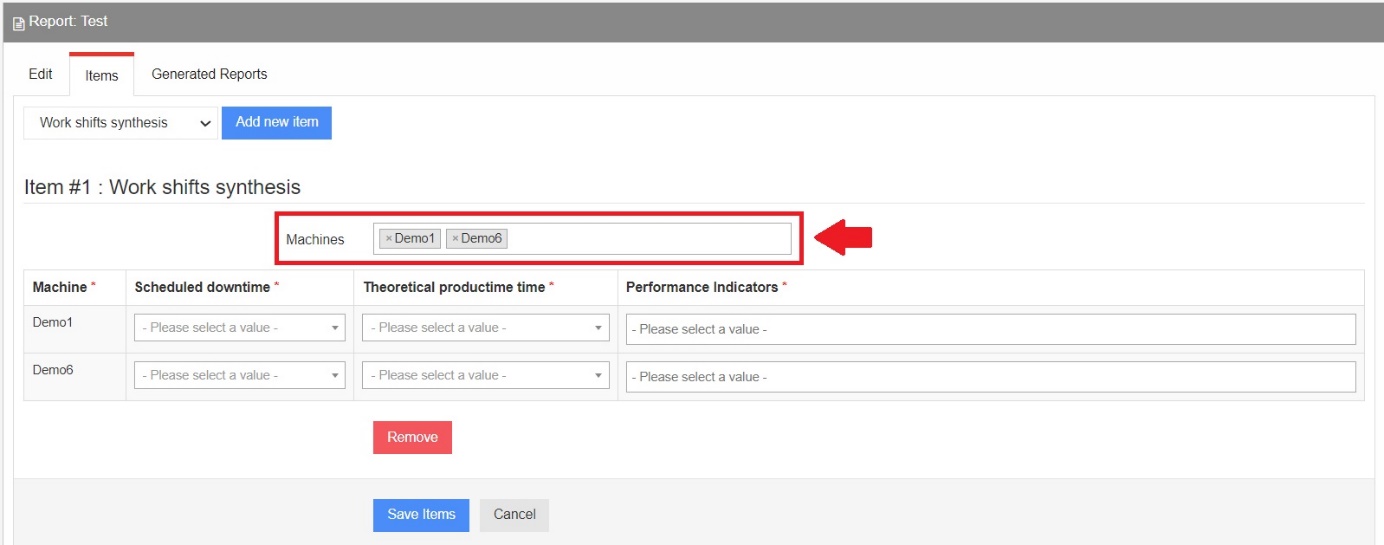
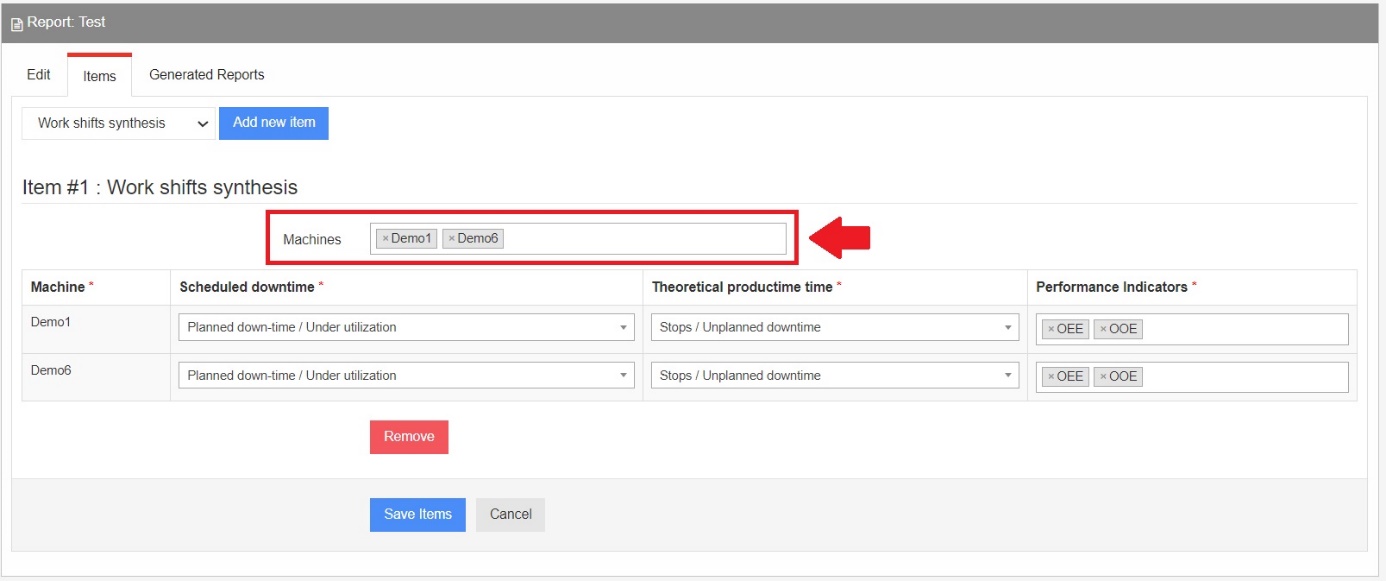
Once the assigned machines have been added, the report is made up of three configurable parts:
- Scheduled downtime: the level 1 selection associated with all the scheduled stops.
- Theoretical productive time: the level 1 selection associated with all the unscheduled stops. This heading can cover breakdowns and other unwanted stops.
- Performance Indicators: the preconfigured performance indicators to add (V1 and V2 indicators).
Remember to click Save Items to save your configuration.