Routings (also called ranges, or products) define the tasks tracked by PaceTrak, their theoretical execution time and their counting mode. To create a routing: PaceTrak tab > Ranges > Add.
1. Creating a single-task routing
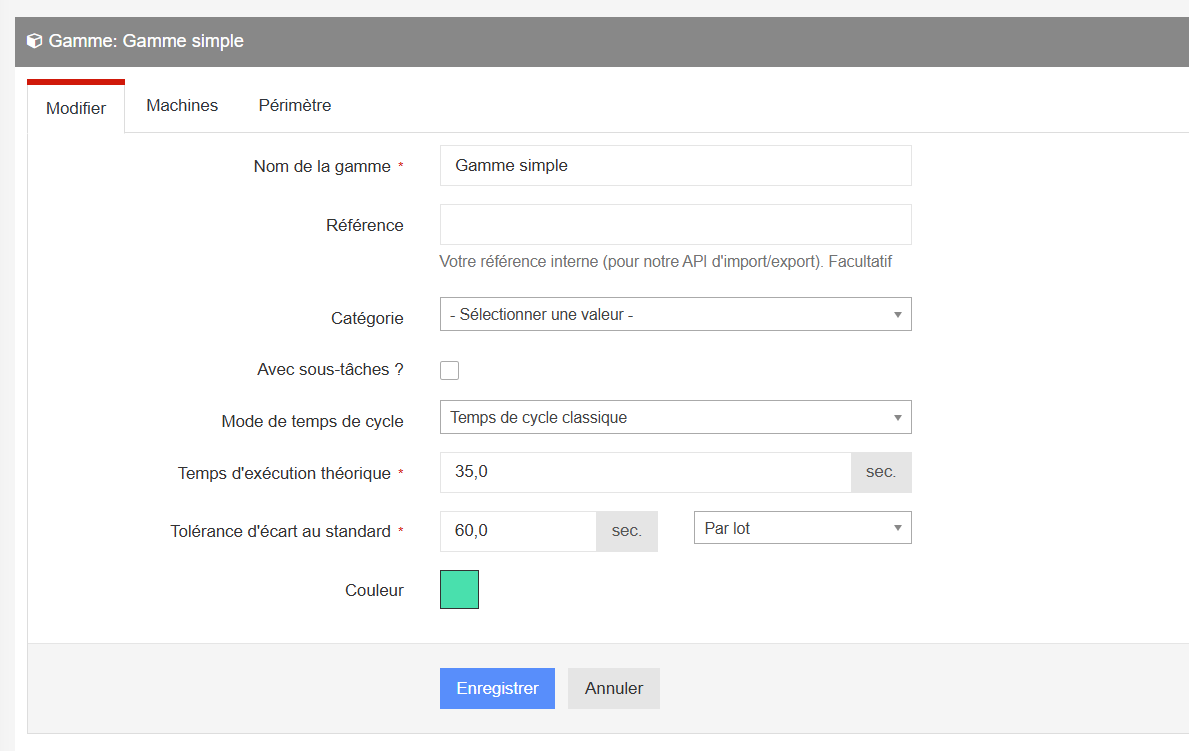
Enter the product name, its category, then:
- the theoretical execution time of the task;
- the standard deviation tolerance: the delta beyond which the operator will have to enter a category 1 loss, and below which the loss will automatically be assigned to category 2. This deviation time can be defined per batch or per piece:
- per batch — at the end of the batch, the actual deviation is compared directly with this value;
- per piece — at the end of the batch, the actual deviation is compared with the deviation time per piece multiplied by the number of pieces in the batch.
Example: with a tolerance of 2 seconds per piece and a batch of 50 pieces, a category 1 loss will have to be entered if the deviation exceeds 100 seconds.
- a colour specific to the routing, if needed.
You are then directed to the perimeter the routing is assigned to (plant, workshop, machine).
2. Creating a routing with subtasks
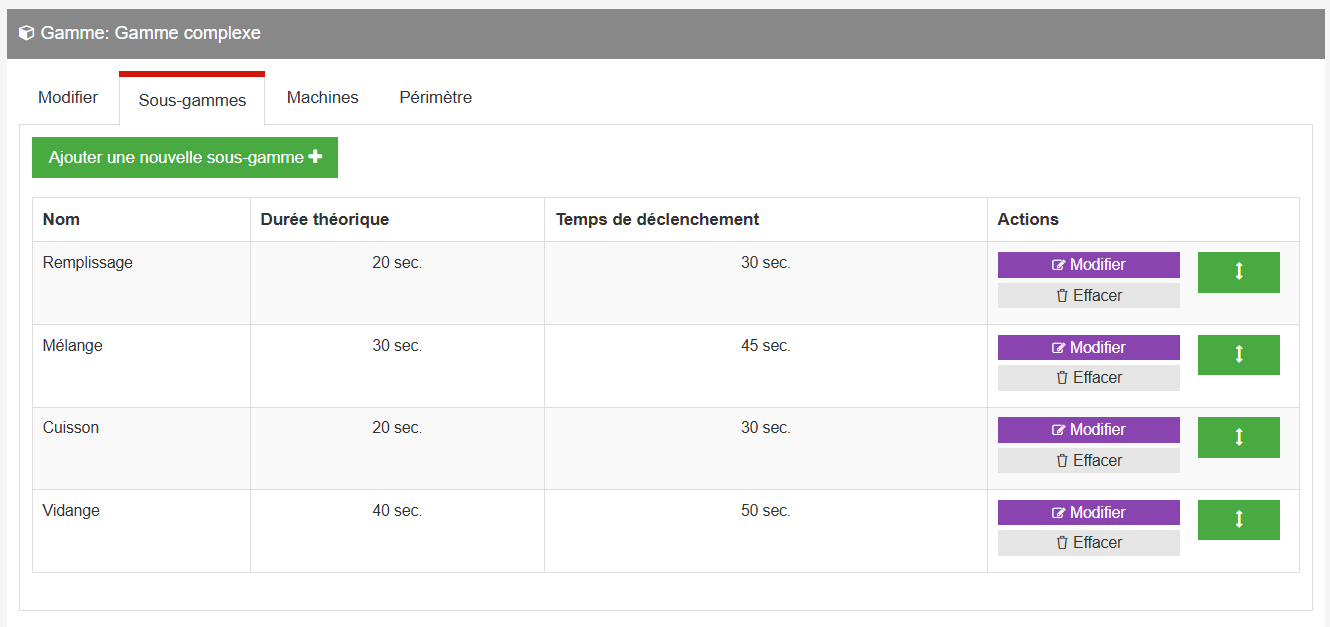
Tick the With subtasks? option: the theoretical cycle time displays 0.0 second and will be calculated automatically (the sum of the theoretical durations of the subtasks). Save your selection first.
In the Subtasks tab > Add a new subtask, fill in, for each of them: its name, its theoretical duration and its trigger time — the time during which the operator does not have to give reasons for being early or late; beyond that, the deviation is automatically assigned to the level 2 losses "over-cadence" (task finished early) or "under-cadence" (task finished late). A Compaction option is available if your routings include this type of operation between tasks (with its own theoretical duration). The green arrows let you reorder the subtasks as they will appear on the tablet.
3. Grouping coefficient and manual quantity entry
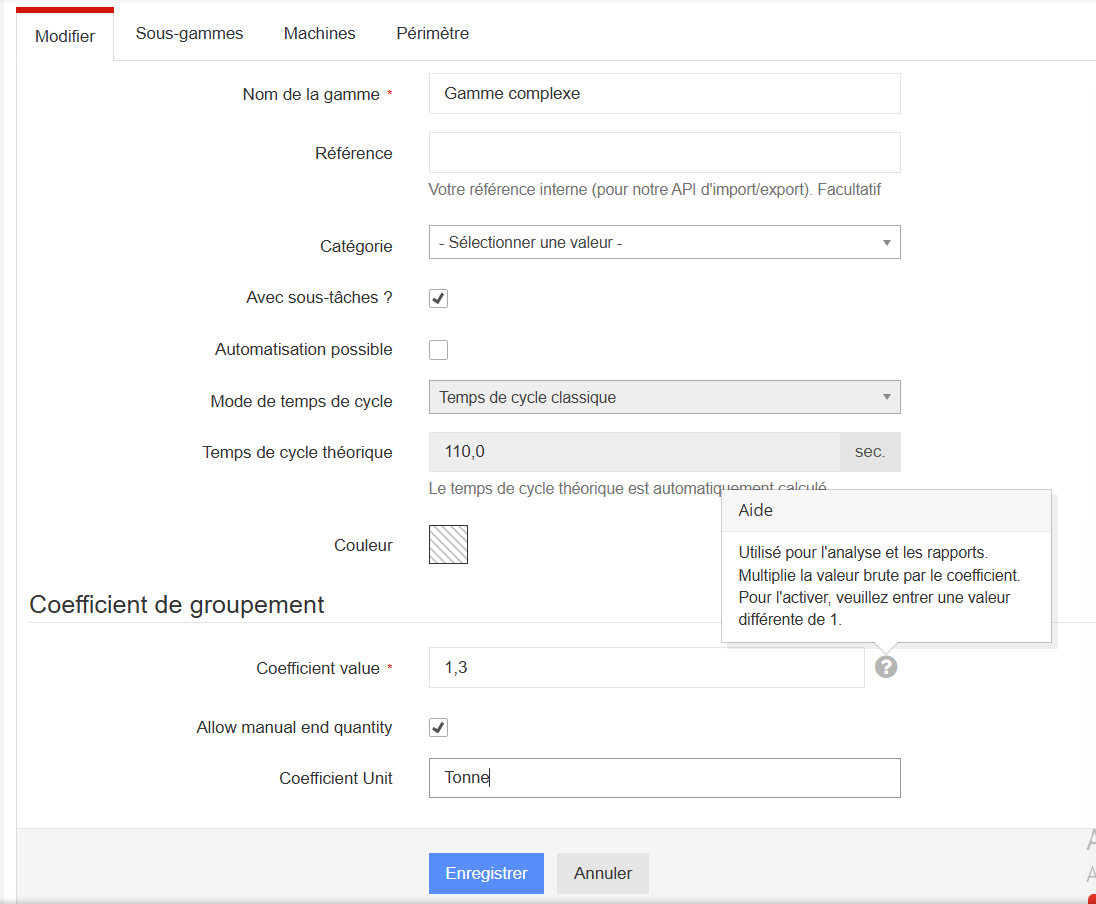
The Grouping coefficient section of the routing's record determines how the quantity produced is calculated:
- Coefficient value: the quantity produced is calculated by multiplying the raw value by this coefficient. Used for analysis and reports; to enable it, enter a value other than 1.
- Allow manual quantity entry at the end of the routing: the operator is prompted to enter the quantity actually produced at the end of the complex routing. When this option is enabled, the grouping coefficient is not used.
- Grouping name: the unit of entry displayed to the operator (litres, pieces, kg, tonnes, etc.).
Only one calculation method per routing: manual entry or coefficient. Only a Manager can change this configuration. See the Entering the quantity at the end of a complex routing article.