Introduction
The light column (also called andon, light tower or stack light) installed on a PerfTrak machine shows the machine's state to the teams on the shop floor, visually and, if needed, with an audible signal.
Its behaviour is configured on the platform, in Administration > Configuration, section PerfTrak > Light columns. For each machine state, you define:
- the colour that lights up: White, Red or Green;
- whether the light blinks;
- whether the buzzer sounds, and whether it can be silenced.
⚠️ The light column is not configured in Licenses & Machines > Machines. Do not confuse it with the Machine Status (On/Off) KPI either: that KPI shows the machine's state on screen, in a dashboard, with its own colour code (green / orange / red).
Use case examples
Alert the operator that a loss must be reported — The "Loss to be reported" state is set to blinking white with buzzer. The operator knows a stop is waiting to be qualified, even when they are away from the tablet.
Make a stop visible from the aisle — The "Machine at a standstill" state is set to steady red. The team leader immediately spots stopped machines across the whole workshop.
Flag a performance drift — "Machine OEE up range" is set to steady green and "Machine OEE down range" to blinking green. The machine is running in both cases, but the blinking shows that performance is dropping before an actual stop occurs.
Manage tasks — "Task in progress" is set to white and "Task exceeded" to blinking red with buzzer. The team knows a task is in progress and is alerted as soon as it exceeds its planned duration (see Tasks).
Prerequisites
- A manager account with the Configuration access right (see Managers).
- A PerfTrak machine equipped with a light column.
Configuring the light column
Step 1 — Open the Configuration page
In the side menu, expand Administration and click Configuration.
Step 2 — Go to the Light columns table
Scroll down to the PerfTrak section, then to the Light columns table, just before the Preferences section.
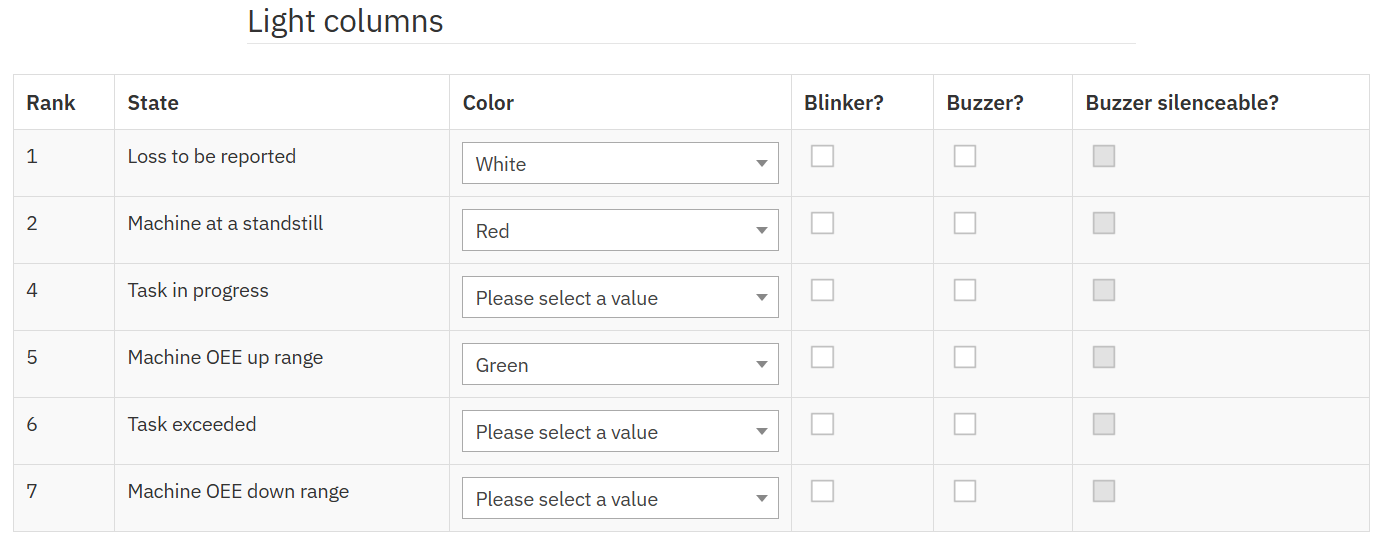
Each row of the table is a machine state that can drive the light column (see Reference: available states).
Step 3 — Choose the colour of each state
In the Color column, select one of the three available colours for each state: red, white, green.
Please select a value is the default, shown as long as no colour has been chosen. In that case the row is not active: the state does not trigger the light column, even when it occurs. To leave a state unused, simply keep this value.
Step 4 — Set blinking and buzzer
For each state, tick the options you want:
| Column | Effect when the state is active |
|---|---|
| Blinker? | The light blinks instead of staying steady |
| Buzzer? | An audible signal sounds |
| Buzzer silenceable? | The audible signal can be turned off before the state ends. This box is only available when Buzzer? is ticked. |
Step 5 — Save
Click Save at the bottom of the page to apply the configuration.
Reference: available states
| Rank | State | Triggered when… |
|---|---|---|
| 1 | Loss to be reported | A stop has exceeded the product's trigger threshold and must be qualified by the operator on the tablet (see Informing a loss) |
| 2 | Machine at a standstill | The machine is stopped |
| 4 | Task in progress | A task is in progress on the machine (see Tasks) |
| 5 | Machine OEE up range | The machine's OEE is above the defined threshold |
| 6 | Task exceeded | The current task has exceeded its planned duration |
| 7 | Machine OEE down range | The machine's OEE is below the defined threshold |
The rank sets the priority between states, rank 1 being the highest priority. If a higher-priority state occurs while another state is already driving the light column, it takes over: the column switches to its colour, blinking and buzzer. Conversely, a lower-priority state occurring afterwards does not change the column. The rank is fixed: it cannot be changed from this table.
Configuration example
| State | Colour | Blinking | Buzzer |
|---|---|---|---|
| Loss to be reported | White | No | No |
| Machine at a standstill | Red | No | No |
| Task in progress | — | — | — |
| Machine OEE up range | Green | No | No |
| Task exceeded | — | — | — |
| Machine OEE down range | — | — | — |
Rows marked "—" were left on Please select a value: they are not active and do not trigger the light column.
Reading it on the shop floor:
- Green: the machine is running above the OEE threshold;
- Red: the machine is stopped;
- White: a stop is waiting to be qualified by the operator.
Edge cases and points of attention
Only three colours — The light column only accepts white, red and green. Orange, yellow and grey are not available: those colours belong to the on-screen Machine Status KPI, not to the light column.
Account-wide setting — The Configuration page applies to all machines in the account: every light column follows the same configuration.
A state does not trigger the light column — Check that its row has a colour. A row left on Please select a value is not active, even if Blinker? or Buzzer? are ticked.
Two states with the same colour — If two states share a colour without blinking, the operator cannot tell them apart. Use blinking or the buzzer to differentiate them.
Buzzer on frequent states — A non-silenceable buzzer on a state that triggers often (for example "Machine at a standstill" on a machine with many micro-stops) can become a noise nuisance in the workshop. Keep the buzzer for states that call for action.
FAQ
Where do I change the light column colours?
In Administration > Configuration, section PerfTrak > Light columns. This setting is not in the machine sheet (Licenses & Machines > Machines).
Can I use orange or yellow?
No. Only three colours are available: white, red and green. Use blinking to create additional variations.
Can I change the priority order of the states?
No. Each state's rank is fixed.
What is the difference with the Machine Status KPI?
The Machine Status KPI is a dashboard display (TV screen, supervision station), configured in the dashboard. The light column is a physical device installed on the machine, configured in Administration > Configuration > Light columns. The two are independent.