Track your production orders directly from your ProcessTrak tablet and find the associated data on the teeptrak.net platform.
About this feature
The Production order (PO) feature lets you associate your ProcessTrak measurements with a given production order. From the tablet, the operator indicates which PO is being manufactured: all the data recorded during that period is then attached to that PO.
On the platform, you can then consult the list of your POs and filter the data visualisation to display only the intervals corresponding to a specific PO.
Enabling the option
This option is enabled at the level of your customer account. Contact your TeepTrak representative to have it enabled.
As long as the option is not enabled, the PO button does not appear on the tablet.
On the tablet
Accessing the list of production orders
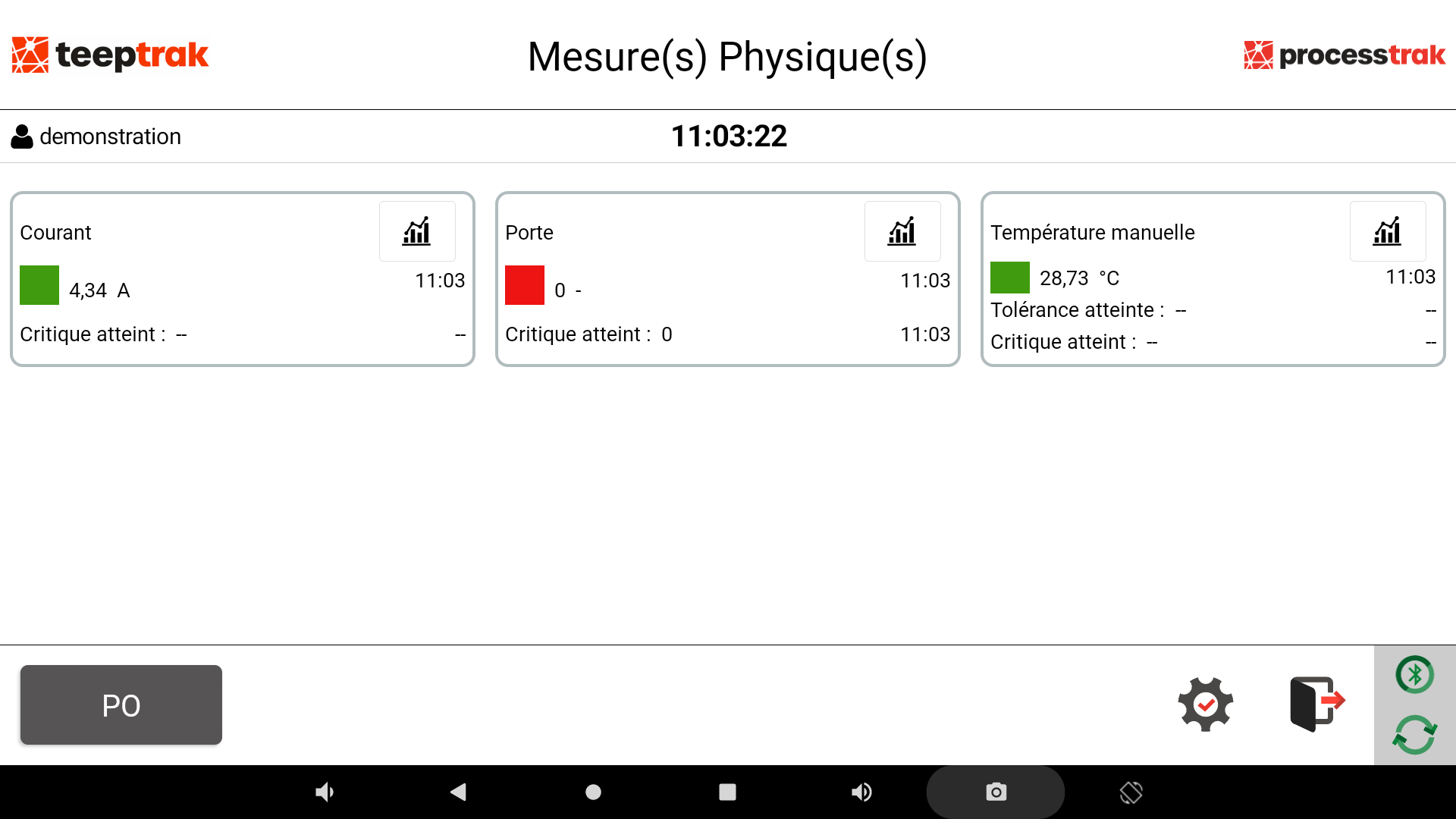
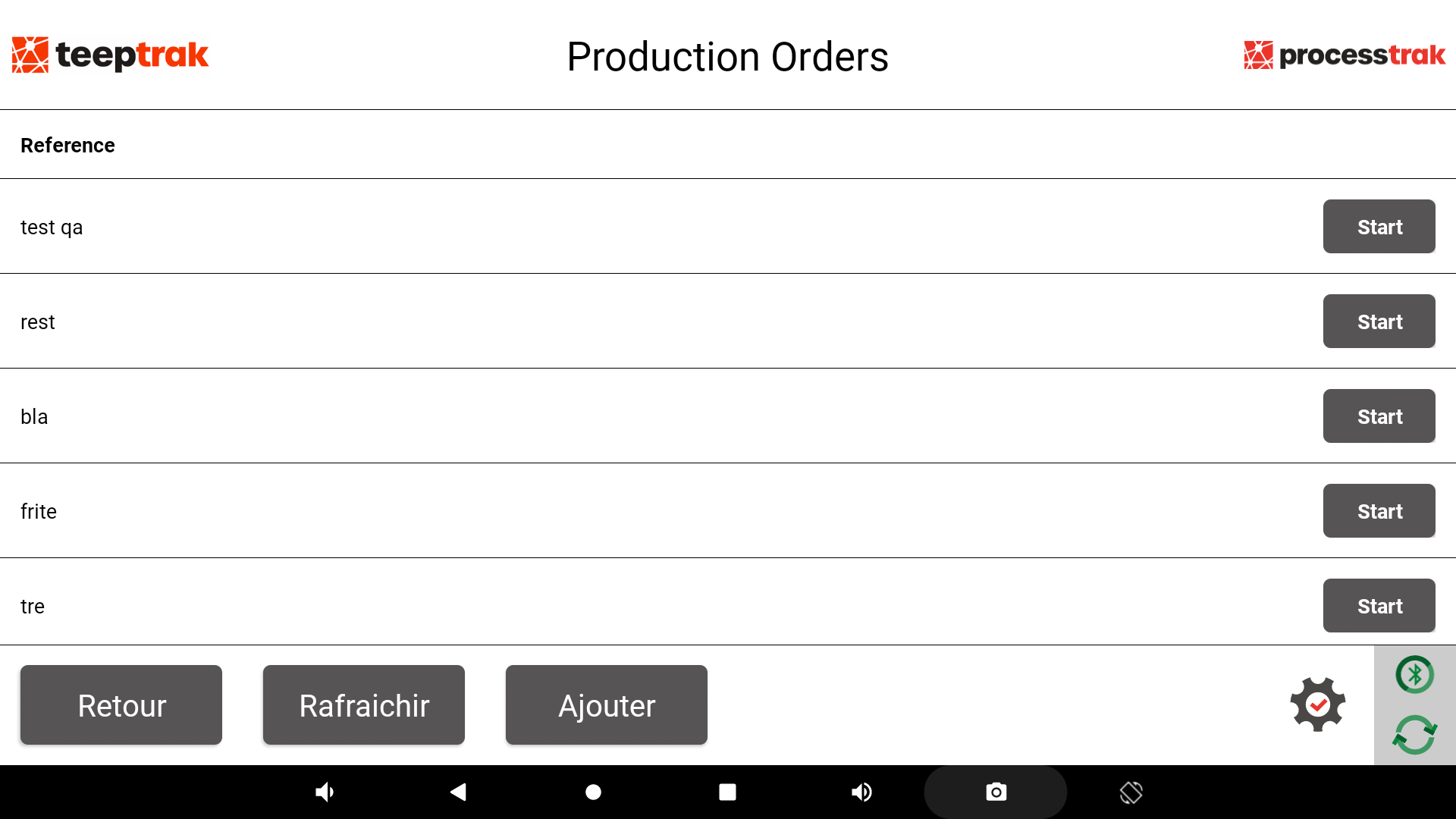
From the home screen of the application, press the PO button. The Production Orders screen opens and displays the list of your production orders, sorted from the most recent to the oldest.
Creating a production order
- From the Production Orders screen, press the Add button.
- A window opens: enter the name of the new production order.
- Validate. The new PO appears in the list.
Starting a production order
Press the Start button next to the PO you want to start. The PO is then marked as in production.
Important points:
- Only one PO can be active at a time. While a PO is running, the screen displays the active PO and no other one can be selected. To change PO, first stop the one in progress.
- Having an active PO is not mandatory: you may perfectly well select none.
Viewing the current production order
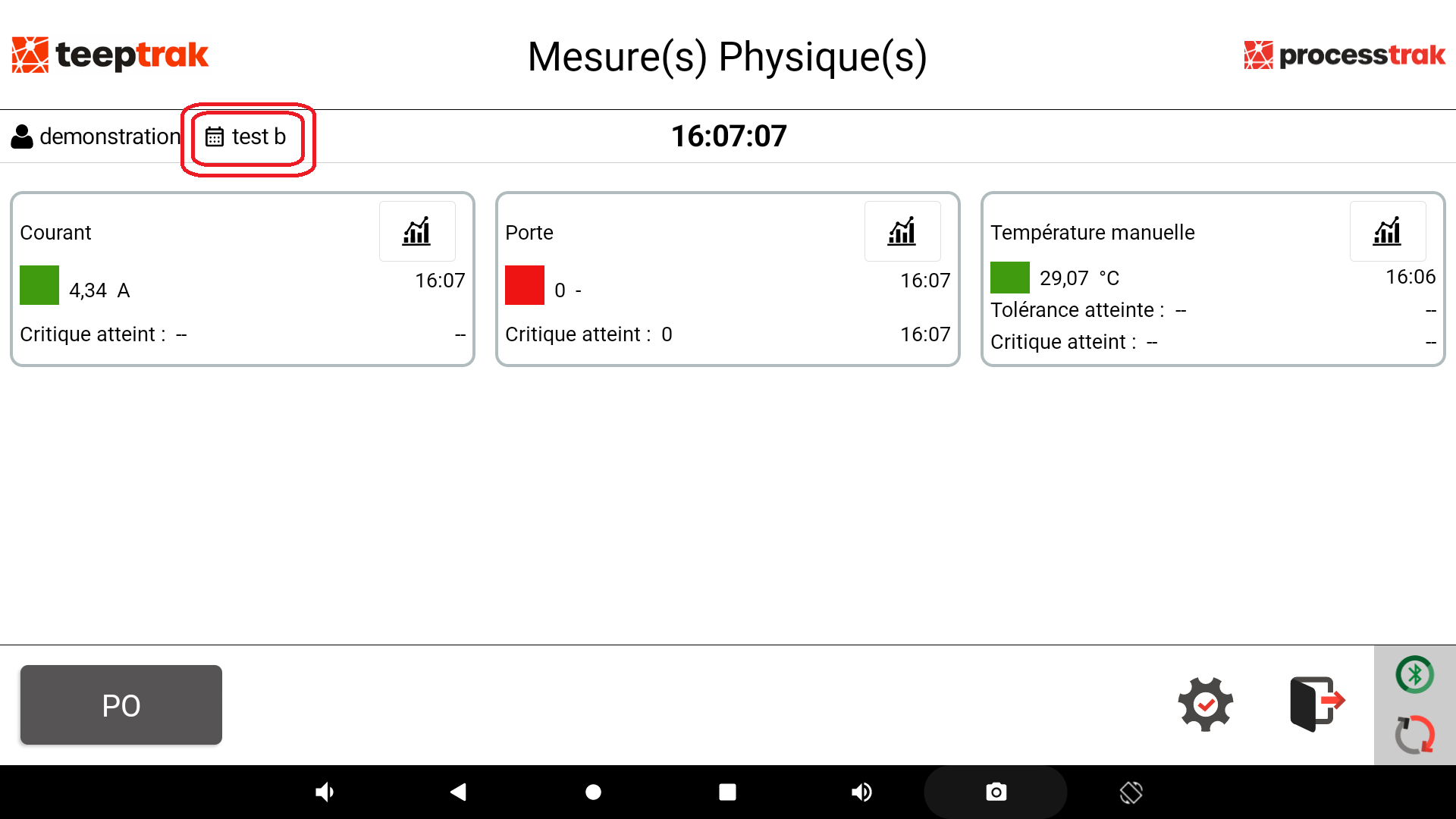
The name of the PO currently in progress is displayed in the top left corner of the tablet home screen. You therefore always know which PO your measurements are attached to.
Stopping a production order
From the Production Orders screen, press the Stop button next to the PO in progress. The PO is then no longer marked as in production.
Synchronisation with the platform
The POs created on the tablet, and their tracking (start, stop), are automatically sent to the TeepTrak platform.
- The Refresh button manually refreshes the list of POs.
- If the synchronisation fails — for instance when there is no network connection — an error banner is displayed at the top of the screen. This does not block use: you can carry on working with the data present on the tablet, and synchronisation resumes as soon as the connection is restored.
Messages and special cases
- "Cannot process the Production Order because your account is not synced. Please reconnect while online." — this message appears when starting a PO if your account has not yet been synchronised with the platform. Log in to the application again while connected to the network, then try again.
- Option disabled while a PO is running — if the option is disabled on the platform side while a PO is in progress, that PO is not marked as finished. It can only be finished once the option is enabled again. The PO button and the display of the current PO are hidden for as long as the option is disabled.
On the platform
Consulting the list of production orders
Go to the ProcessTrak → Production orders menu. There you will find the list of the POs created from the tablet.
Filtering the data visualisation by production order
- Go to ProcessTrak → Data visualisation.
- Select your factory, your workshop and your ProcessTrak device.
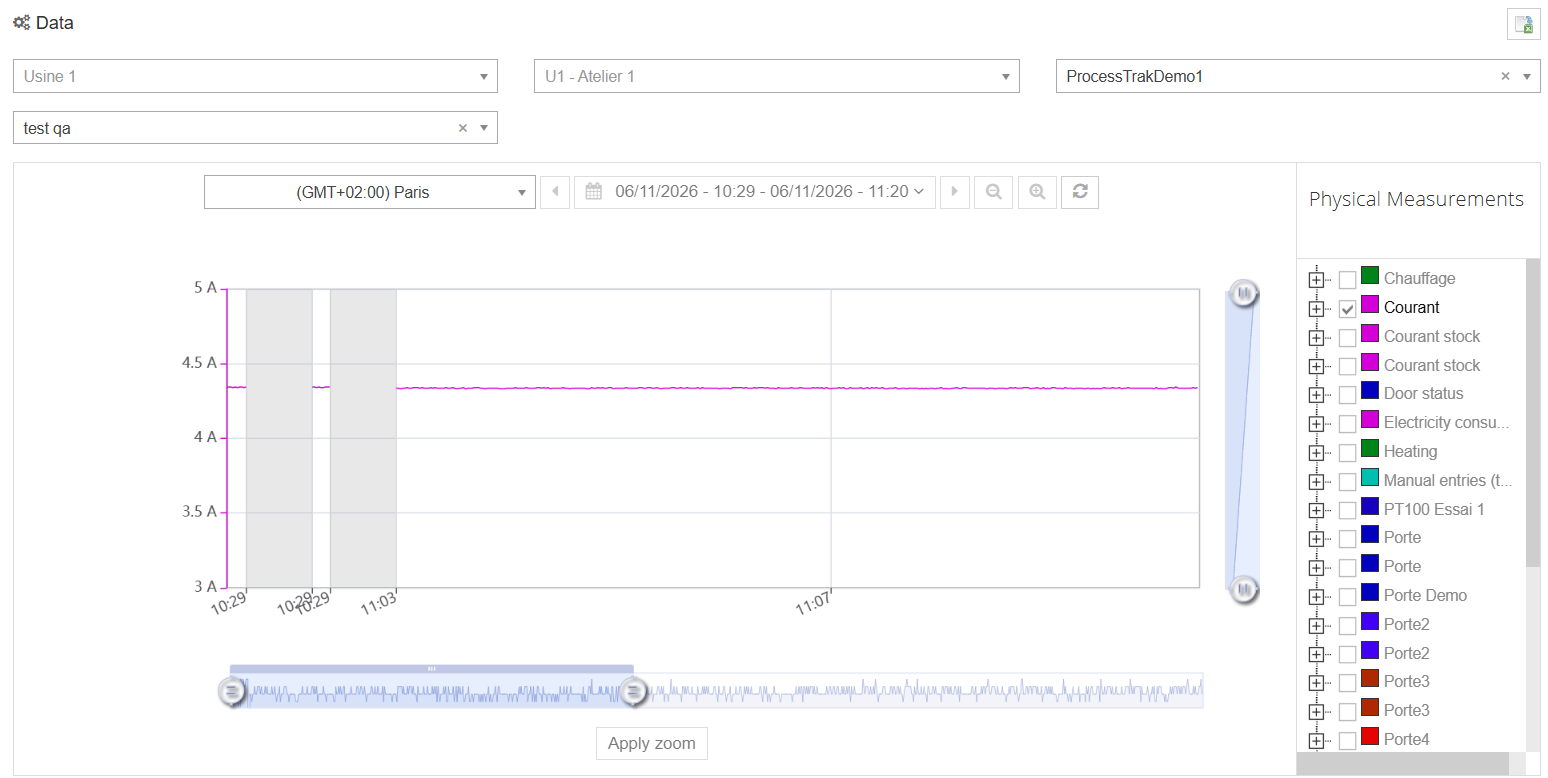
- In the Production order filter, select the PO you want.
- In the Physical measurements list, select the measurement you want to display.
Only the intervals corresponding to the period during which that PO was active are then displayed in the visualisation.